

Who is this for? Users with Administrator and Recruiter roles.
Video walkthrough coming soon. A short video of the follow-up call from the recruiter’s side will appear here.
At a Glance
Turning On the Follow-Up Call
1
Open the take-home round
Go to the job’s Workflow tab and click your take-home round to open its settings.
2
Switch on Enable follow-up call
Scroll down to the Enable follow-up call card and turn it on.
3
Save
Click Save Changes.
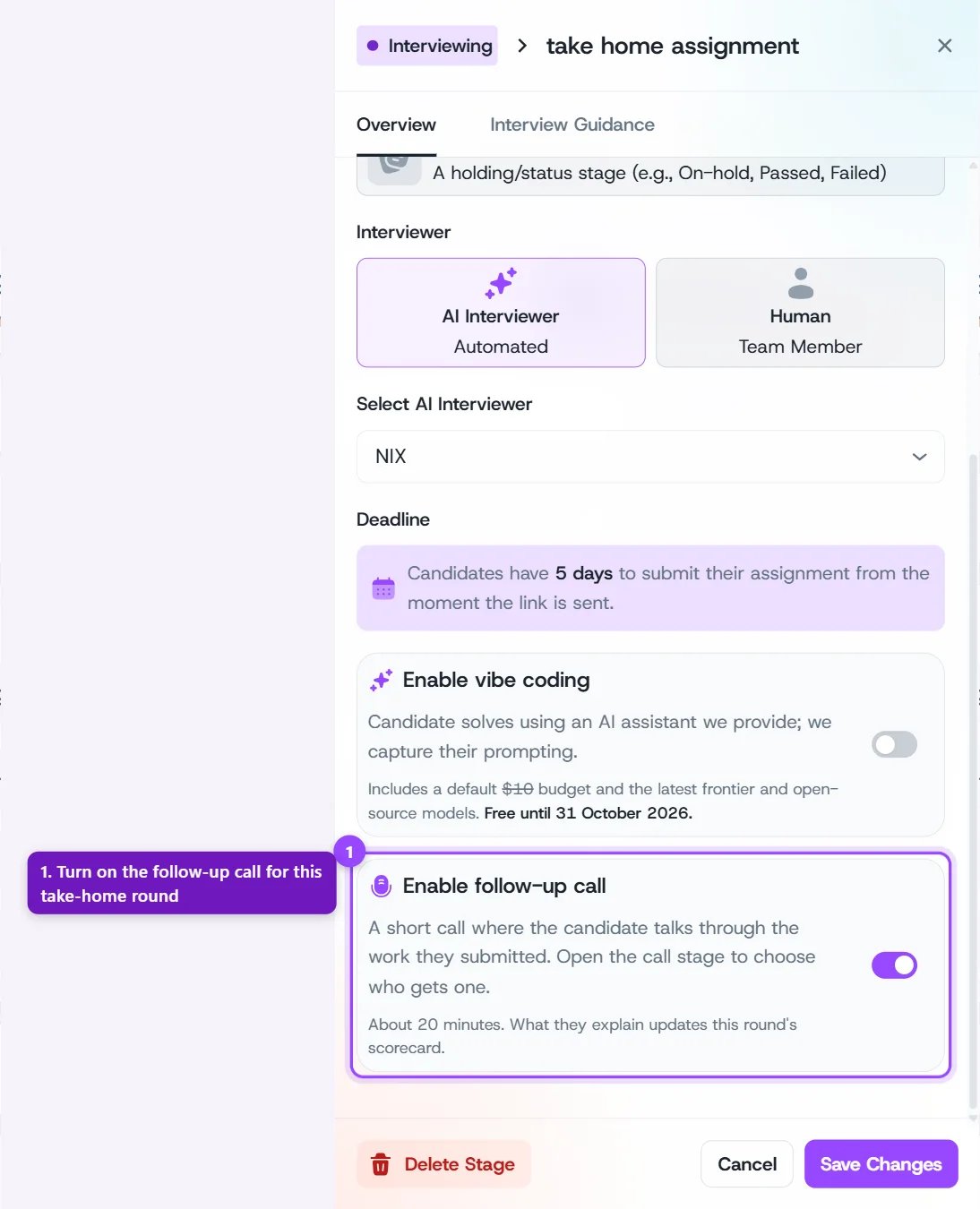
The Enable follow-up call card in the take-home round's settings
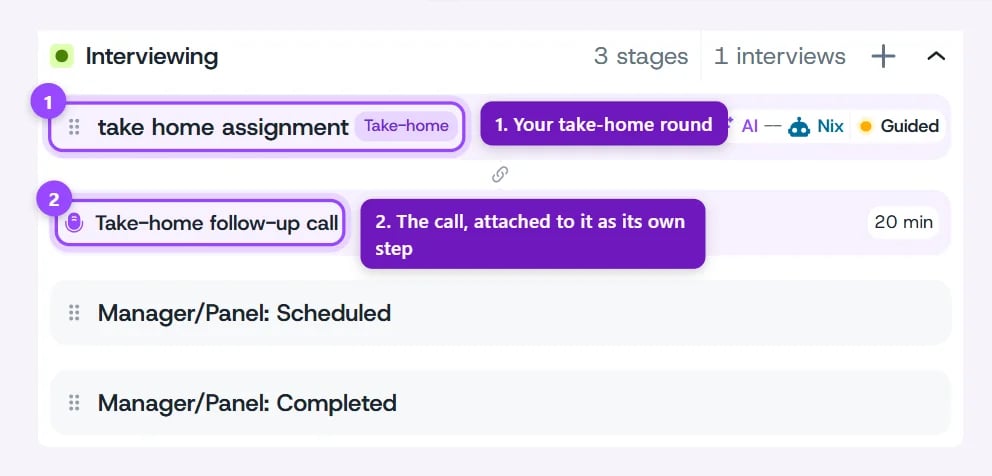
The follow-up call sits under the take-home round it belongs to
Choosing Who Gets a Call
Click the Take-home follow-up call step to open its settings. Under Who gets a call, pick one of two options: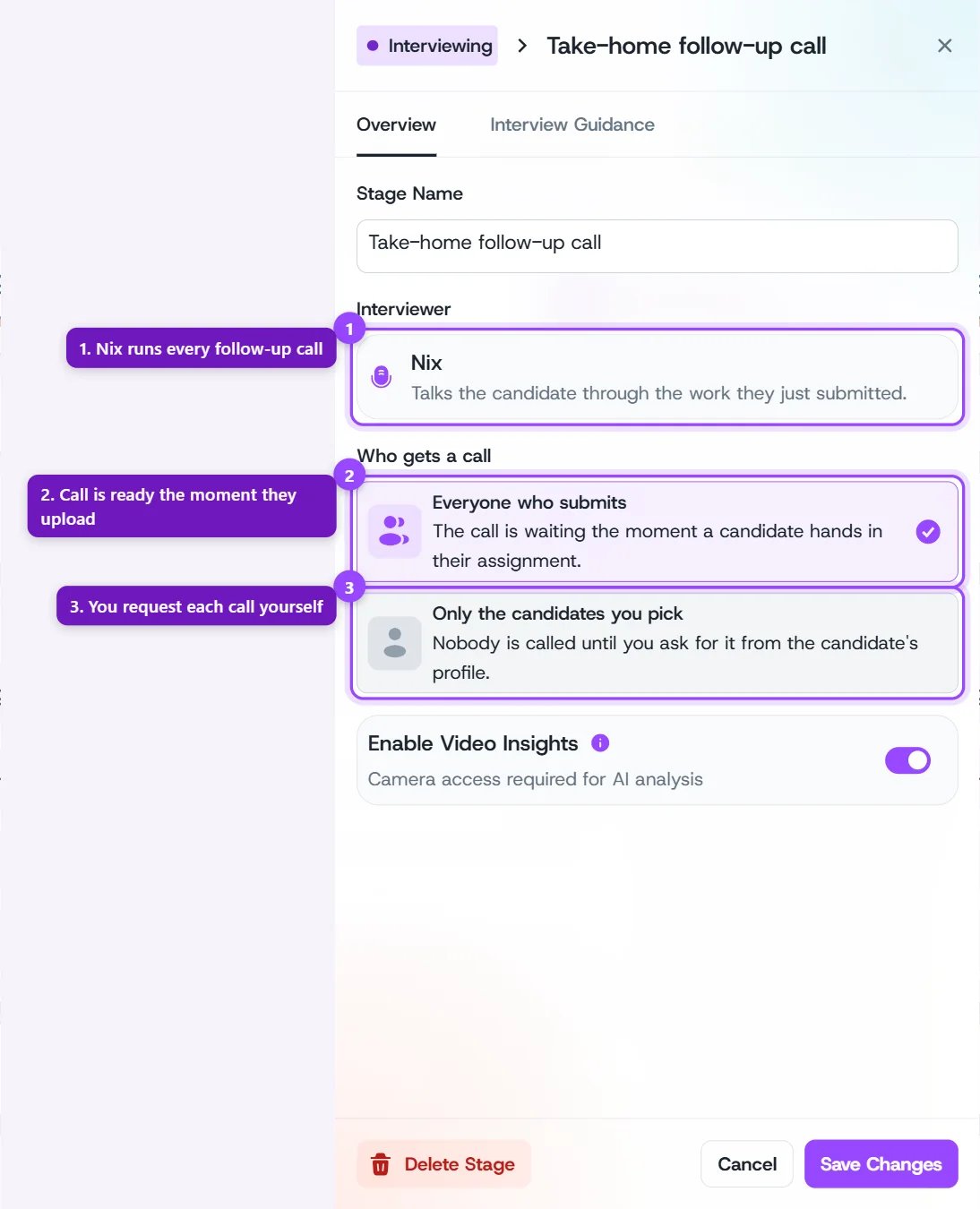
The follow-up call's settings: the interviewer and who gets a call
Steering What the Call Covers
The call works out of the box: Nix reads the assignment, the files the candidate submitted, and their take-home scorecard, and picks the parts worth talking through. If you want it to dig into something specific, open the call step’s Interview Guidance tab and switch to Guided. Whatever you write under Focus Areas & Context becomes Nix’s brief for the call.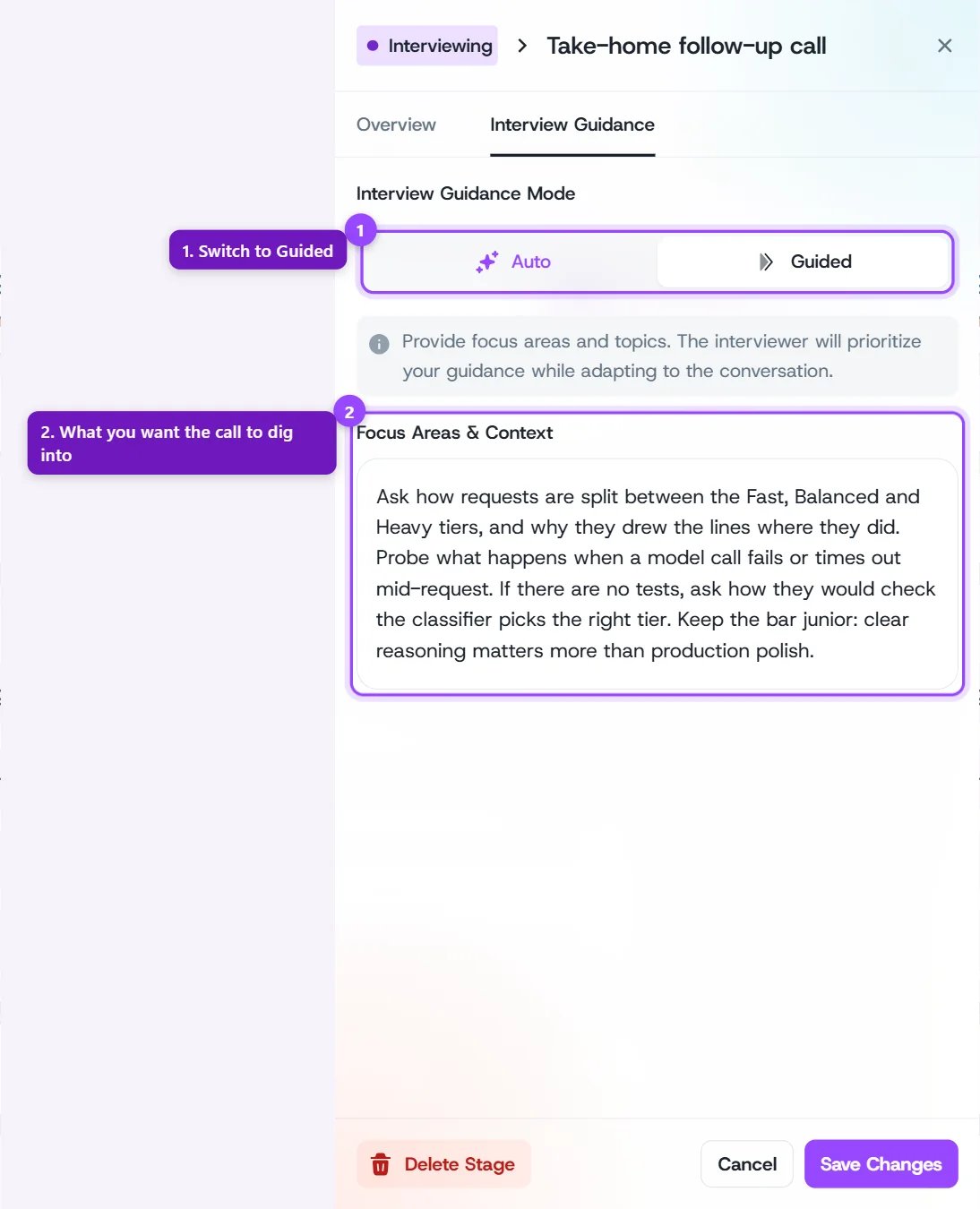
Guided mode on the follow-up call, with your own focus areas
- The design decision or trade-off you most want the candidate to defend
- Parts of the brief that were easy to skip, to check whether they skipped them on purpose
- How deep to go technically for this role’s seniority
Requesting a Call
With Only the candidates you pick, you start each call yourself. You can also use this to give a candidate another chance if they missed or skipped their call.1
Select the candidate
Open the candidate’s profile, or tick one or more candidates on the job’s candidate list or Kanban board. Pick them one by one: a whole-stage “select all” can’t be used to request calls.
2
Open Interview Invite
Open the Interview Invite menu. Under your take-home round, choose [round name] - follow-up call.
3
Confirm
In the Request follow-up call dialog, click Request call. Choose Move & request call instead to also move the candidate into the follow-up call step.
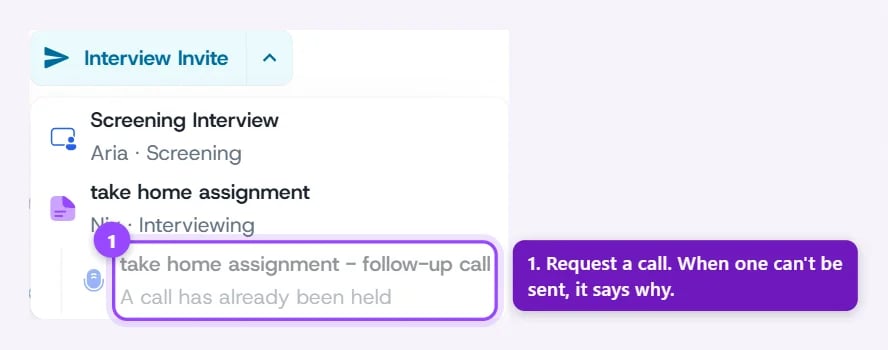
Requesting a follow-up call from the Interview Invite menu
Timing
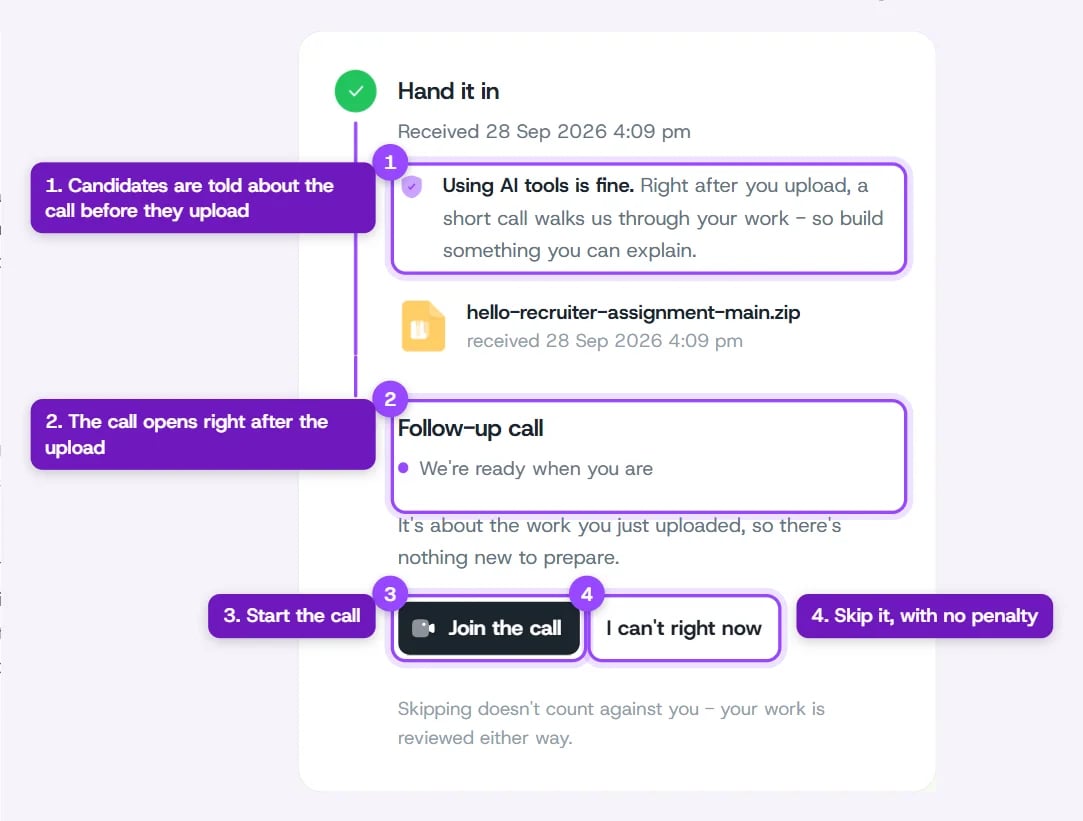
What the candidate sees right after uploading, when every submission gets a call
Reviewing the Call
Open the candidate’s profile, go to the Evaluation tab, pick the take-home round from the dropdown, and switch to Interview. Below the submission is a Follow-up call section with:- Recording and Transcript buttons for the full call
- Question-by-Question Analysis: each question Nix asked, with a timestamp, the candidate’s answer, and AI insights
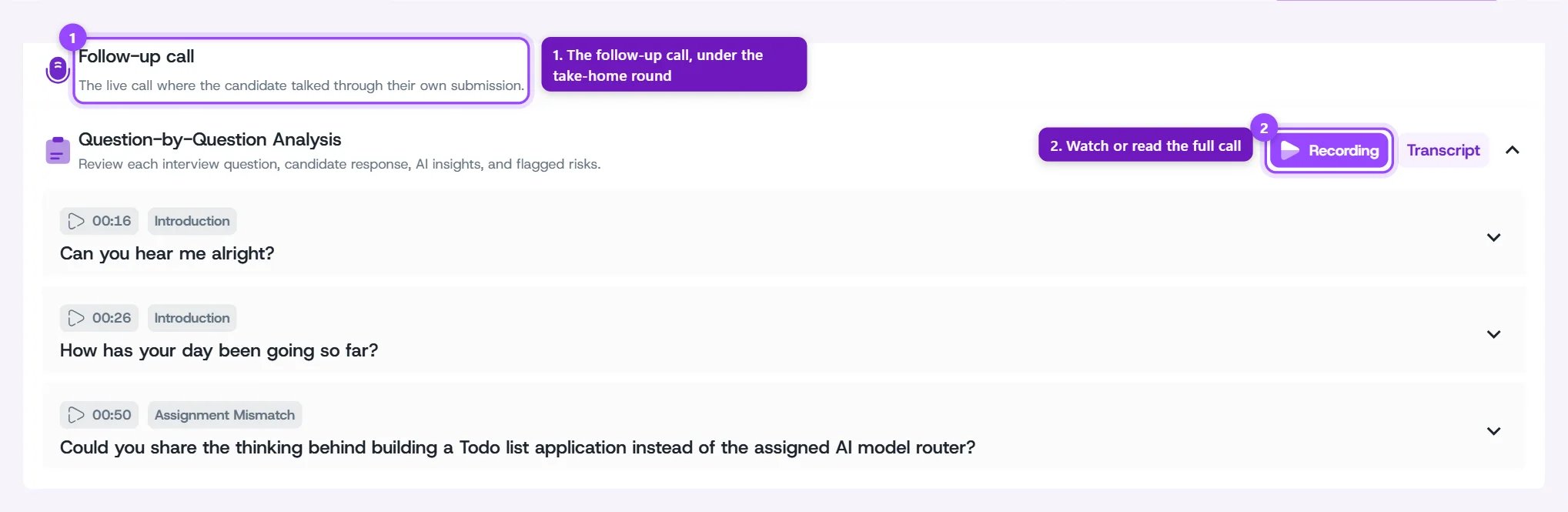
The follow-up call on the candidate's take-home evaluation
Fair to Every Candidate
- Skipping or missing the call never counts against a candidate. Their submission is reviewed either way and keeps the score it earned.
- The call never rejects anyone on its own. It adds evidence to the scorecard; the hiring decision stays with you.
- Candidates know in advance. With Everyone who submits, the assignment page tells them before they upload that a short call follows. With Only the candidates you pick, it tells them a call may be requested.
- Gaming the call ends it. If a candidate keeps trying to manipulate the interviewer, is abusive, or submitted files with hidden text written to trick the AI, the call ends early. One curious question doesn’t trigger this — only repeated attempts do.
The follow-up call works for any kind of take-home, not only code. Documents, slide decks, images, and data files are all opened on the call the same way source files are.