

Who is this for? Users with Administrator and Recruiter roles.
Video walkthrough coming soon. A short video of building and publishing an application form will appear here.
How Forms Fit Together
- Form templates live in your organization settings. They’re reusable question sets.
- One template is the default for new jobs. Every new job starts with a copy of it.
- Each job then has a form of its own. You edit it on the job’s Forms tab. Editing a template, or changing which one is the default, never changes a job that already has its copy.
Form Templates
Go to Settings → Form Templates. The template marked Default for new jobs is the one every new job starts from.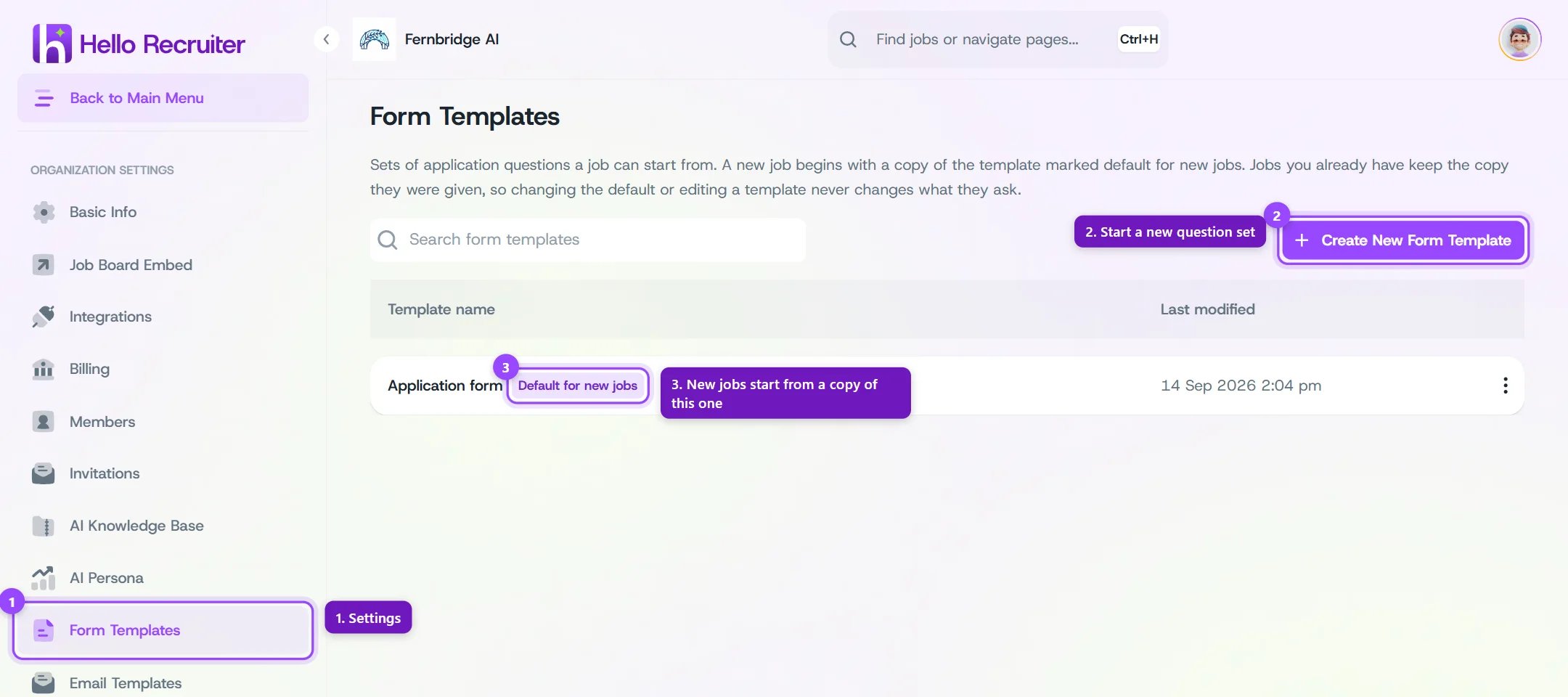
Your organization's form templates
- Click Create New Form Template to start a new question set.
- Use a template’s ⋮ menu to Edit questions, Rename, Make default for new jobs, or Delete it.
Editing a Job’s Form
Open the job and go to its Forms tab. The form in the middle is exactly what candidates see. The panel on the right holds every question you can add.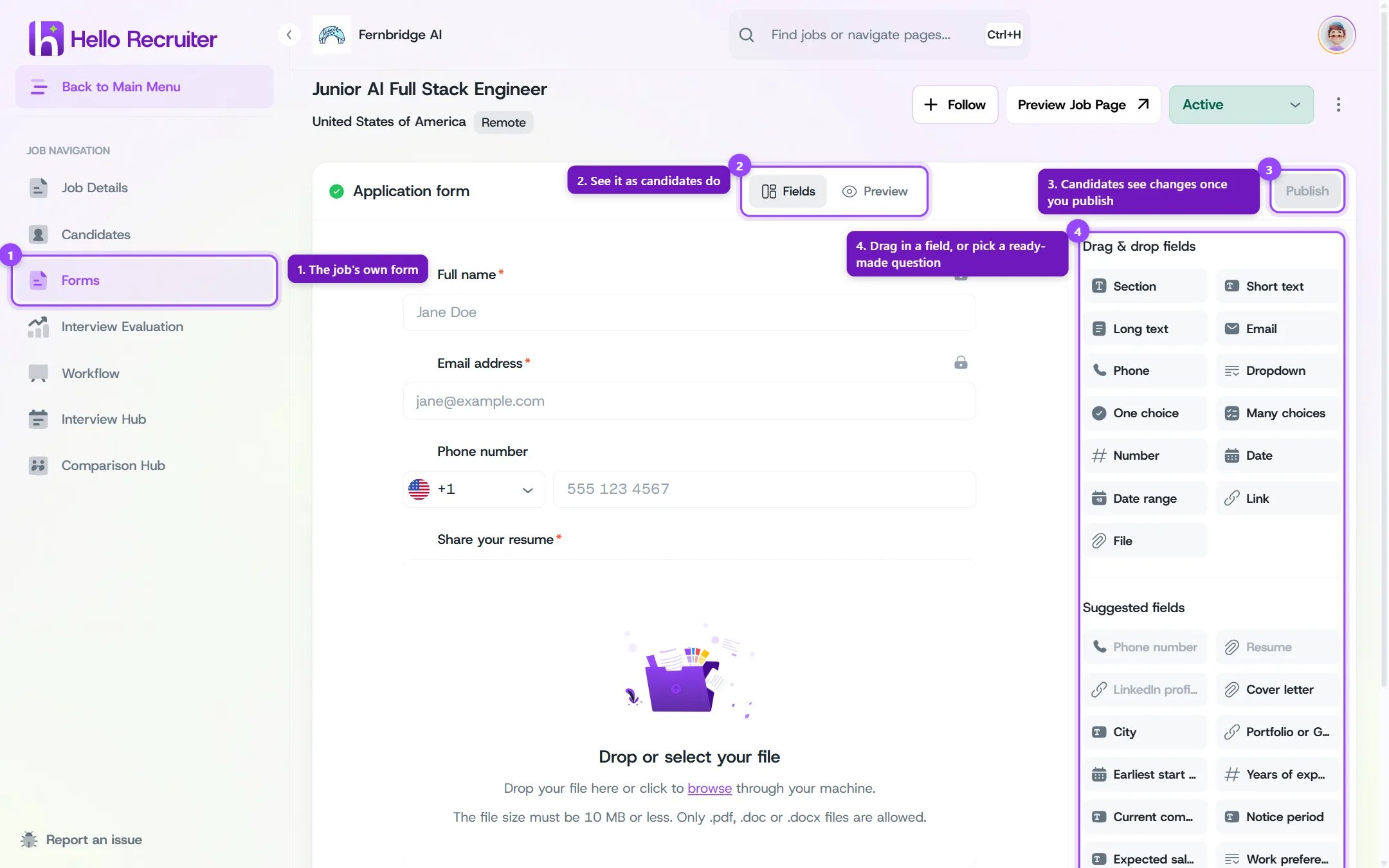
The form builder on a job's Forms tab
1
Add questions
Drag a field from Drag & drop fields onto the form, or click it to add it. Suggested fields are common questions that are already written for you.
2
Edit a question
Hover over a question and click the pencil to change its label, make it required, or open More options. Drag the handle on the left to reorder.
3
Check it
Switch from Fields to Preview to see the form as a candidate will.
4
Publish
Click Publish. Candidates only see your changes once you do.
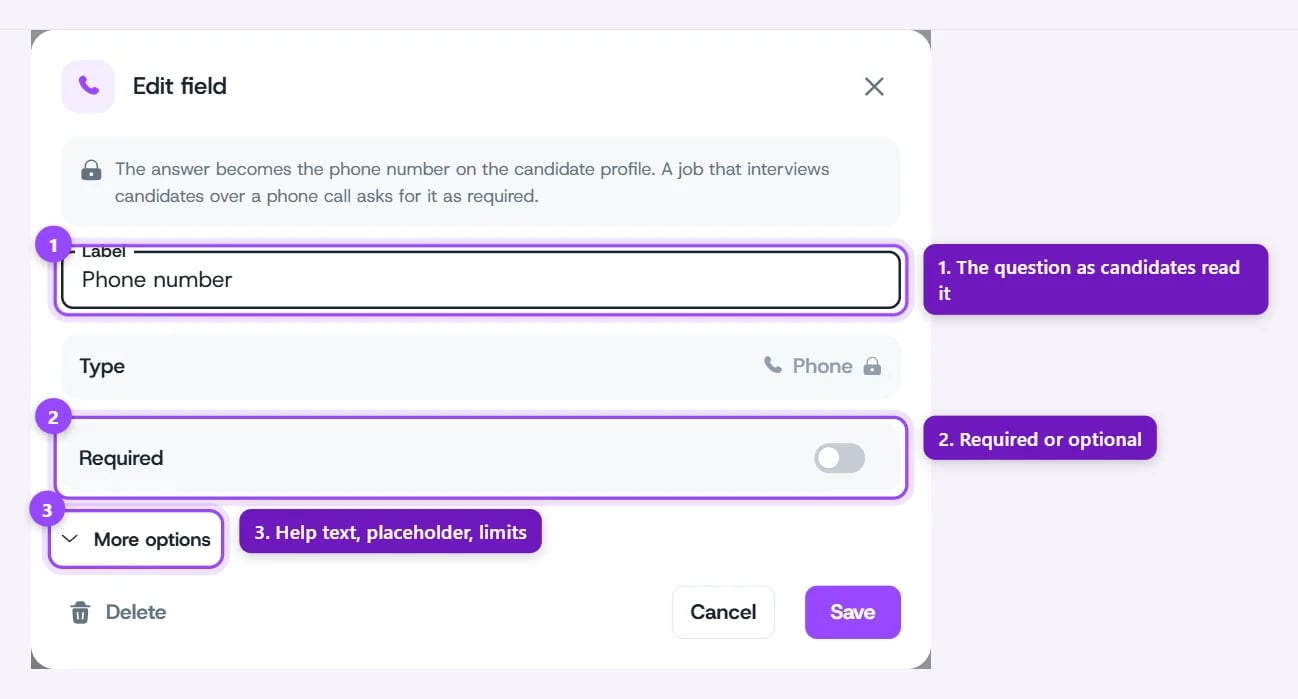
Editing a question
Field Types
A form can ask up to 50 questions.
Suggested fields include cover letter, city, portfolio or GitHub, earliest start date, years of experience, current company, notice period, expected salary, work preference (remote, hybrid, onsite), willingness to relocate, how they heard about you, and gender.
Questions Every Form Asks
A few questions feed the candidate’s profile, so they behave a little differently:Drafts, Publishing, and Past Applications
Your edits save automatically as a Draft. Saved isn’t the same as published: candidates keep seeing the version you last published until you click Publish, and the form then shows as Live.- Applications already sent keep the questions they were asked. Publishing a new version never rewrites an earlier candidate’s answers.
- Once candidates have answered a question, its type is settled. To ask something different, delete it and add a new question.
- Start from a template (in the builder’s ⋮ menu) replaces this job’s questions with a copy of a template. The copy arrives as a draft, so nothing changes for candidates until you publish.
- Discard changes throws away your unpublished edits and goes back to the questions candidates are already being asked.
Filtering Candidates by Their Answers
On the job’s candidate list, click Filters, then Add more filters. Every question from your form is listed under Application Form.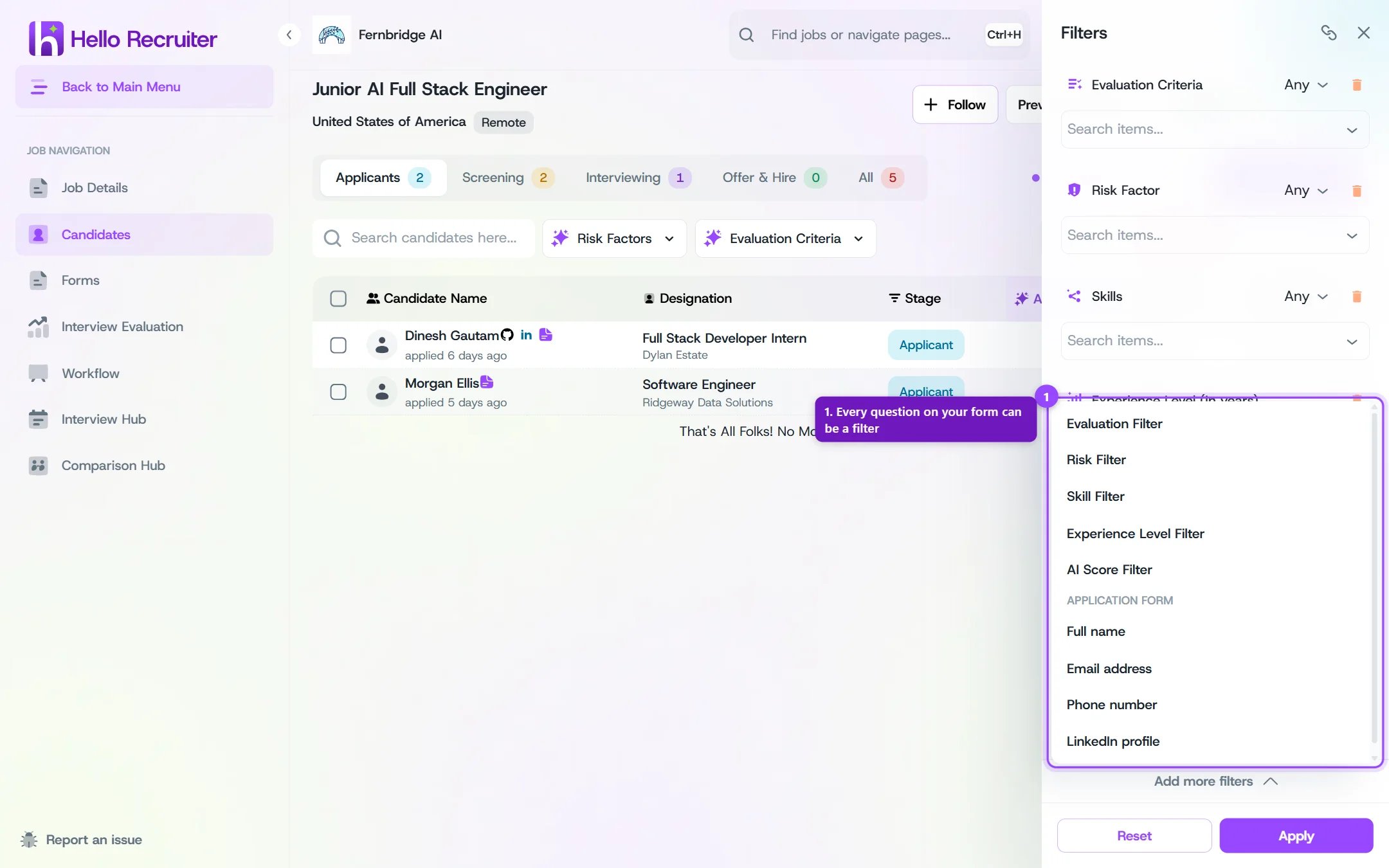
Adding a filter on an application form question
Section and File questions can’t be filtered on. A question you’ve since removed from the form is still listed, marked No longer asked, so you can filter older applications by it.
Seeing a Candidate’s Answers
Open the candidate’s profile and go to the Profile tab. Application answers lists every question in the order it was asked, worded exactly as the candidate saw it. Uploaded files open right there. Questions they skipped show as Not answered.What Candidates See
Candidates see your questions in your order, with required ones marked, followed by the consent checkboxes and Submit Application.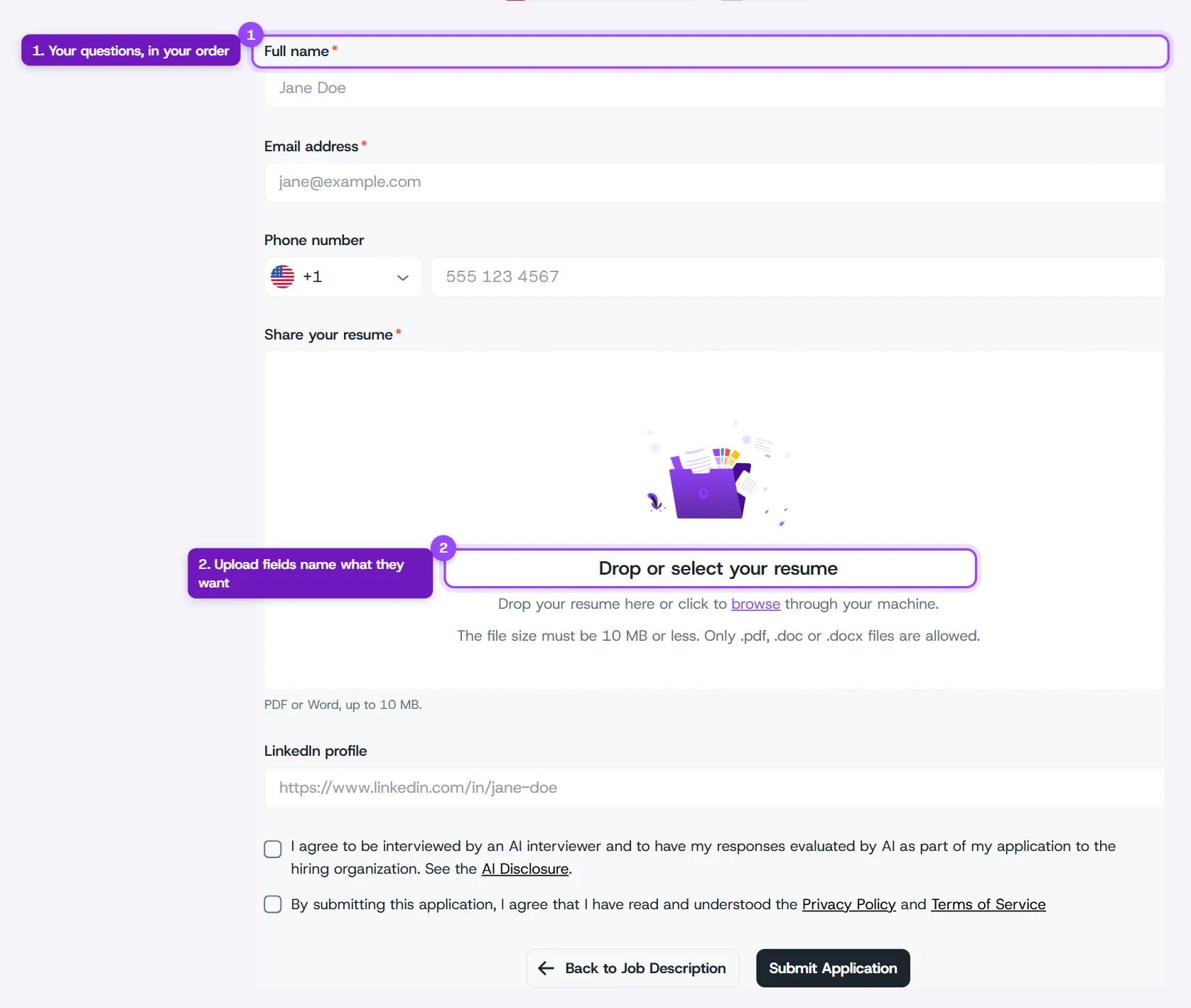
Your form on the job's public application page