Who is this for? Users with the Organisation Administrator, Recruiter, and Hiring Manager roles.
Hello Recruiter evaluates every candidate against your job’s evaluation criteria — first from their resume, then again after each interview round. You read the results on the candidate’s profile.

Role Match

The Role Match gauge in the profile header is the candidate’s overall fit for the job, as a percentage. The same score appears as the AI Score in candidate lists.
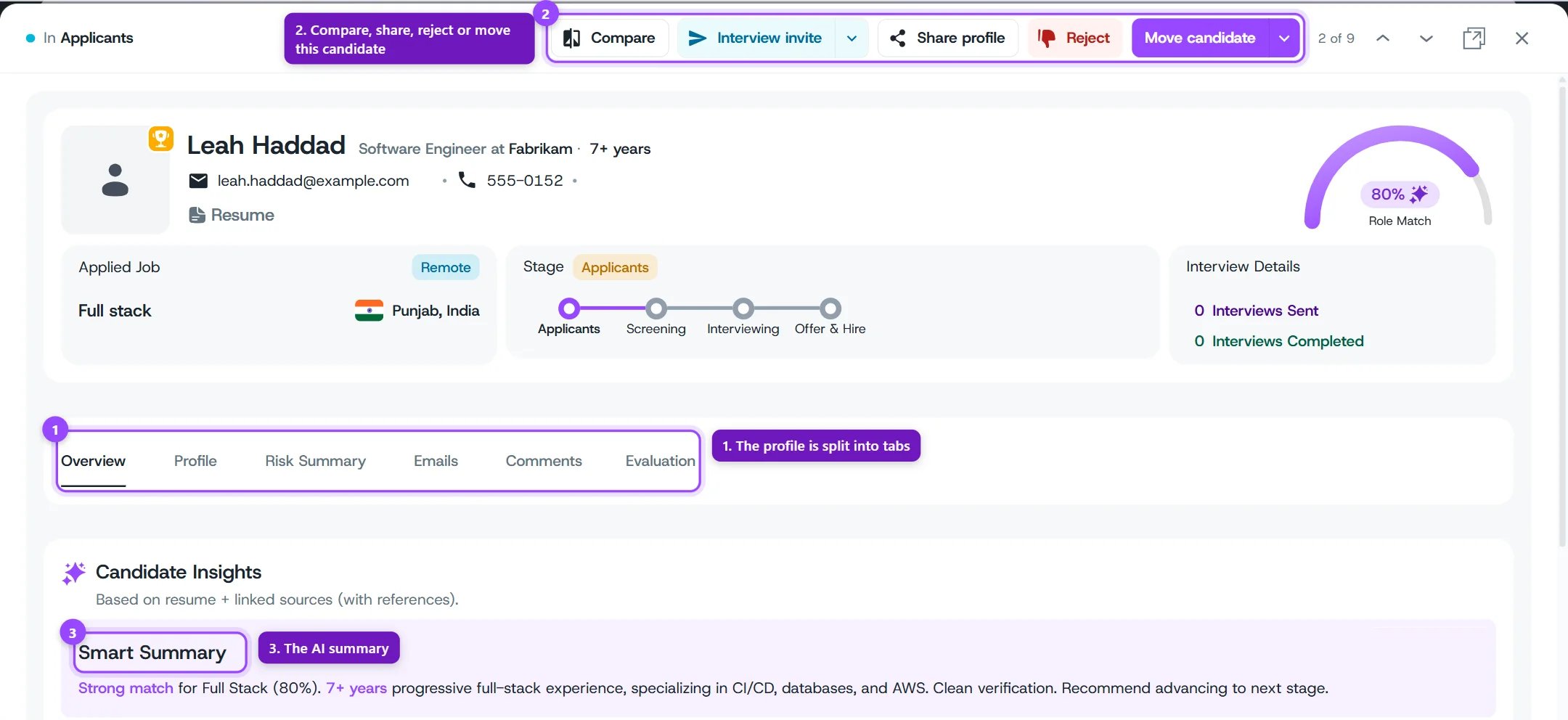
Candidate profile with numbered labels: 1 action buttons, 2 next and previous, 3 Role Match, 4 pipeline stage, 5 tabs, 6 Smart Summary

A candidate profile

Overview Tab — Candidate Insights

The Overview tab brings together everything the AI found, based on the resume and linked sources, with references.
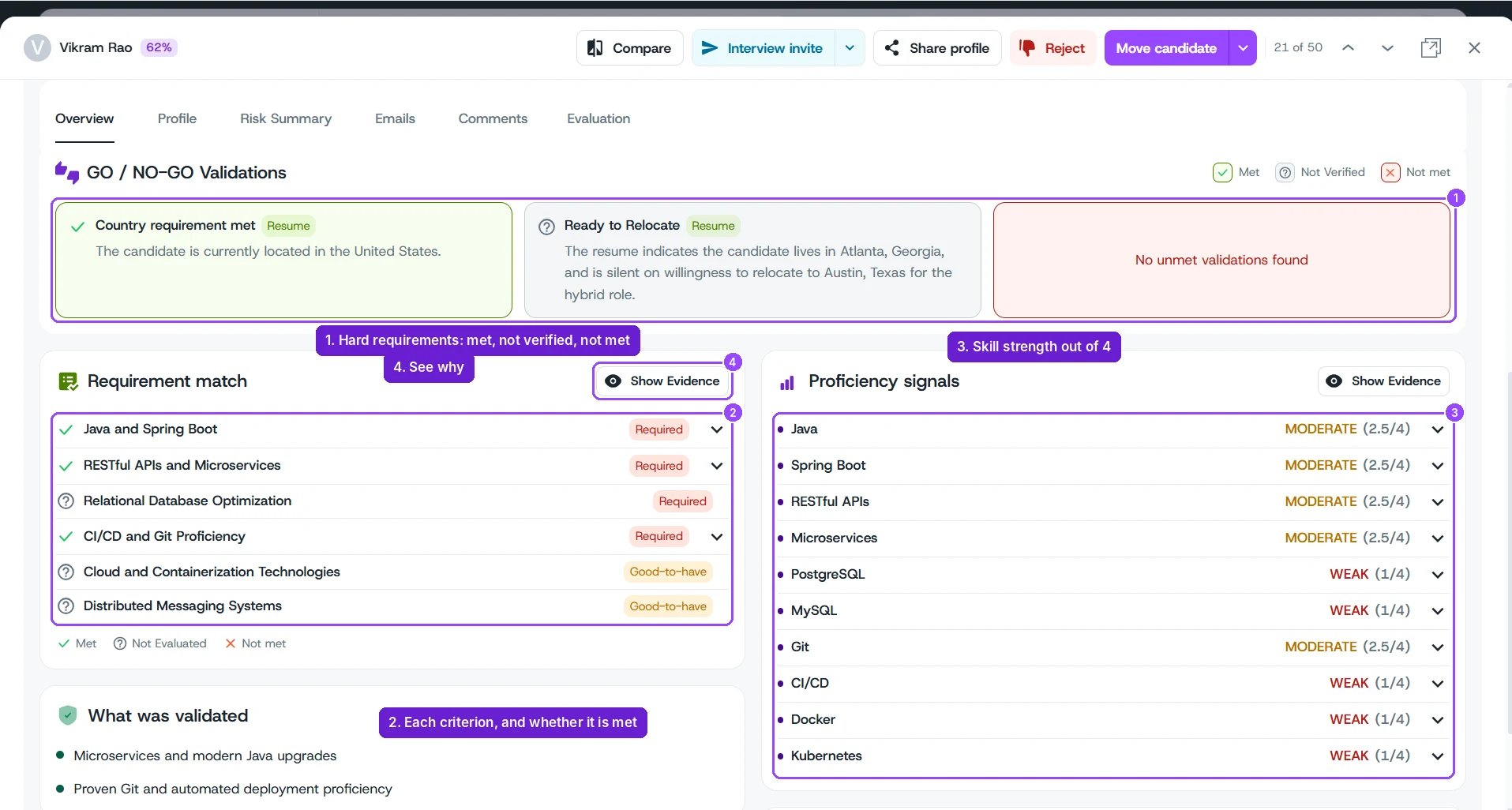
Overview tab with numbered labels: 1 go and no-go validations, 2 requirement match, 3 proficiency signals, 4 Show Evidence

GO / NO-GO Validations, Requirement match, and Proficiency signals

Seeing Which Round Said What

Every row in Requirement match and Proficiency signals opens to a timeline. The timeline lists each round, and each attempt at a round, that looked at that requirement or skill. The oldest is at the top and the newest at the bottom. So you can see when a verdict changed, and which round changed it. Click a row to open it, or click Show Evidence at the top of the card to open every row. Hide Evidence closes them again.
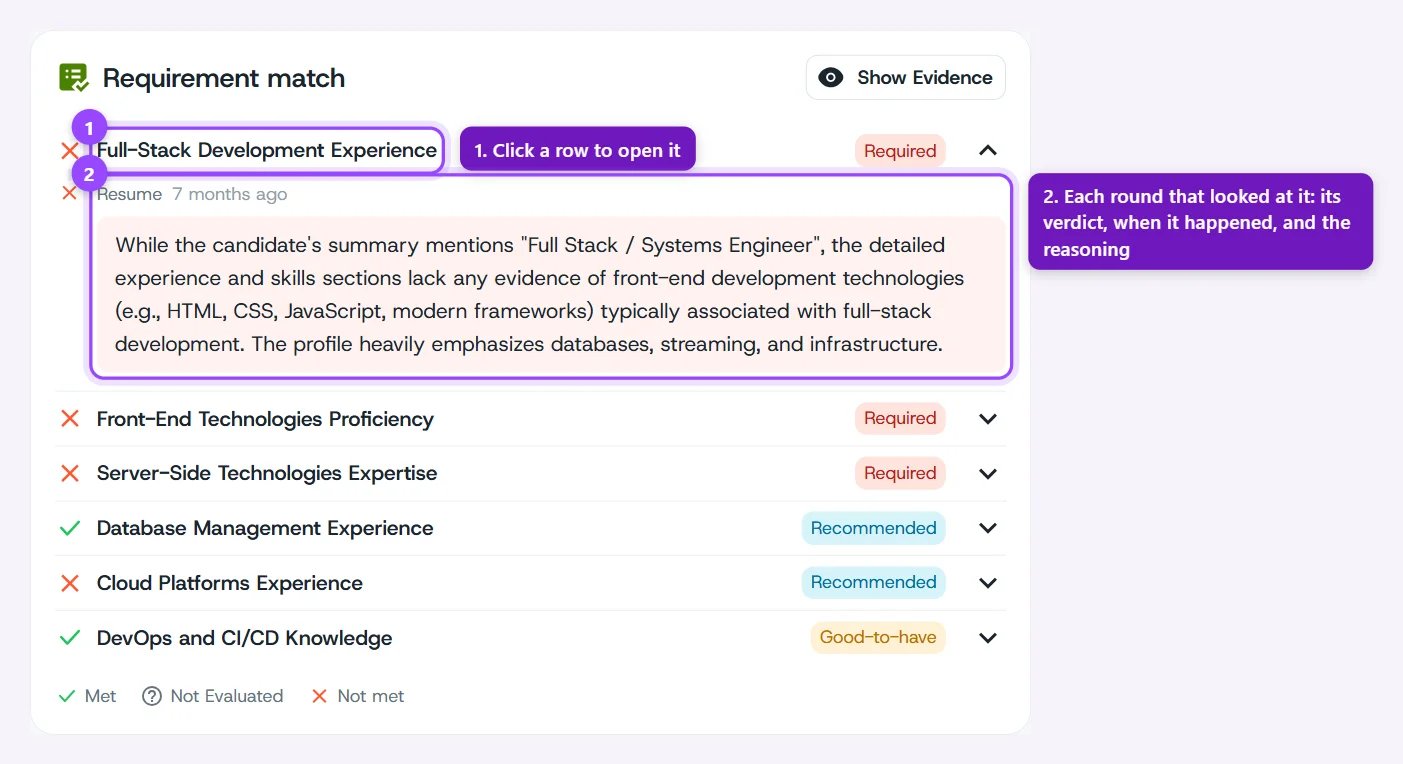
Requirement match row opened to show the Resume round's verdict, when it happened, and the reasoning

A requirement opened to its timeline. Each later round adds a step below this one

Each step in the timeline shows:
  • The round’s name. A repeat attempt reads, for example, “Take Home Assignment - Attempt 2”. Resume screening shows as “Resume”.
  • The verdict from that round. For a requirement, a green tick for Met or a red cross for Not met. For a skill, STRONG, MODERATE, or WEAK with the score out of 4, for example “MODERATE (2.5/4)”.
  • The AI’s reasoning for that verdict. A requirement’s reasoning sits on a green or red background to match its verdict.
  • When it happened, such as “3 days ago”. Hover over it to see the exact date and time in your own time zone.
If you wrote guidance for a requirement, it appears above its timeline.

What Changed in the Latest Round

When a candidate finishes another round, you shouldn’t have to open every row to find what moved. A small marker appears at the end of the title of each row that the latest completed round changed: For example, hovering a red marker might say “Dropped in Take Home Assignment, was Met”. Markers show only on the Overview tab.

Evaluation Tab — Results by Round

The Evaluation tab shows the results for one round at a time.
  1. Choose the round from the menu at the top left (for example, Resume, or an interview stage).
  2. Switch between Overview and Interview on the right.

Overview — Insights From This Round
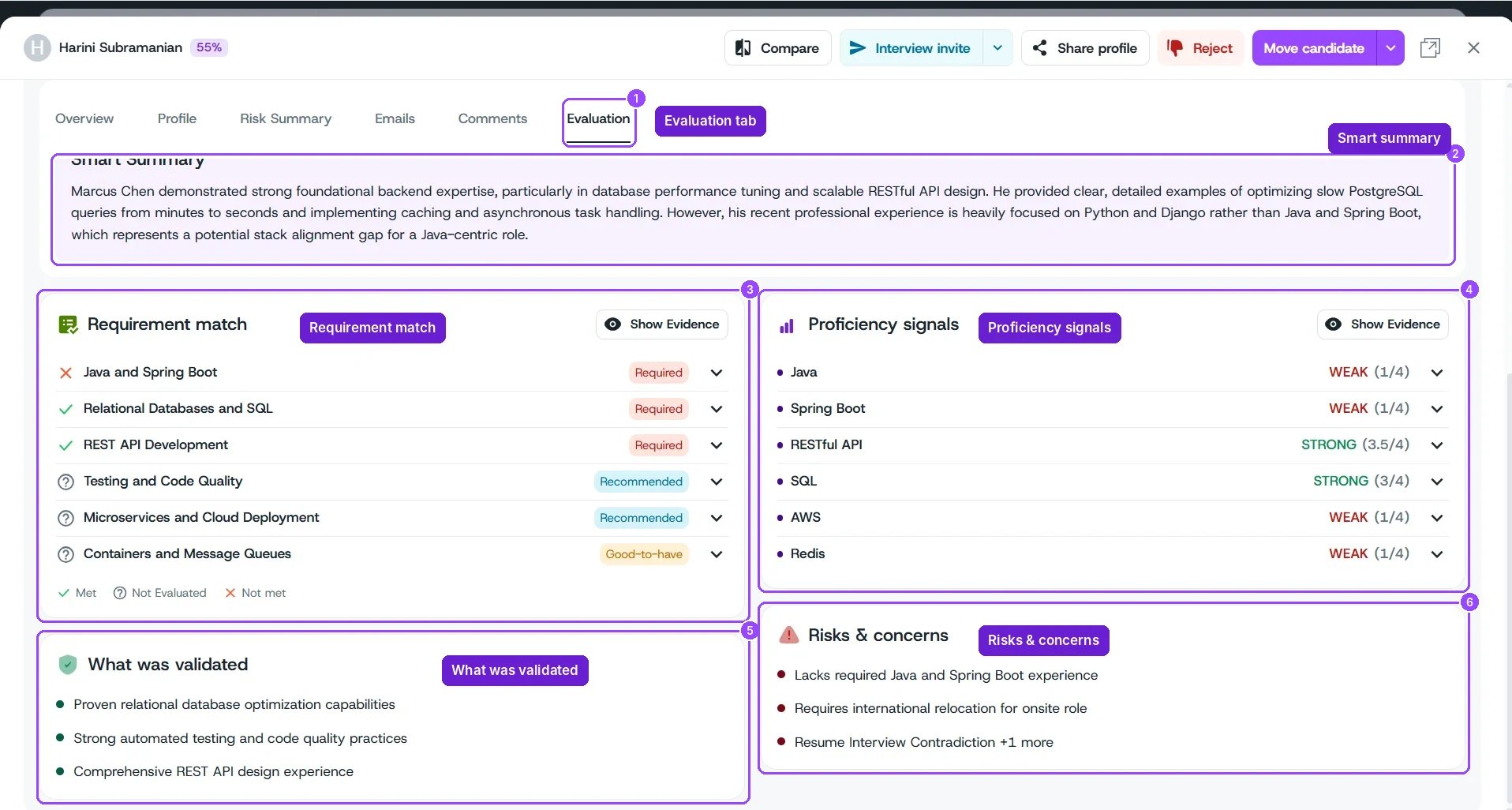
Evaluation tab with numbered labels: 1 Evaluation tab, 2 smart summary, 3 requirement match, 4 proficiency signals, 5 what was validated, 6 risks and concerns

Evaluation tab — Requirement match and Proficiency signals for an interview round

Below these, Question-by-Question Analysis lists each interview question with its time in the recording, a topic tag (for example API Design), and a risk count if the AI flagged anything. Open a question to see the candidate’s answer and the AI’s notes. Click Recording to play the interview and Transcript to show the full conversation beside the questions.

Interview

Interview shows the interview itself. For take-homes, this is the problem statement and submitted files. When the take-home had a follow-up call, its Follow-up call section sits below the files, with Replay session to watch the call back once it’s completed. See Session Replay. A criterion marked Not Evaluated wasn’t covered in this round. It may be assessed in a later round. In the job’s candidate list, the Interview rounds columns show each round’s result, such as Strong No Hire, No Hire, Neutral, or a hire recommendation, with its score.

How Scores Are Calculated

The AI checks the candidate against each criterion, using the Guidance for Hello AI you wrote for it. Criteria with higher weights — Required by default — count more toward the overall score than Recommended or Good-to-have ones. See Evaluation Criteria.

Using Evaluations Effectively

Compare candidates within the same job. Scores are relative to that job’s criteria, so they’re most meaningful side by side. Use the job’s Comparison Hub to compare 2 to 4 candidates.
Read the evidence, not just the number. The smart summary and Show Evidence links explain why a candidate scored the way they did — use them before you reject a borderline candidate.

Viewing Candidates

Risk Signals

Evaluation Criteria