

Who is this for? Users with the Organisation Administrator and Recruiter roles.
Add a System Design Round
1
Open the job's Workflow
Open the job and choose Workflow from the Job Navigation menu on the left.
2
Add an interview stage
Click + on the Interviewing group and set Stage Type to Interview Stage.
3
Choose Whix
Under Interviewer, choose AI Interviewer, then select WHIX from Select AI Interviewer.
4
Set the round up and save
Set the Duration, write the Interview Agenda, and click Save Changes.
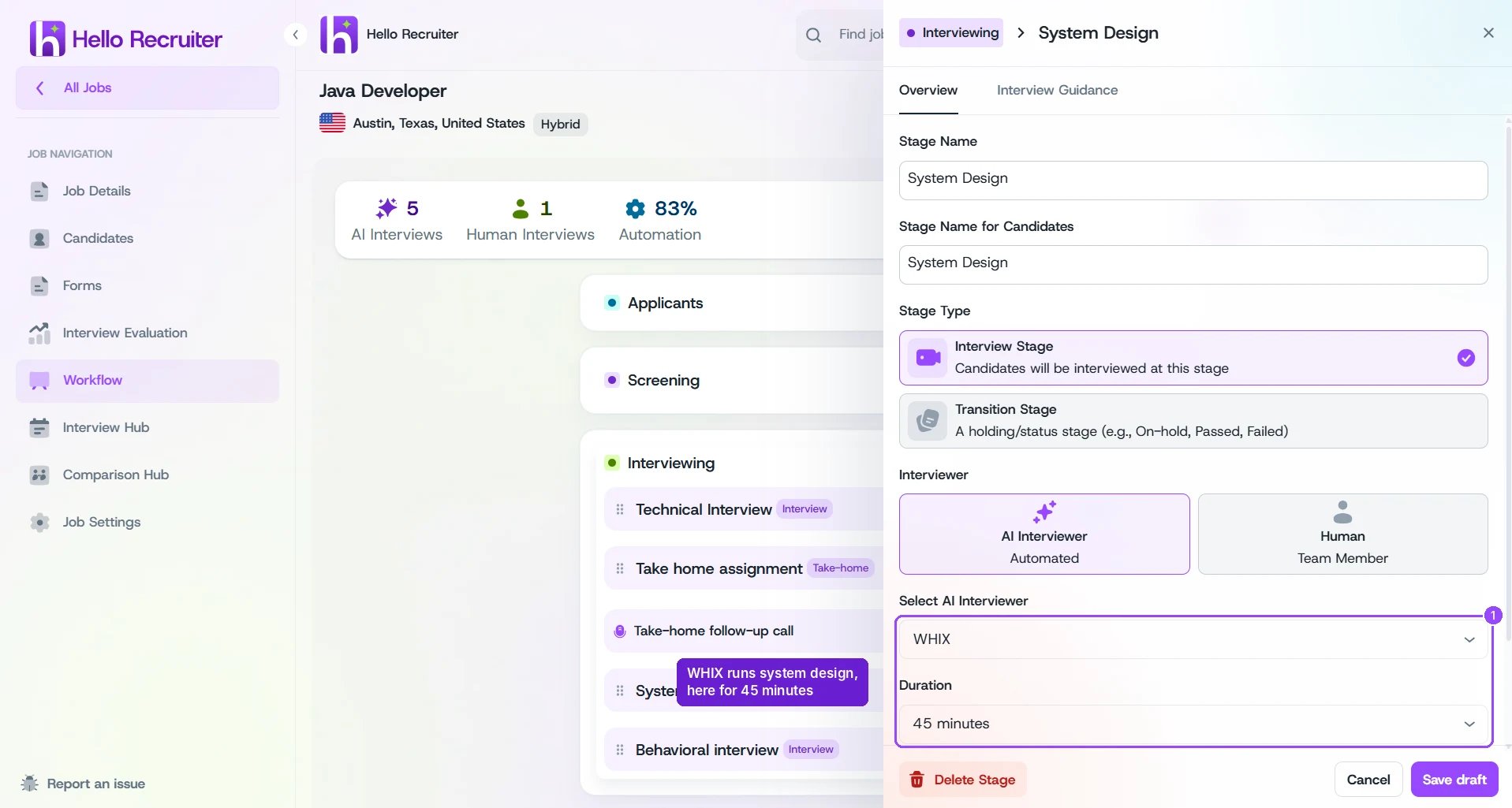
A system design stage run by WHIX
What the Candidate Sees
When the system design part starts, the screen splits into the System design question on the left and Your whiteboard in the middle. Whix and the candidate’s camera move to the right, and the conversation carries on while the candidate draws.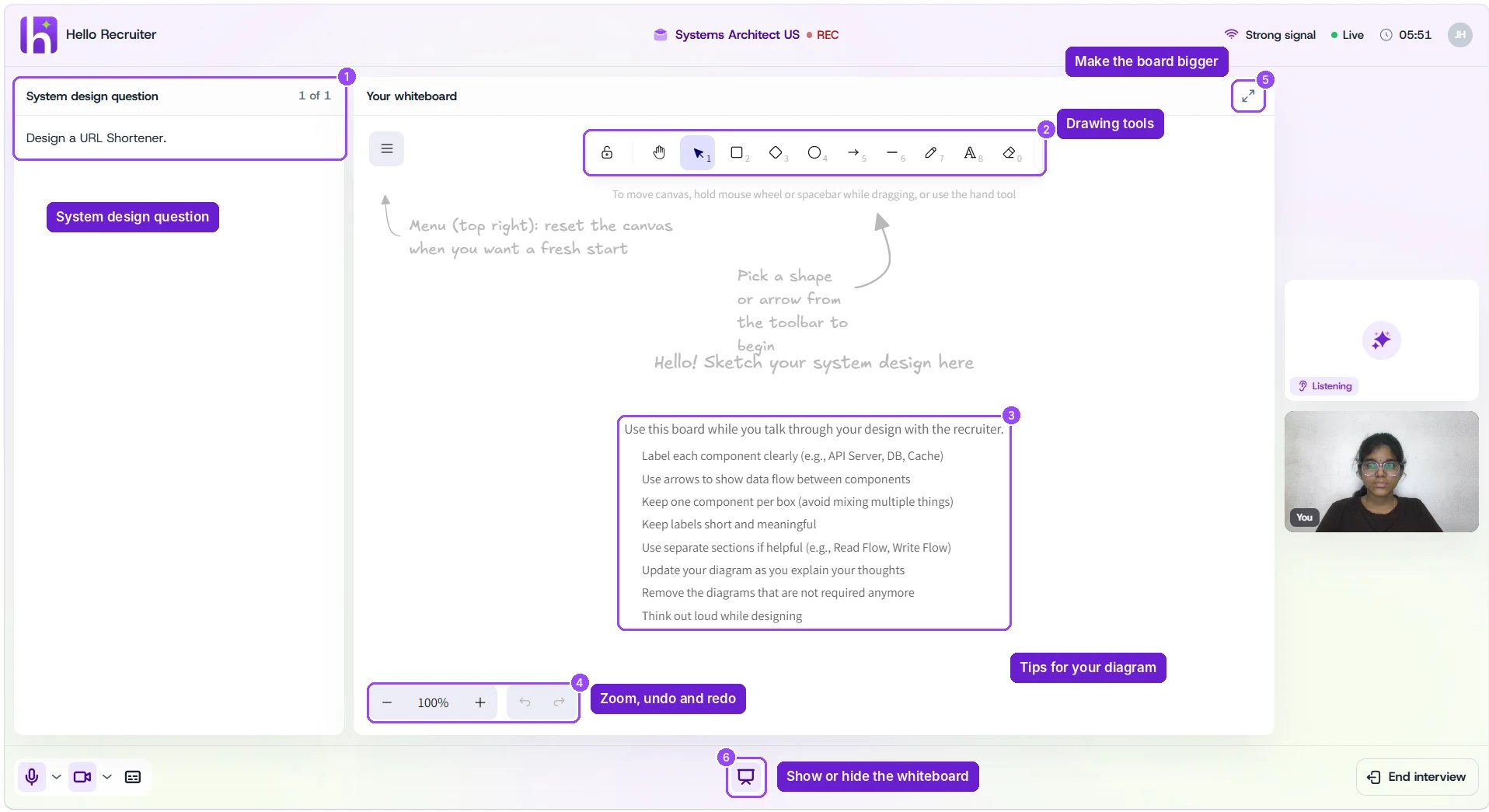
The whiteboard at the start of the design question
- Drawing tools — boxes, diamonds, circles, arrows, lines, a pen, text, and an eraser, plus a hand tool to move around the board. Each tool has a number key shortcut.
- Tips on the board — label each component, use arrows for data flow, keep one component per box, and think out loud while designing.
- Zoom, undo, and redo at the bottom left, and an expand icon at the top right to make the board bigger.
- Whiteboard button at the bottom of the screen shows or hides the board. The Transcript button at the bottom left shows the conversation beside it.
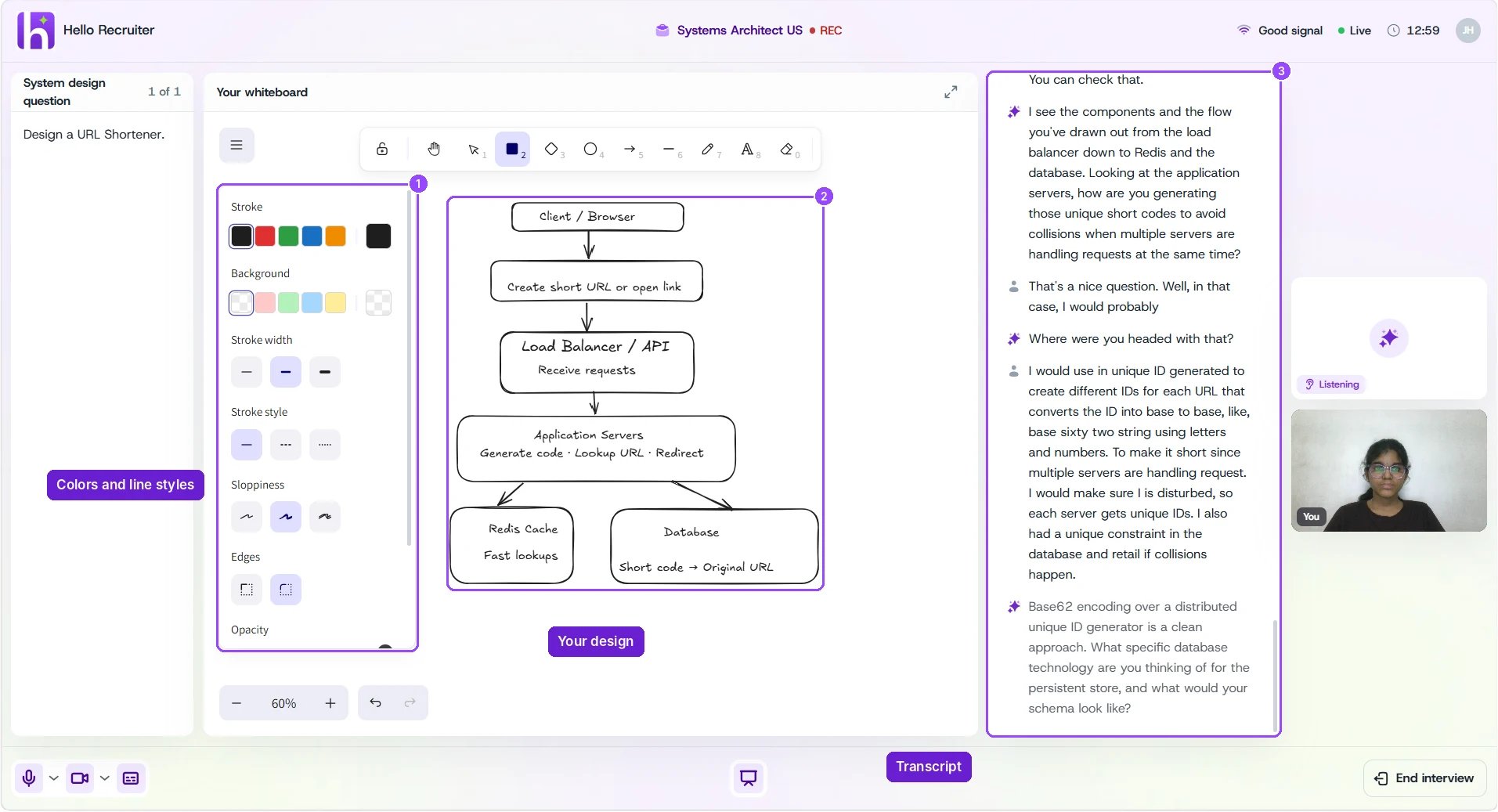
A candidate's design, with the transcript open