

Who is this for? Users with the Organisation Administrator and Recruiter roles.
View Your Templates
Open the main menu and go to Organization Settings → Email Templates. The list shows each template’s Template Name, Subject Line, and Last Modified date. Use Search email templates to find one. Click a template to open it in View template, which shows its content next to the email preview. The ⋮ menu on a row has more actions.Create a Template
1
Start a new template
Click + Create New Email Template.
2
Name it and pick a category
Enter a Template Name (for example, “Interview invite”) and choose a Category: General, Rejection, or Interview invite.
3
Write the subject and body
Write the subject line and the email. Use the toolbar for bold, italic, underline, alignment, bulleted and numbered lists, images, and links.You can add placeholders such as Candidate Full Name, Job Title, and Current Company. Each one is filled in with the real details when the email is sent.
4
Check the preview
The Email Preview on the right shows the email as a candidate will see it, sent from your organization’s name, with sample details (for example John Doe, Senior Software Engineer, Acme Corp) in place of the placeholders.
5
Save
Click Save template. Click Cancel to discard it.
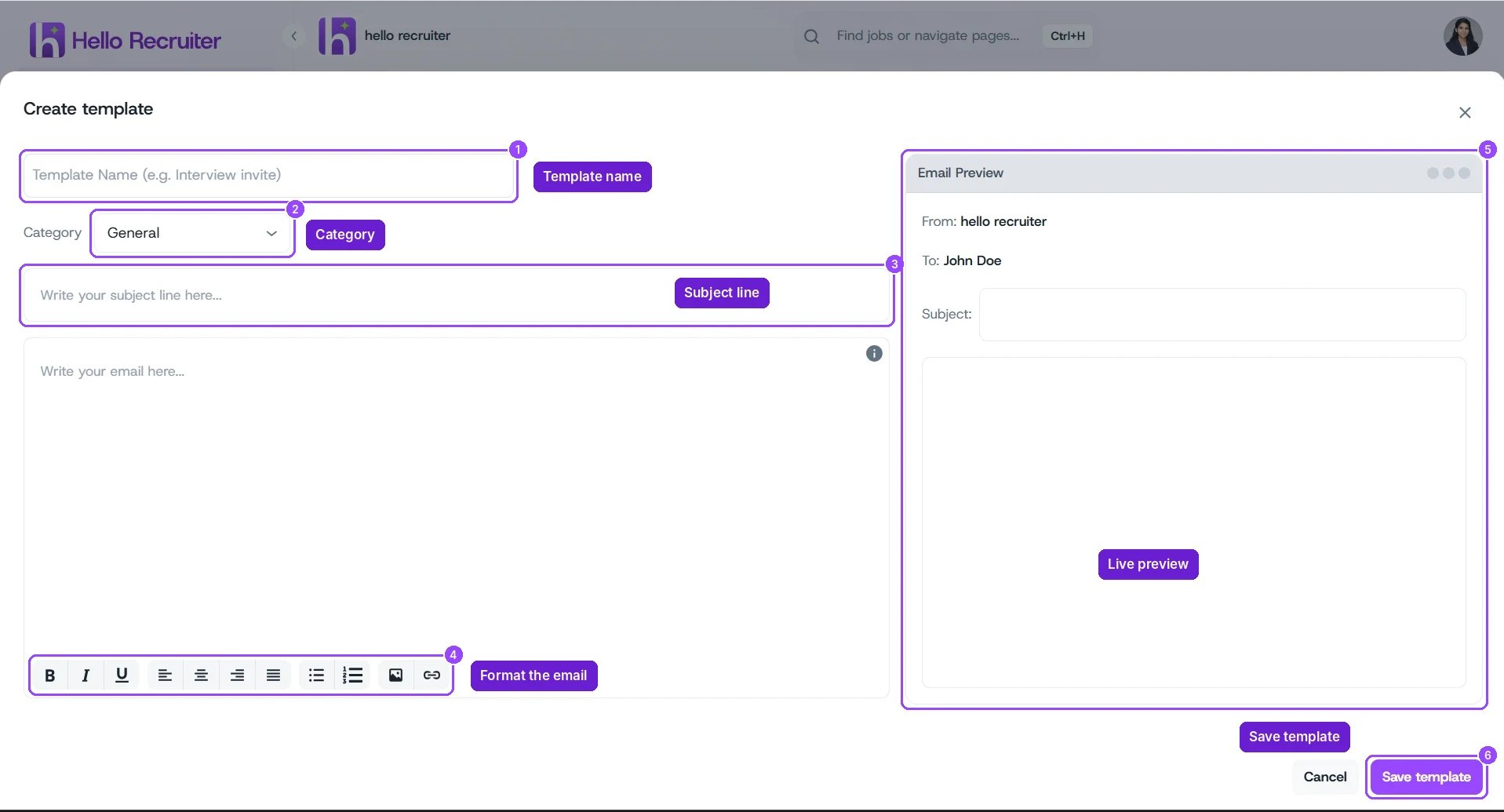
Creating an email template, with the live preview on the right
Where Templates Are Used
Each job decides which emails go out automatically and which template they use. Open a job’s Job Settings to:- Choose the Interview invite email (click Edit email).
- Turn on Automatic rejection emails and pick a delay (click Edit rejection template to change the message).