

Who is this for? Users with the Organisation Administrator, Recruiter, and Hiring Manager roles.
Opening a Replay
1
Open the take-home round
Open the candidate’s profile, go to the Evaluation tab, pick the take-home round from the dropdown, and switch to Interview.
2
Find the follow-up call
Below the submission is the Follow-up call section.
3
Click Replay session
The replay opens full screen under the title Session replay. To close it, click the X at the top right or press Esc.
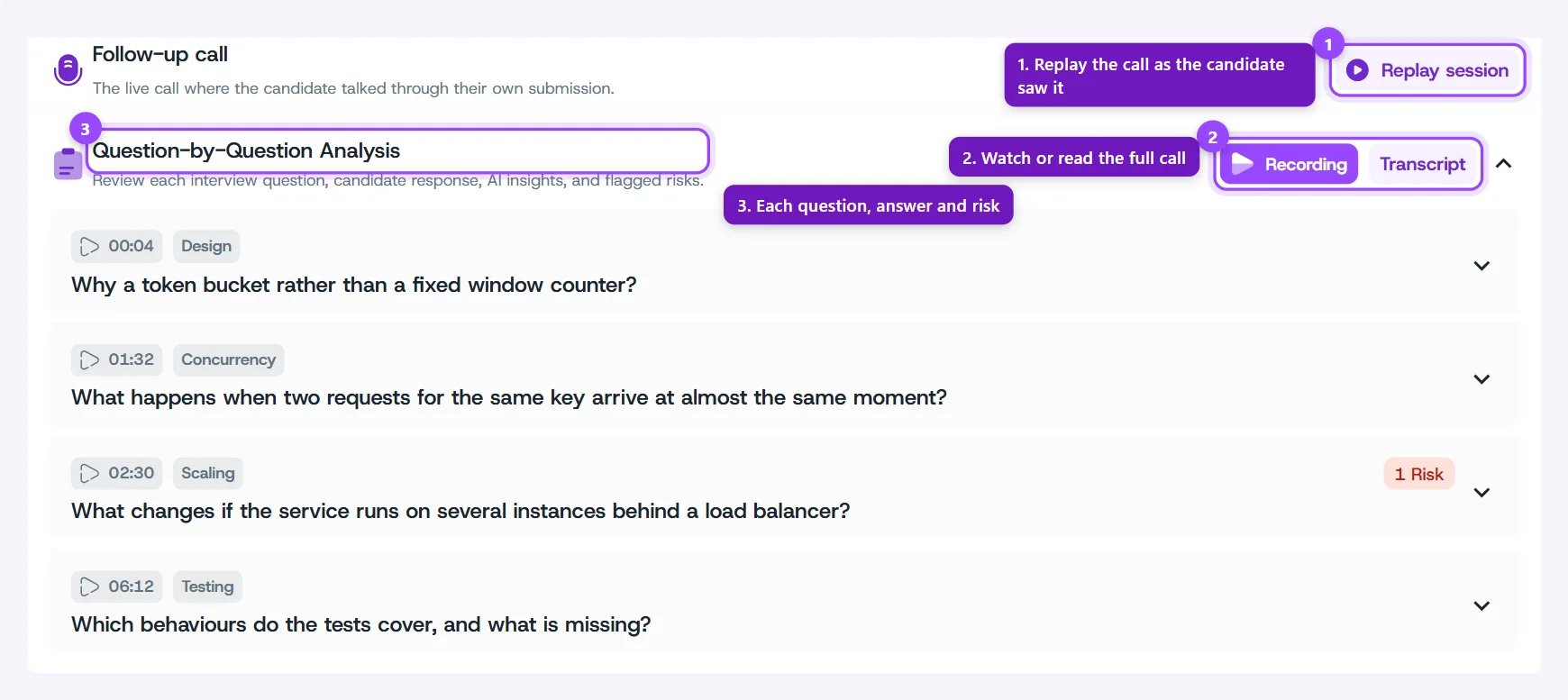
Replay session on a completed follow-up call
Replay session appears once the call is completed. Until then, the section says where the call stands instead. See Reviewing the Call.
What the Replay Shows
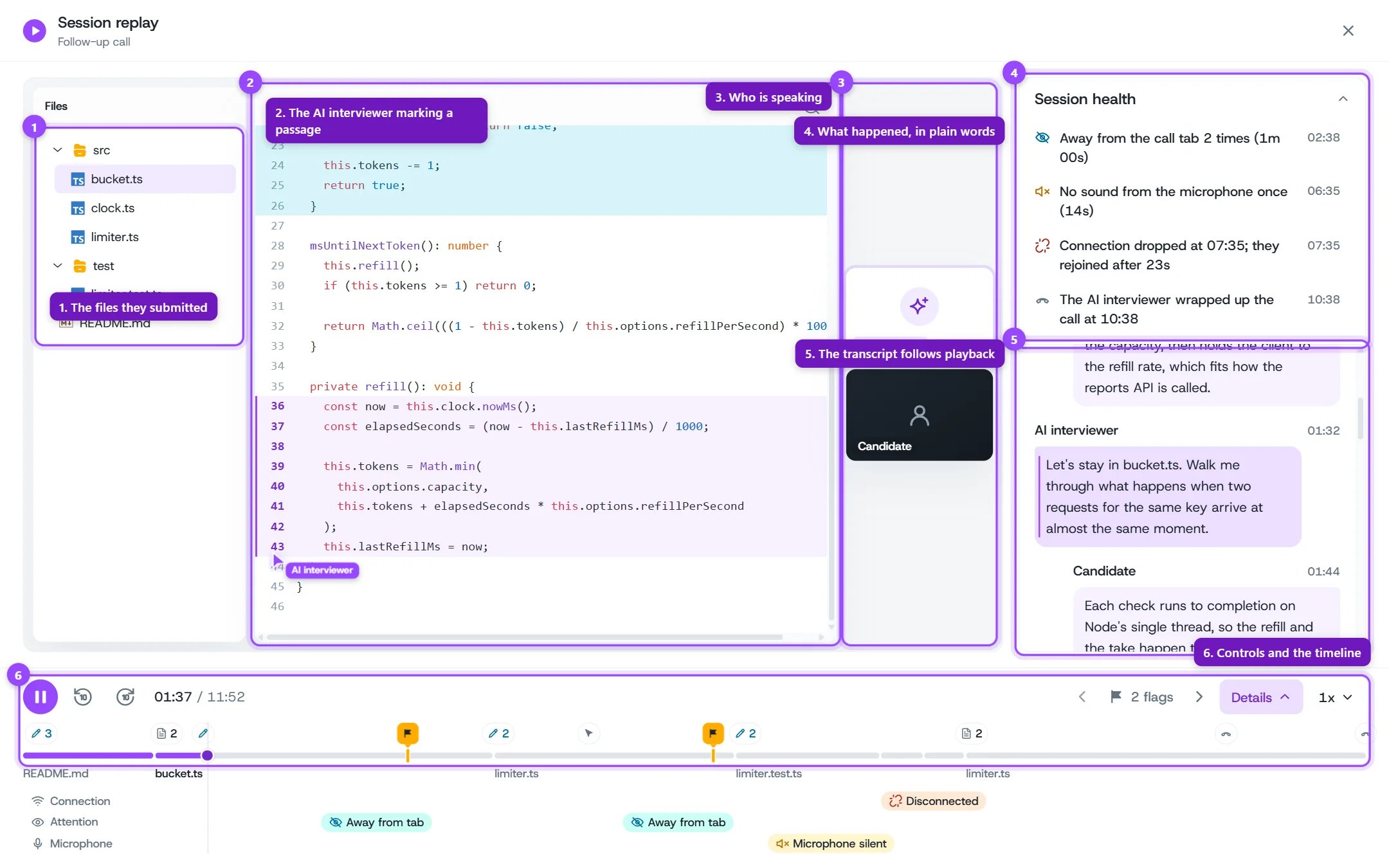
A replay mid-call, with the AI interviewer marking a passage
When the candidate was away from the call, the screen dims and says why.
Playing the Replay
Click play, or click anywhere on the timeline to jump to that moment. Previous flag and Next flag step through the flags, and the speed menu goes from 0.75x to 2x.The Timeline

The timeline with Details open
Flags
Flags mark the moments worth a look. There are two kinds:
Hover a flag to see what was flagged and the evidence. Click it to play from just before that moment.
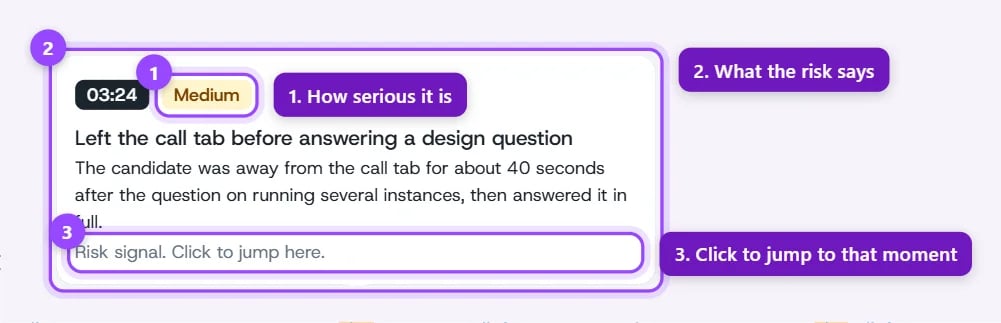
A risk signal's flag card
Transcript
The transcript on the right shows the conversation in turns, AI interviewer and Candidate, each with the time it started. It follows playback and marks the line being spoken. Click a line to play it. When you scroll the transcript, it stops following so you can read. Click Follow playback, or any line, to pick up again.Session Health
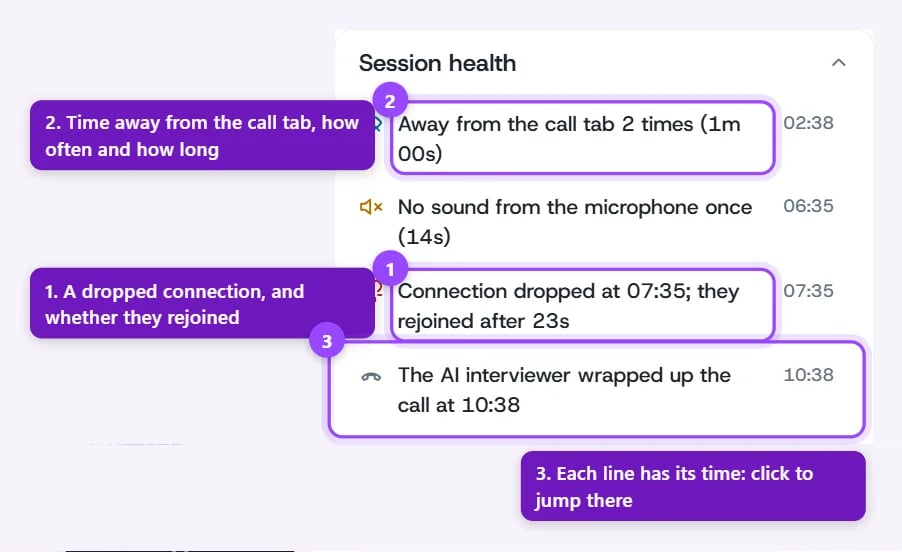
The Session health card