

Who is this for? Users with the Organisation Administrator and Recruiter roles.
Want candidates to solve the problem with a provided AI coding assistant instead of entirely on their own? See AI-Assisted Coding — an optional add-on to the round described below, with a video walkthrough of the feature.
Want to hear candidates explain their work? Add a Follow-Up Call: a short live call after they submit, where the AI interviewer walks through their submission and updates the scorecard.
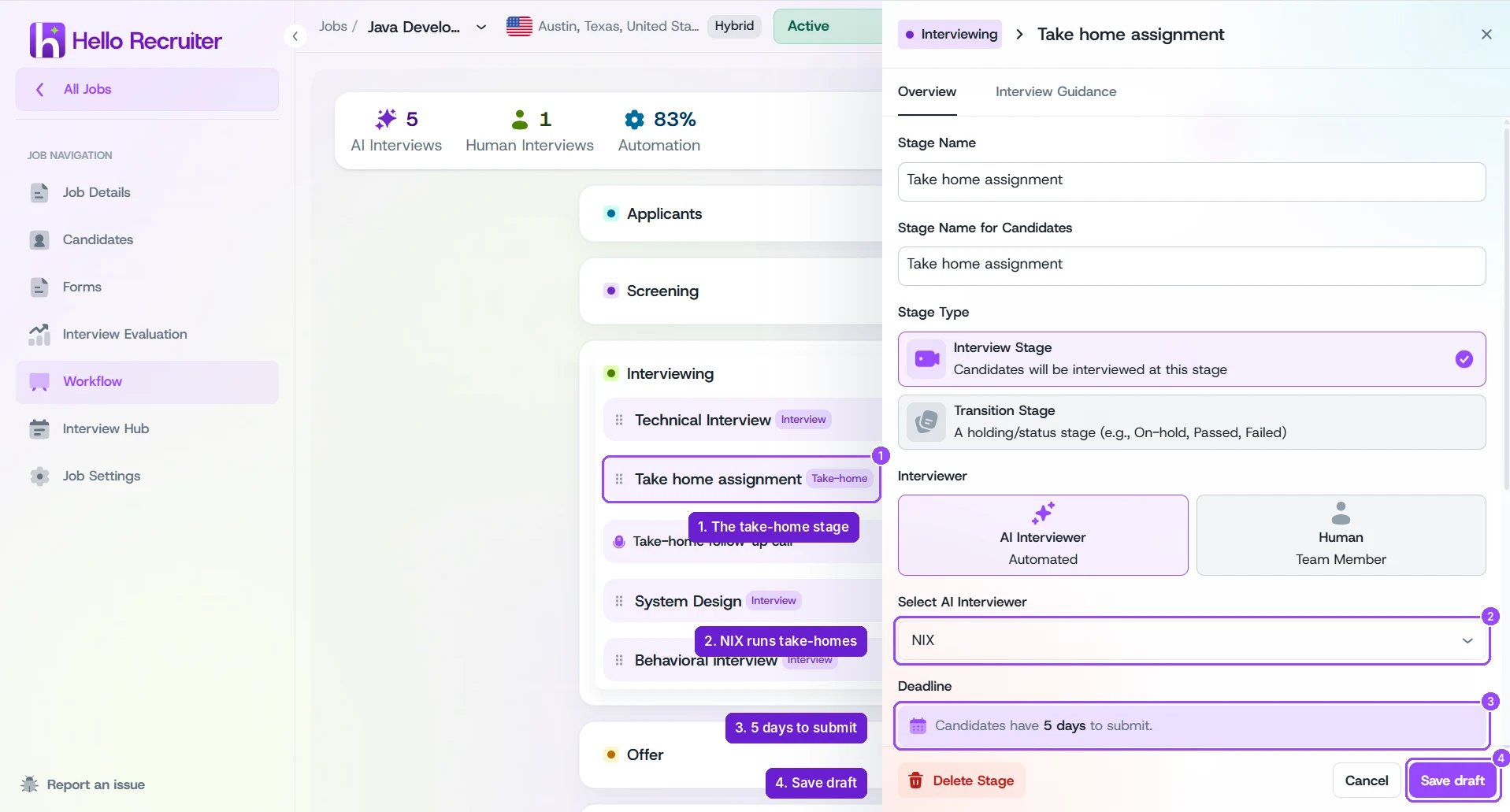
Adding a Take-Home Assessment round to a job's interview workflow
Adding a Take-Home Round
1
Open the job's Workflow
Open the job and choose Workflow from the Job Navigation menu on the left.
2
Add an interview stage
Click + on the stage group where the take-home belongs (usually Interviewing), and set Stage Type to Interview Stage. Give it a Stage Name and, optionally, a Stage Name for Candidates.
3
Choose Nix as the interviewer
Under Interviewer, choose AI Interviewer, then select NIX (Take-Home Assignment) from Select AI Interviewer. The stage now shows a Take-home tag.
4
Review the round settings
Check the Deadline note: “Candidates have 5 days to submit.” Below it you’ll find Timed assessment (Timed Assessments), Enable vibe coding (AI-Assisted Coding) and Enable follow-up call (Follow-Up Call). Then check the Interview Guidance tab and click Save draft.
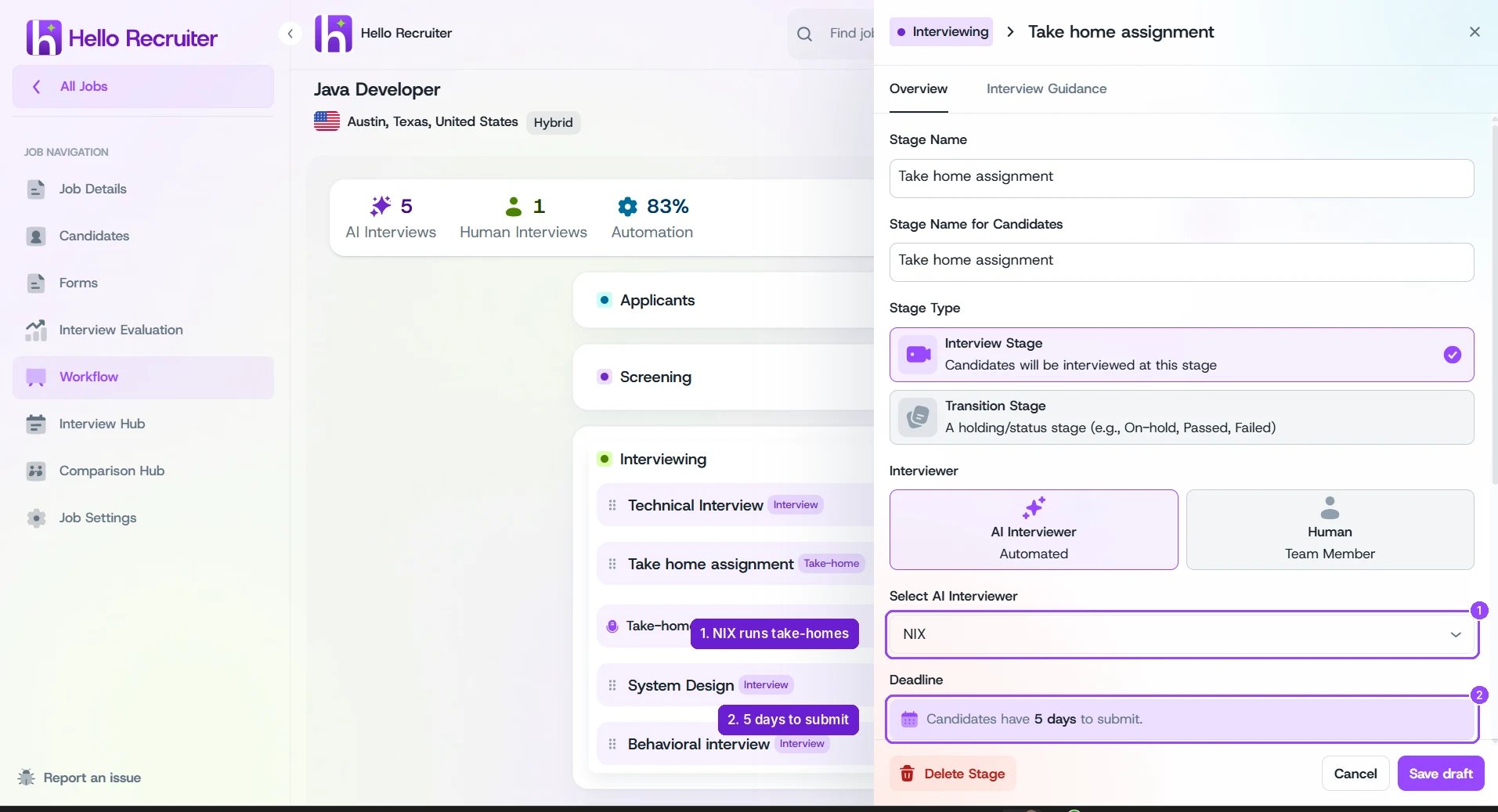
Take-home round settings: NIX and the Deadline note
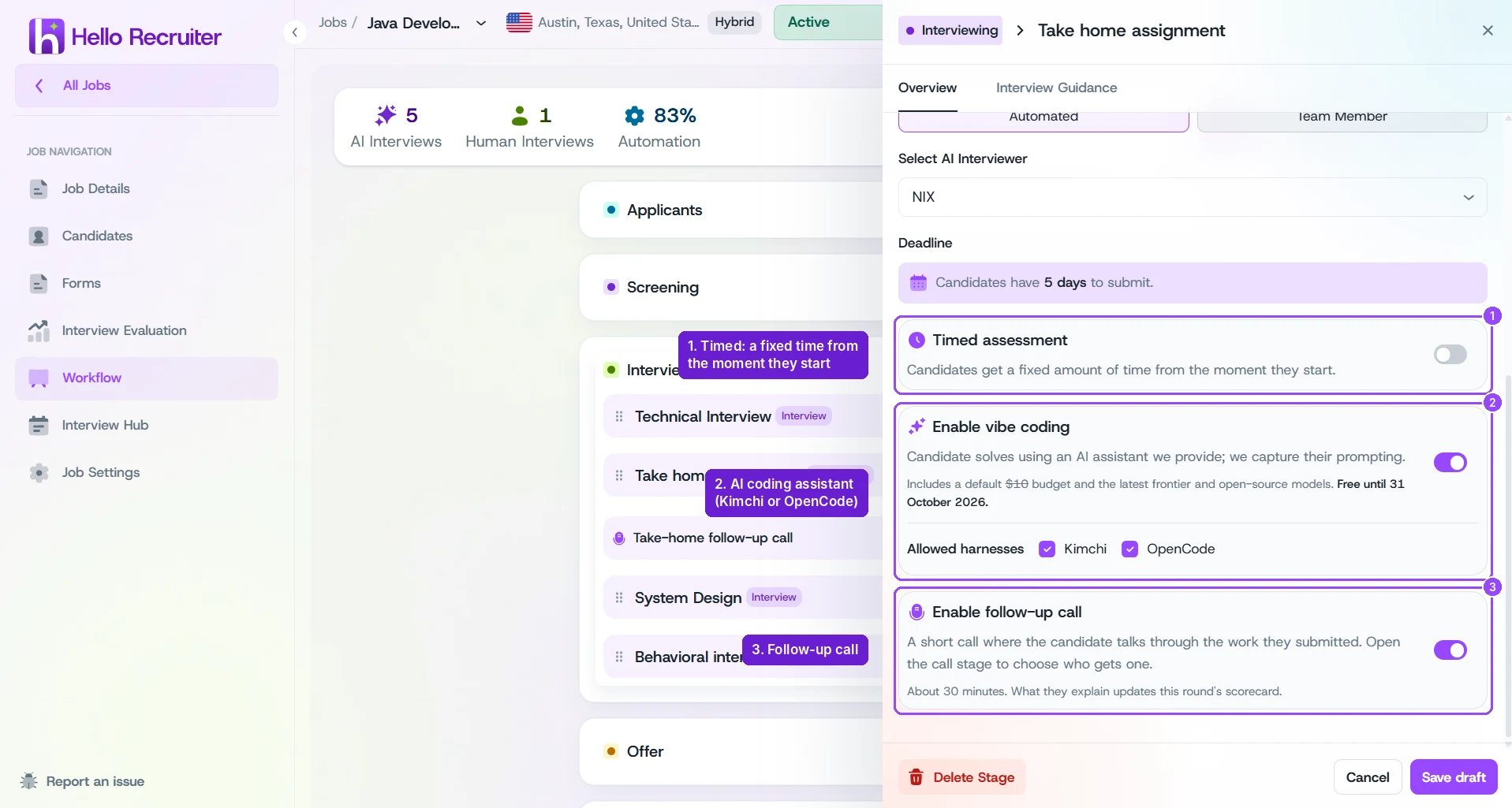
Enable vibe coding and Enable follow-up call
The deadline is fixed at 5 days and isn’t configurable per job. Resending an invitation gives the candidate a fresh 5 days.
Timed Assessments
A take-home normally runs across the whole 5-day window. Turn on Timed assessment instead, and candidates get a fixed amount of time from the moment they start, for example one hour. When you switch it on, a Time limit box appears. Enter whole minutes from 15 to 480; it starts at 60. The Deadline note changes to match: “Candidates have 5 days to start. Once they start, they have 60 minutes to finish and submit.” Changing Timed assessment or the time limit applies to the invitations you send from then on, not to candidates already invited.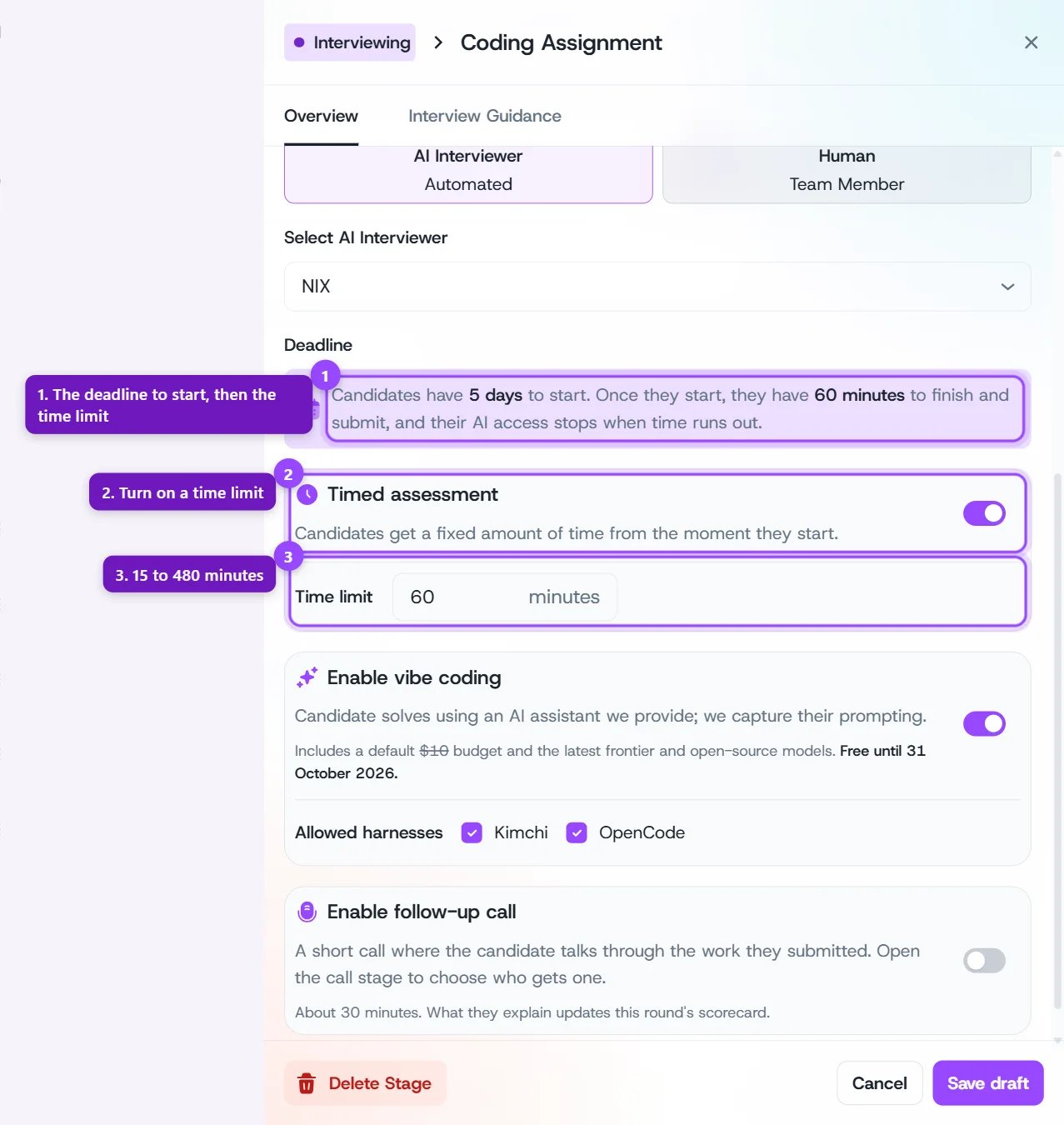
A timed take-home: the Timed assessment switch, its time limit, and the Deadline note
What the Candidate Experiences
The invitation tells candidates the assessment is timed. They can start any time in the 5 days, and the brief stays hidden until they do. Once they start, they see the time left at the top of their assignment page, and the problem is sized to fit the limit. With Enable vibe coding on, setup installs everything before the timer starts (see AI-Assisted Coding).When Time Runs Out
- AI access stops. On a round with Enable vibe coding, the AI assistant stops answering.
- Submission stays open for 5 more minutes, so an upload started in the last minute still lands.
- Submission then closes. The candidate’s page asks them to contact the recruiter. In the Interview Hub, the interview shows as Expired.
Auto vs Guided Mode
Every take-home round has an Interview Guidance Mode with two options.Auto
Leave this on and the AI builds the whole assessment for you — it writes the problem statement and the evaluation rubric from the role and the evaluation criteria you’ve already set up, and invents the scenario the problem is set in. No extra input needed.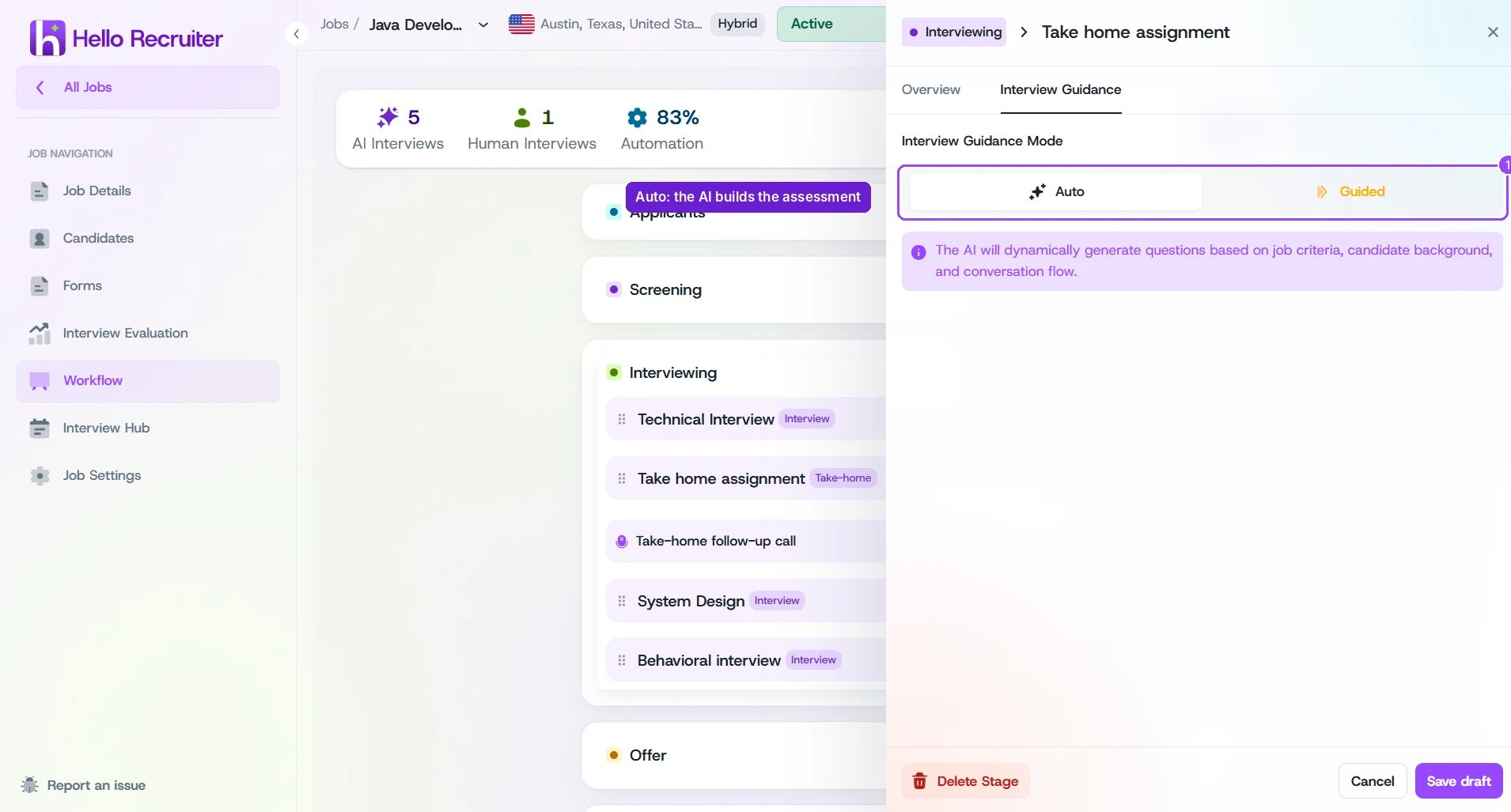
Interview Guidance Mode set to Auto
Guided
Switch to Guided and a free-text box appears for direction. Whatever you type becomes the AI’s top-priority instruction — it reshapes the scenario, the rubric, and what the candidate is asked to submit.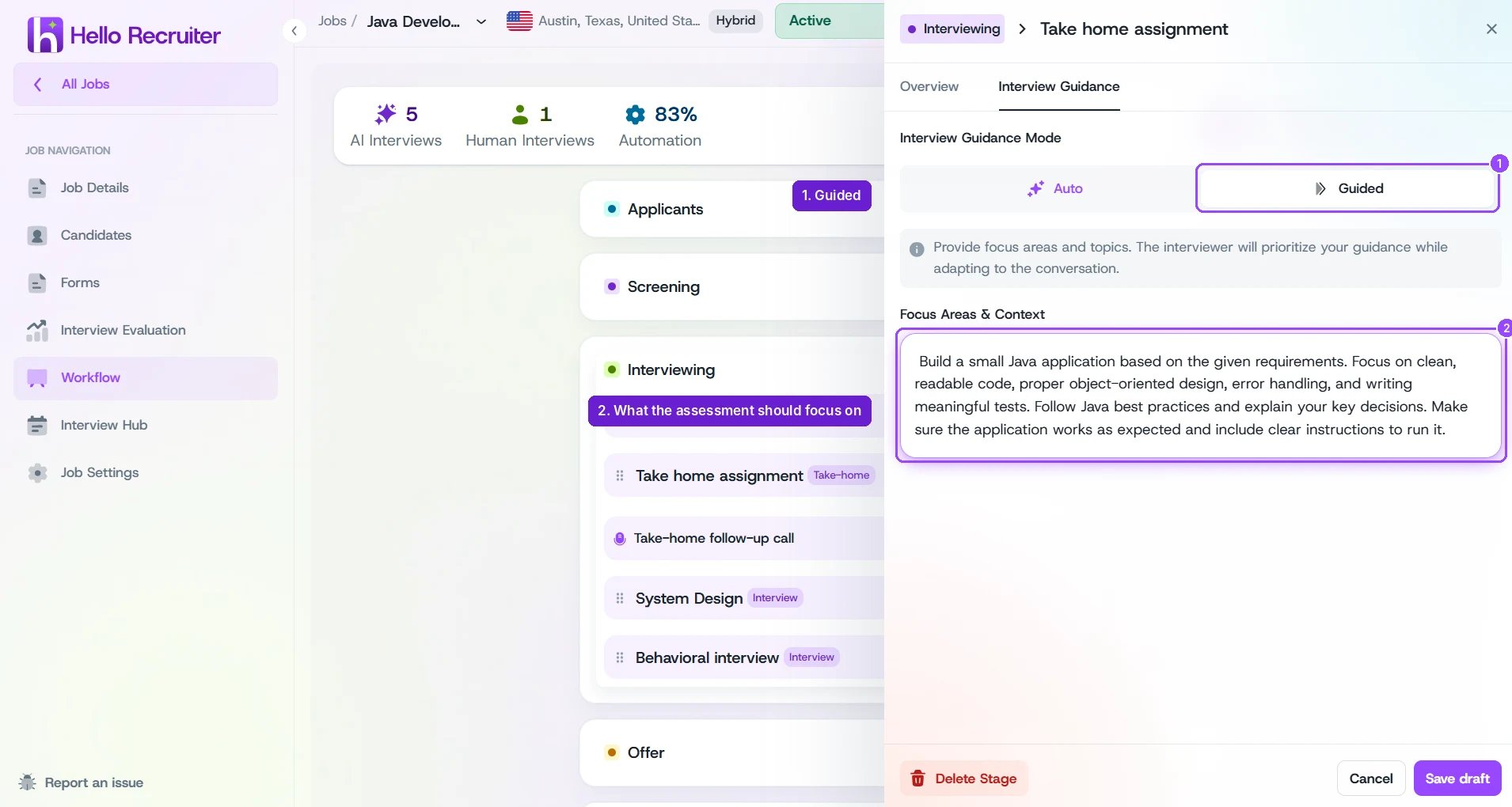
Interview Guidance Mode set to Guided, with the "Focus Areas & Context" box
- Call out the specific skill you care about most for the role, not just the general subject area
- Add any expectations that go beyond “does it run,” if they matter for this role
- Reinforce seniority expectations if you want a different bar than what the AI infers from the job posting
Every Candidate Gets a Unique Problem
- Every candidate gets a different problem. The AI writes a fresh scenario for each candidate applying to the same job, so candidates can’t share or look up each other’s answers.
- But the bar stays the same for everyone. The difficulty, the rubric, and what candidates need to submit stay identical across candidates for the same job — only the scenario or story around the problem changes.
- The scenario is invented, not your business. Unless your guidance sets the scene, the AI makes up the business and the story for each problem, and never names your company or its products.
Shaping the Evaluation Rubric
The AI automatically builds an evaluation rubric for the take-home — you never have to write one from scratch. It’s grouped into a small set of candidate-facing categories, generated from your evaluation criteria and your Guided-mode text. There’s no separate screen where you hand-edit these rubric groups directly. Instead, you shape the rubric in two ways:- Your Guided-mode text is the strongest lever — it shifts what the whole rubric weighs most heavily.
- Per-criterion instructions on the job’s Interview Evaluation page. Each criterion has its own free-text field, “Guidance for Hello AI,” treated as a strict, must-follow instruction when scoring that specific criterion. See Evaluation Criteria for more on setting these up.
What the Candidate Experiences
Candidates get an email invitation with a link, a deadline, and instructions — you don’t need to walk them through it. They read the problem statement, solve it on their own machine, and upload a ZIP of their work. On a timed round, they start their timer first, and the problem statement opens with it (see Timed Assessments). See the Take-Home Assessment candidate guide for the full walkthrough.Reviewing a Submission
Once a candidate submits, open their profile, go to the Evaluation tab, choose the take-home round from the round menu, and switch to Interview. You’ll see an Assessment Analysis section with:- Problem Statement — the task the candidate was given
- Submission Files — their submitted files, with AI-highlighted evidence pinned to relevant code
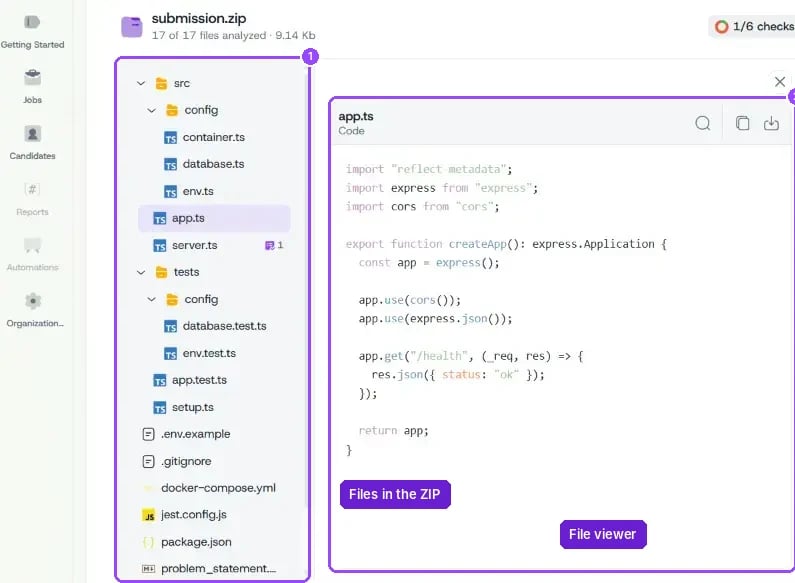
Assessment Analysis, showing the candidate's submitted files
If a candidate includes audio, video, or PowerPoint files in their submission, you can view them on their profile, but only their written files count toward the score. Candidates are asked to send slides as a PDF.