

Who is this for? Users with the Organisation Administrator and Recruiter roles.
How Recruiters Run AI Coding Interviews | Hello Recruiter
Enabling It
You’ll see an Enable vibe coding toggle on the take-home round settings (see Adding a Take-Home Round). Turning this on means:- The candidate is given a provided AI coding assistant, instead of working entirely on their own
- Their AI conversation is recorded alongside their submitted files
- You get insight into how they used AI to solve the problem, not just the code they ended up with
- Each candidate gets an AI usage budget ($10, shown on the switch). When it runs out, the assistant stops, but they can keep working and submit as usual
- If you extend a candidate’s deadline, their AI access is extended to the new deadline too
- Under Allowed harnesses, choose which coding assistants candidates may use: Kimchi and OpenCode
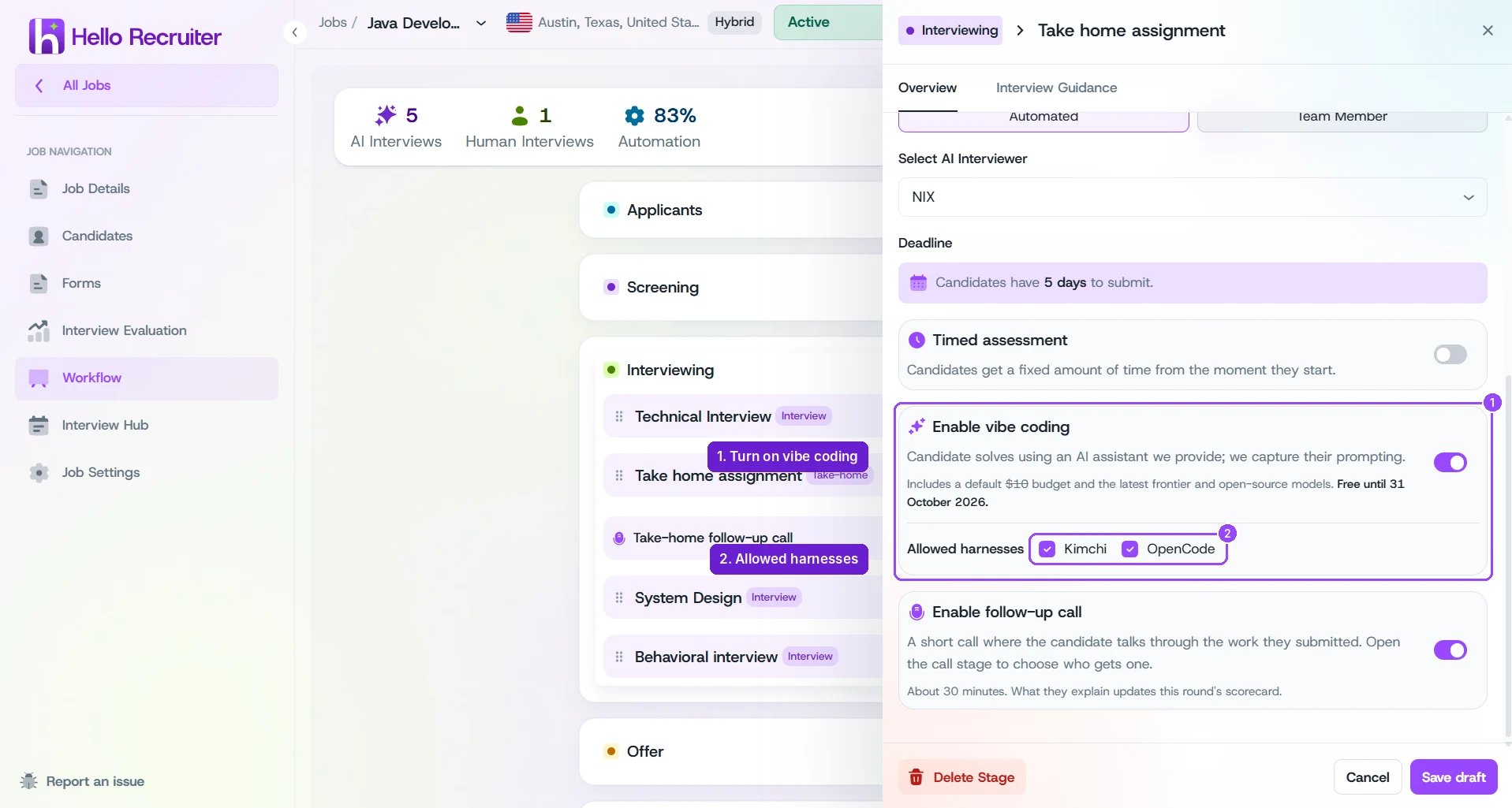
Enable AI-Assisted Coding toggle on the round settings
Choosing Which Coding Agents Candidates Can Use
“Harness” is our word for the coding agent a candidate works in. Under Allowed harnesses, check the ones you’ll accept:- Both checked (the default) means candidates choose.
- One checked means candidates get that agent only. At least one agent always stays allowed.
How It Changes the Rubric
When this mode is on, the AI’s auto-generated rubric (see Shaping the Evaluation Rubric) adds a category covering how the candidate worked with the assistant, alongside your job’s usual criteria: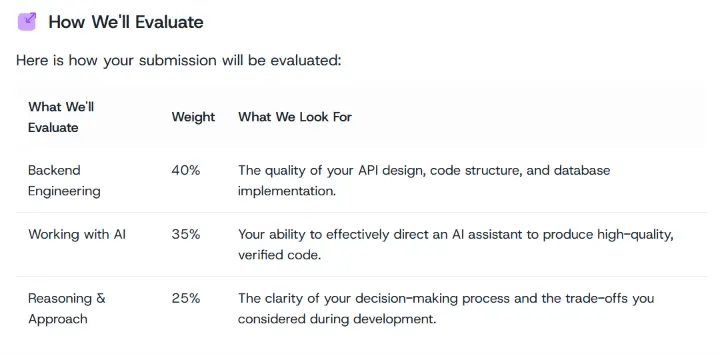
Example rubric for an AI-assisted take-home, including a "Working with AI" category
What the Candidate Sets Up
Candidates choose between an automatic setup (one command installs the assistant, their AI credential, and the problem statement) or a manual setup if they’d rather not run a script — both are covered in detail in the candidate guide. You don’t need to walk them through it; their assignment page includes the full walkthrough and the video above. What automatic setup does on the candidate’s computer, in case they ask:- Their own tools are left alone. The coding agent is installed separately, so a copy the candidate already uses isn’t replaced.
- Their own settings are saved and put back. If they already use OpenCode or Kimchi, setup asks before swapping in the assessment’s settings, and offers to put theirs back when they submit.
- The AI key works only in the provided agent.
- The brief unlocks after setup. The candidate sees the full brief once their workspace is set up.
Timed AI-Assisted Rounds
With Timed assessment also on, setup changes in a few ways:- Installing takes none of the candidate’s time. Setup installs everything first, and the timer starts only when the candidate says they’re ready.
- A countdown inside the agent. With the automatic setup, OpenCode and Kimchi show the candidate the time left.
- AI access stops at time-up. The assistant stops answering when the timer runs out, and the candidate has 5 more minutes to submit. Reopening their submission from the Interview Hub gives back uploading only, never AI access.
Reviewing an AI-Assisted Submission
Once a candidate submits, open their profile, go to the Evaluation tab, choose the take-home round from the round menu, and switch to Interview. Alongside the problem statement and submitted files, you’ll see a Prompting Session — a transcript of the candidate’s conversation with the AI assistant, with a timeline of the session.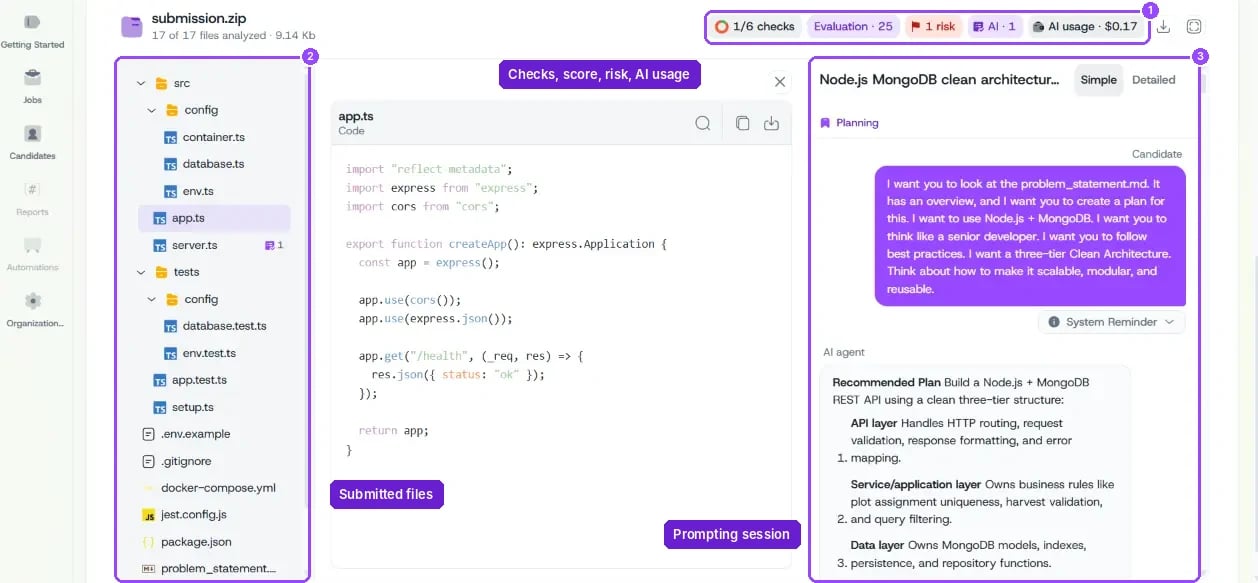
Assessment Analysis, showing submission files and the AI prompting session side by side
Understanding the Results
For AI-assisted submissions, the AI evaluates the candidate across two things:- Their code — same as a standard take-home: does it solve the problem, does it meet the requirements, is it well-built
- How they worked with AI — shown alongside the candidate’s other skill proficiencies on the Overview tab: how well they directed the assistant and checked its work