

Who is this for? Users with the Organisation Administrator and Recruiter roles.
Adding Candidates to a Job
1
Open the job's Candidates page
Go to Jobs and click the job on the job board. Its Candidates page opens.
2
Click Add Candidate
The button sits at the top right, next to the stage tabs. The Add Candidates window opens.
3
Drop in your files
Drag files into the box, or click it to browse. You can add files more than once. Remove any you don’t want with the small remove button on each file.
4
Upload
Click Upload. When it finishes, you’ll see a message pointing you to the Processing Queue. The window closes and the candidates appear as their resumes are read.
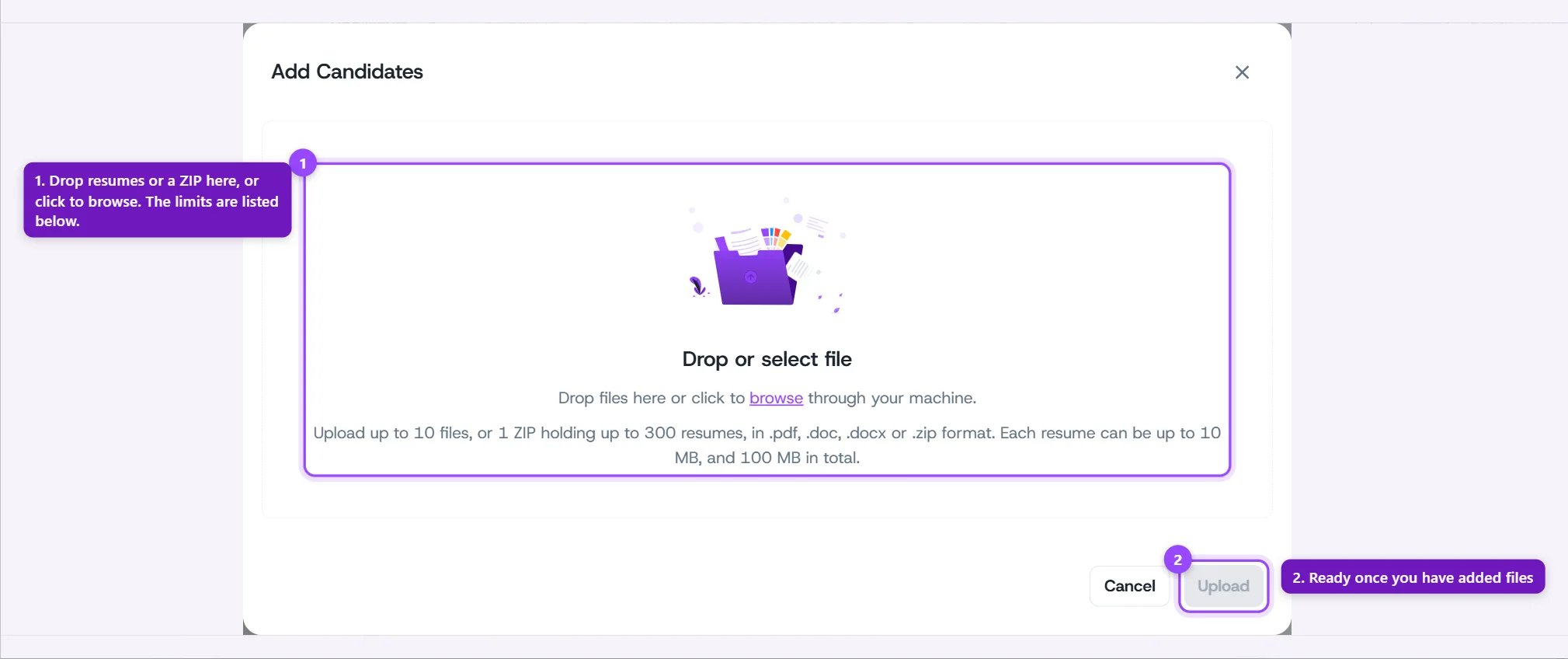
The Add Candidates window, with its limits under the drop box
What You Can Upload
Resumes can be .pdf, .doc, or .docx files. You can also add a .zip.
If you go over a limit, the window tells you straight away and nothing is uploaded. For example: Only one ZIP file is allowed, or that a named file is larger than 10 MB.
You can only add candidates while your plan has room. If your plan’s candidate limit is reached, the Add Candidate button is locked and shows a lock icon. Hover over it to see why. If you pick more single resumes than you have room for, you’ll be told how many more you can add. A ZIP isn’t counted until it’s opened, so its size can’t be checked in advance.
ZIP Files
A ZIP is the quickest way to add a whole batch, such as resumes you collected at an event or exported from another system.- Folders are fine. Resumes can sit in folders inside the ZIP. Each file keeps its own name, and its folder path is shown if it fails.
- A ZIP can hold other ZIPs, up to 3 levels deep. A ZIP inside a ZIP can be as large as an upload (100 MB).
- Everything inside must fit these limits:
- System files are ignored. The hidden files that Mac and Windows add when they make a ZIP (such as
__MACOSX,.DS_Store, andThumbs.db) are skipped and never shown as failures. - Other file types are listed, not lost. A file in the ZIP that isn’t a PDF, Word file, or ZIP, such as a text file, a picture, or a file with no ending, is not added as a candidate. It shows up in the Failed tab with its full path inside the ZIP, so you can see exactly which files were left out.
The Processing Queue
Open the three-dot menu at the top right of the job page and click Processing queue. The menu line summarizes what’s happening, for example “3 pending” or “2 failed”. It says “Unpacking zip” while a ZIP is being opened, and “Nothing waiting” when everything is done.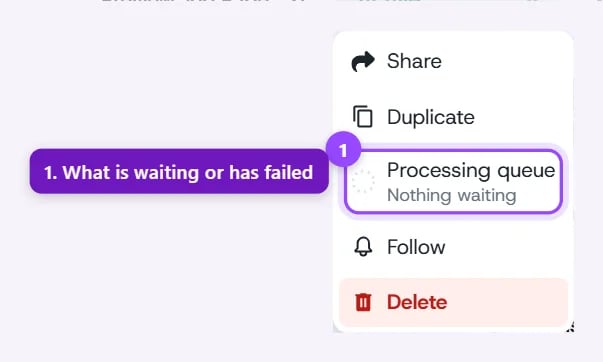
The job's three-dot menu, with the Processing queue line
The Activity Dot
A small dot on the three-dot button tells you there’s something to look at, so you don’t have to open the menu to check.
The dot clears when you open the three-dot menu. It is remembered for you in this browser, per job.
Pending
Pending lists resumes that are being read right now. Each row shows the candidate, or the file name if there’s no name yet, and how long it has been waiting. The list refreshes by itself while work is going on, so you can leave it open. When a resume is done, the candidate leaves the queue and appears in the pipeline. While a ZIP is being opened, the tab says Unpacking your zip. Its resumes appear one by one as they are read. A resume that takes more than 30 minutes is treated as stuck. It moves to the Failed tab with a Retry button.Failed
Failed lists everything that couldn’t be added. Each row shows:- Candidate: the candidate’s name and email when known (click the email to write to them), or the file name and folder path when not
- What happened: the reason, in plain words
- What to do: the next step, with the action buttons
What the Messages Mean
Retry, Remove, and Dismiss
Each failed row has small buttons on the right. Hover over a button to see its name.Retry won’t help a file that is damaged, too large, or the wrong type. Those rows have no Retry button, because reading the same file again would give the same result. Replace the file instead, then Remove the old failed application so the list stays tidy.