

Who is this for? Users with the Organisation Administrator and Recruiter roles. Hiring Managers can read emails and comments and add comments.
The Emails Tab
Open the candidate’s profile and choose Emails. The tab shows every email between your team and the candidate, newest first and grouped by day (for example TODAY).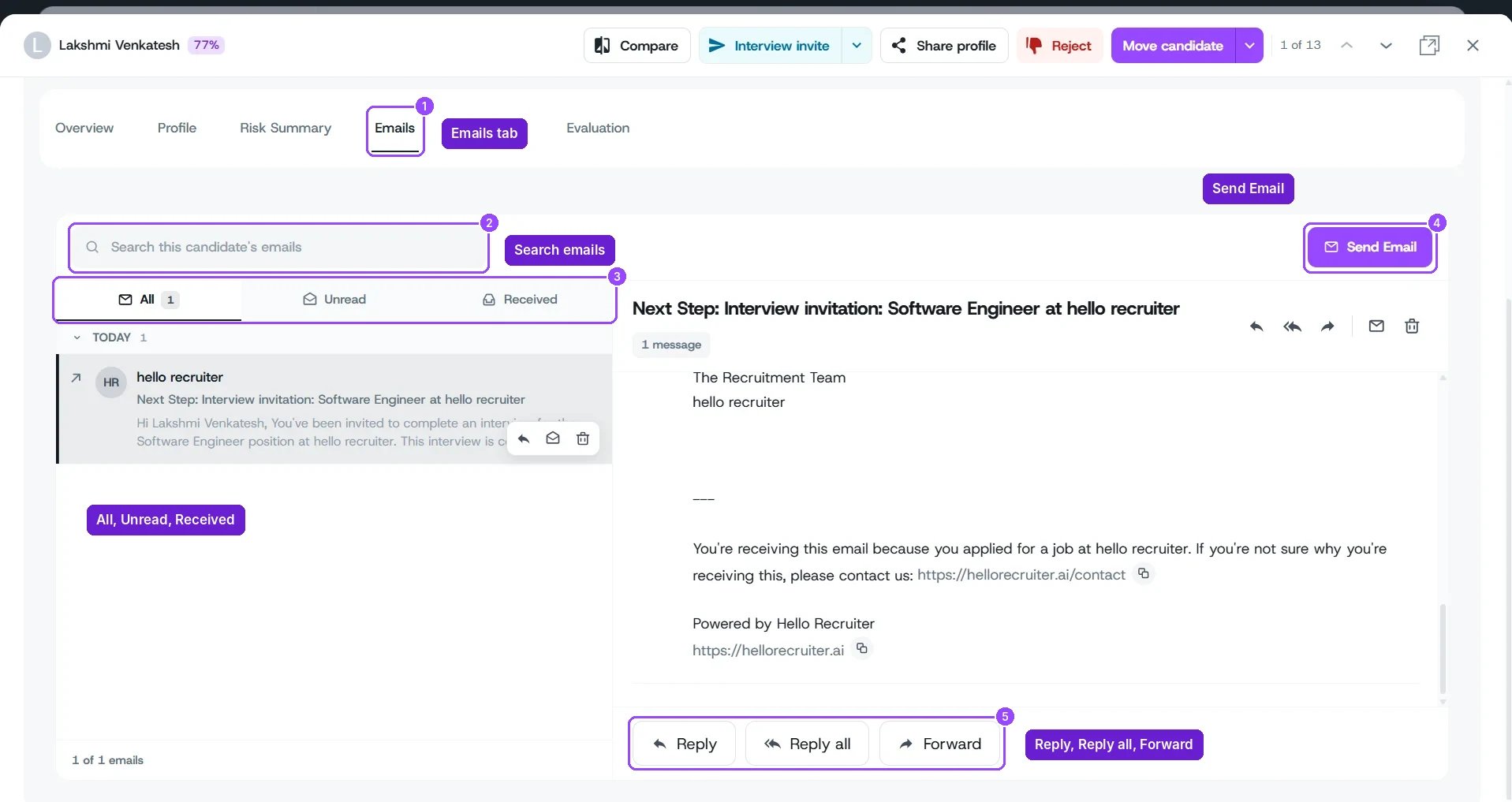
A candidate's Emails tab with an email open
- Search this candidate’s emails to find a message.
- Filter with All, Unread, or Received (emails the candidate sent you). An arrow next to a message marks one your team sent.
- Click an email to read it on the right. Hover over a row for quick reply, mark as read, and delete actions.
- With an email open, use Reply, Reply all, or Forward, or the icons at the top of the email.
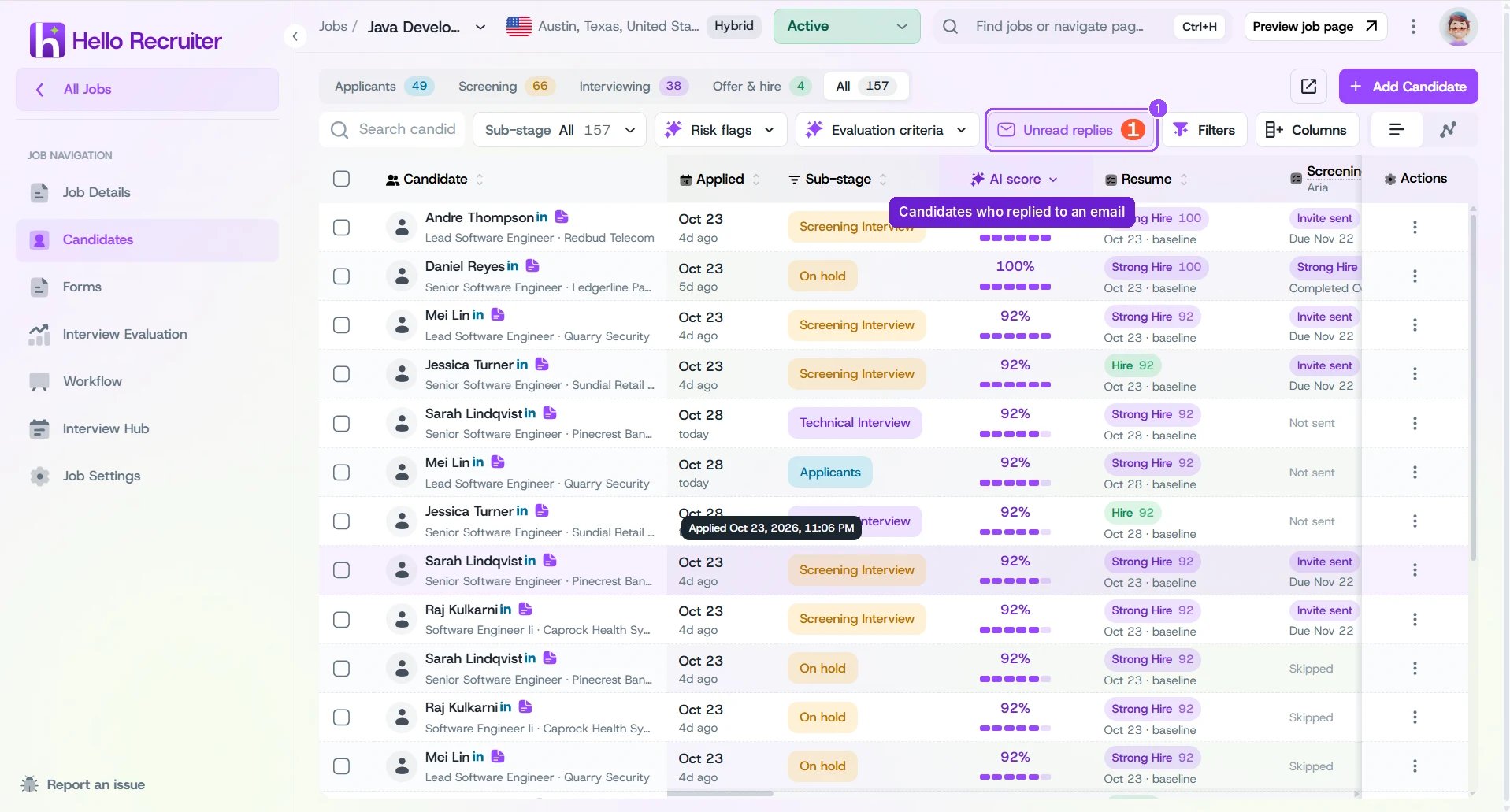
Unread replies on the Candidates page
Send an Email
1
Open the Emails tab
In the candidate’s profile, choose Emails.
2
Click Send Email
Click Send Email at the top right.
3
Write and send
Write your message and send it. It appears in the list straight away.
Comment on a Candidate
1
Open the Comments tab
In the candidate’s profile, choose Comments.
2
Write your comment
Click Add comment here… and type your note. Use the toolbar for bold, italic, underline, and bulleted lists. Type @ and pick a teammate to mention them. A mention shows their name in the comment, but it doesn’t notify them yet, so let them know yourself if it’s urgent.
3
Post it
Click Post Comment, or Cancel to discard it.
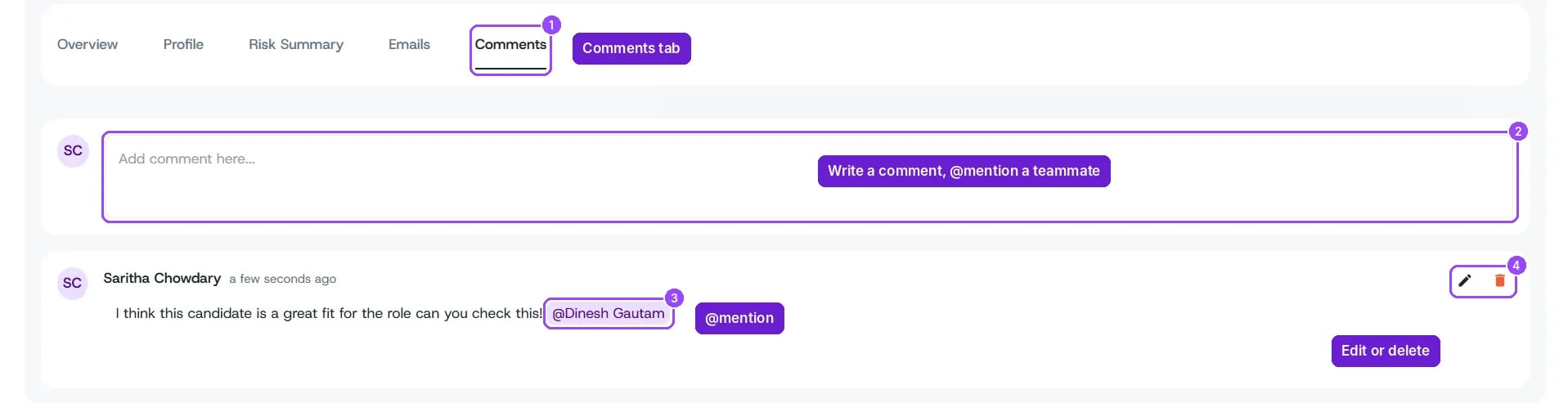
A candidate's Comments tab with a posted comment