

Who is this for? Users with Administrator or Account Owner roles.
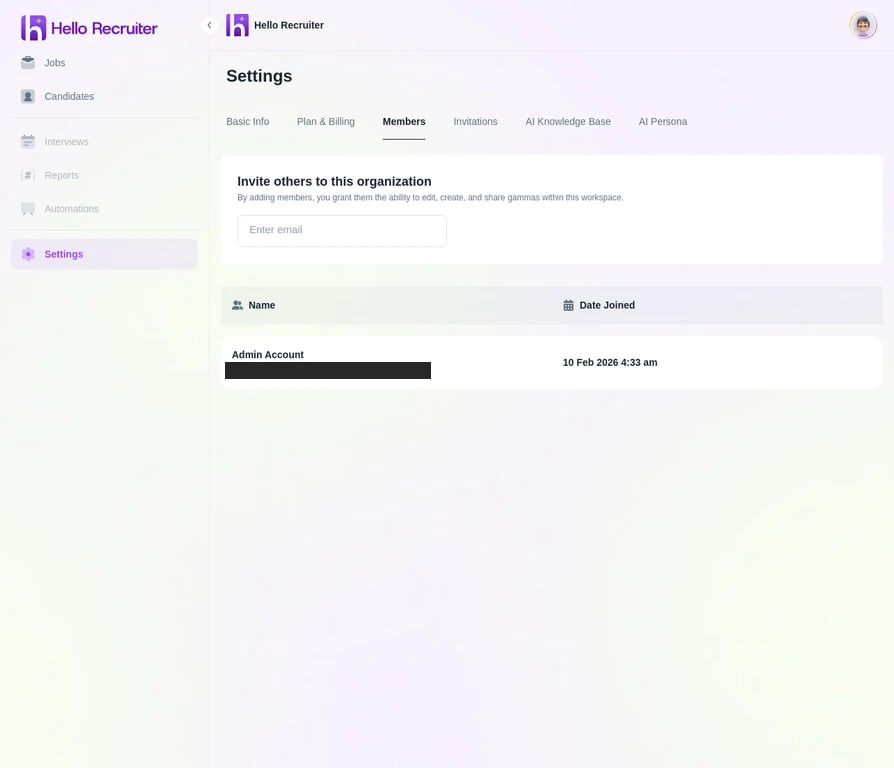
The Members page — invite members and manage roles
Invite a New Team Member
1
Navigate to Members Settings
From the main navigation sidebar, click Settings, then select Members from the settings menu.
2
Click Invite Member
Click the + Invite Member button to open the invitation dialog.
3
Enter Details & Assign a Role
In the Email Address field, enter the email of the colleague you wish to invite. You can add multiple emails separated by commas. From the Role dropdown menu, assign a permission level.
4
Send Invitation
Click Send Invitation. Your team member will receive an email with instructions to set up their account.
Pending Invitations
You can view and manage all pending invitations by clicking on the Invitations tab. From here, you can resend or revoke an invitation.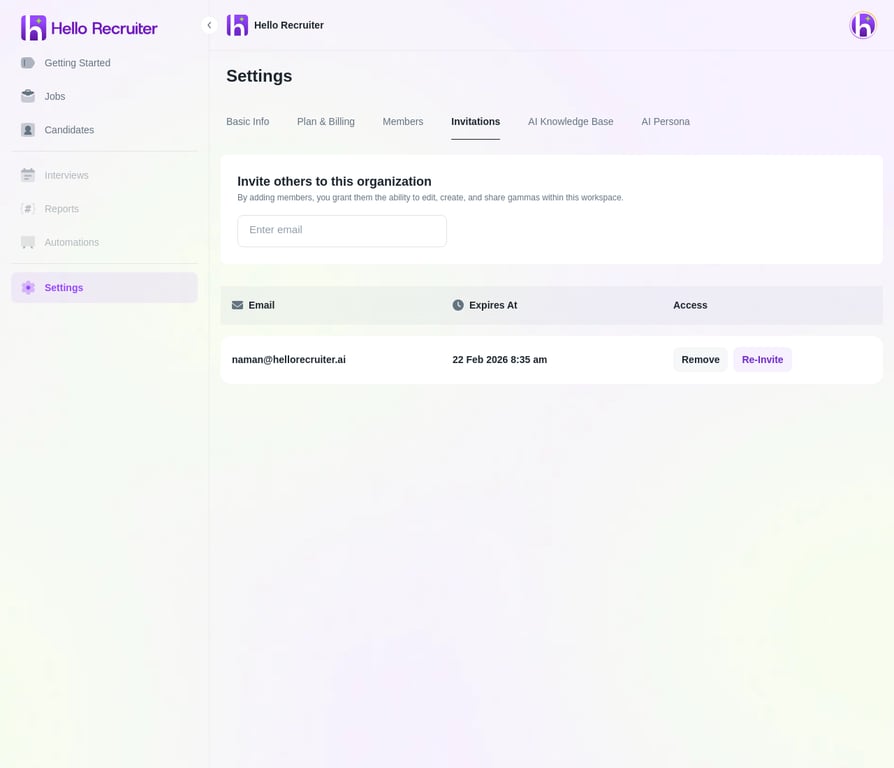
Pending Invitations
Change a Team Member’s Role
1
Navigate to Members
Go to Settings → Members from the main sidebar.
2
Find the Team Member
Locate the team member whose role you want to change.
3
Change Their Role
Click the More Options (three dots) icon, select Change Role, choose the new role from the dropdown, and click Save Changes. Permissions update instantly.
Remove a Team Member
1
Navigate to Members
Go to Settings → Members from the main sidebar.
2
Find the Team Member
Locate the team member you wish to remove.
3
Remove and Confirm
Click the More Options (three dots) icon, select Remove User, and confirm the removal in the dialog.