

Who is this for? Users with Administrator and Recruiter roles.
Video walkthrough coming soon. A short video of setting up Aria’s questions will appear here.
At a Glance
Opening the Round
1
Open the job's workflow
Go to the job’s Workflow page and click your Aria round. To add one, click + on a pipeline stage, choose Interview Stage, then AI Interviewer, and pick ARIA.
2
Check the duration
The round’s Duration decides how many questions fit, so set it before you generate.
3
Open Interview Guidance
Switch to the Interview Guidance tab. Aria rounds open on Questions.
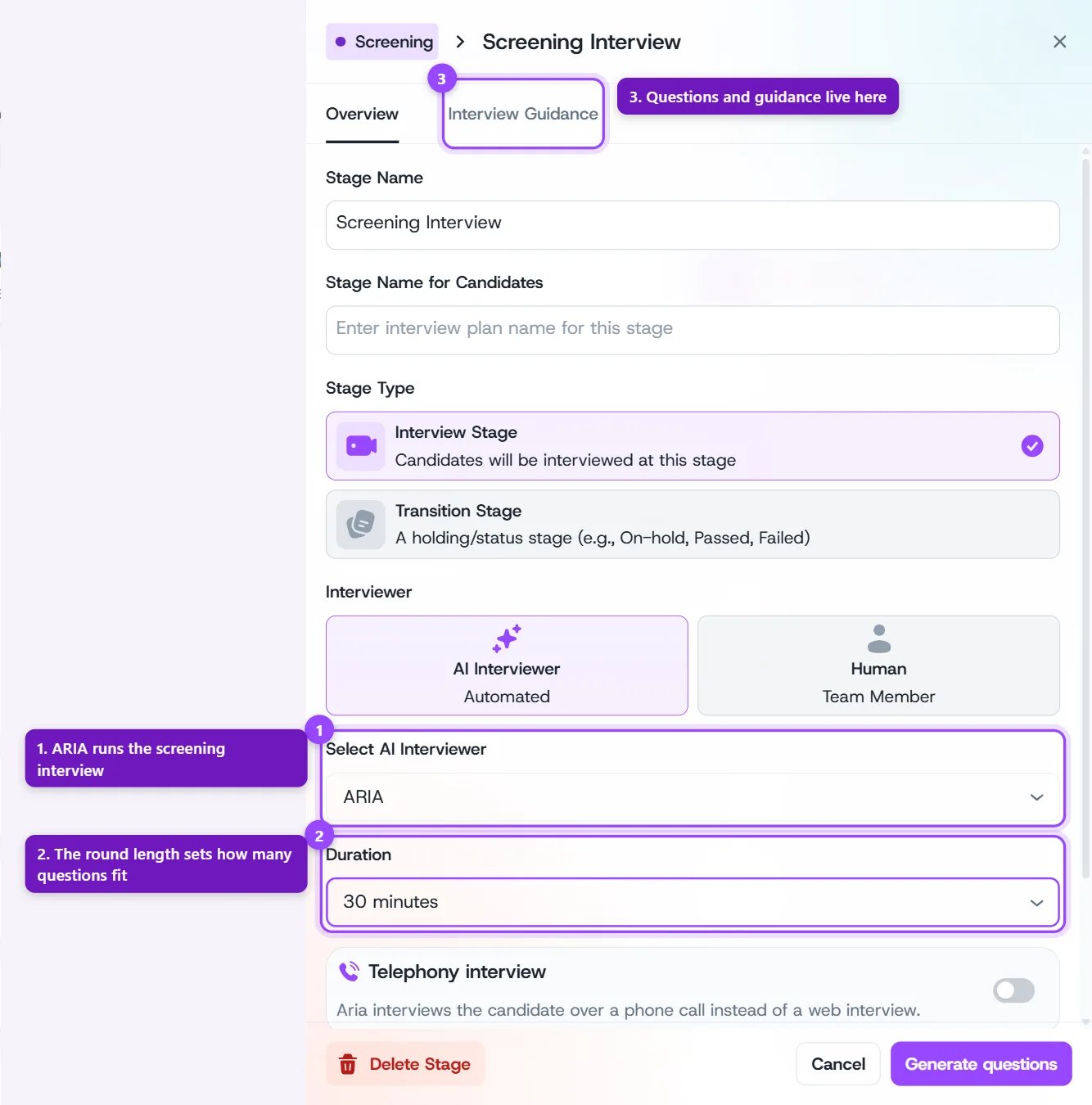
An Aria round's settings: the interviewer, the round length, and the Interview Guidance tab
Generating Questions
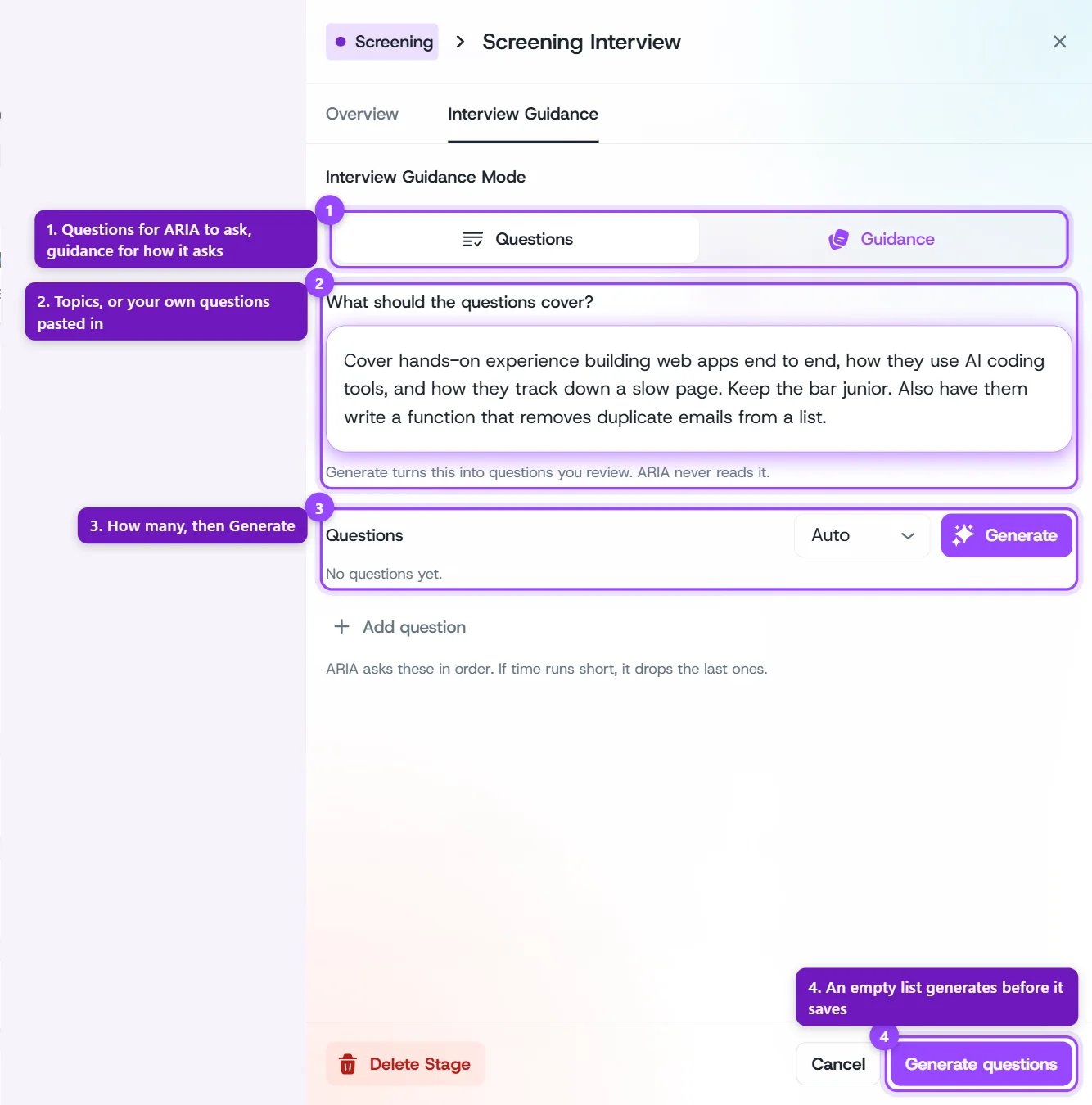
The Questions tab before any questions are added
1
Tell Generate what to cover
Use the What should the questions cover? box for topics, the level you’re hiring at, or anything you want asked. You can also paste the questions you already use. Only Generate reads this box; Aria never does. Leave it empty and Generate works from the job description and your evaluation criteria alone.
2
Pick how many
Auto sizes the list to the round. Pick a range, from 3 to 5 up to 20 to 25, to ask for fewer or more.
3
Click Generate
Questions appear one by one as they’re written, ready for you to review.
Reviewing What Generate Wrote
Generate never changes your list directly. It shows each change on its own line, the way a code review does, and you decide.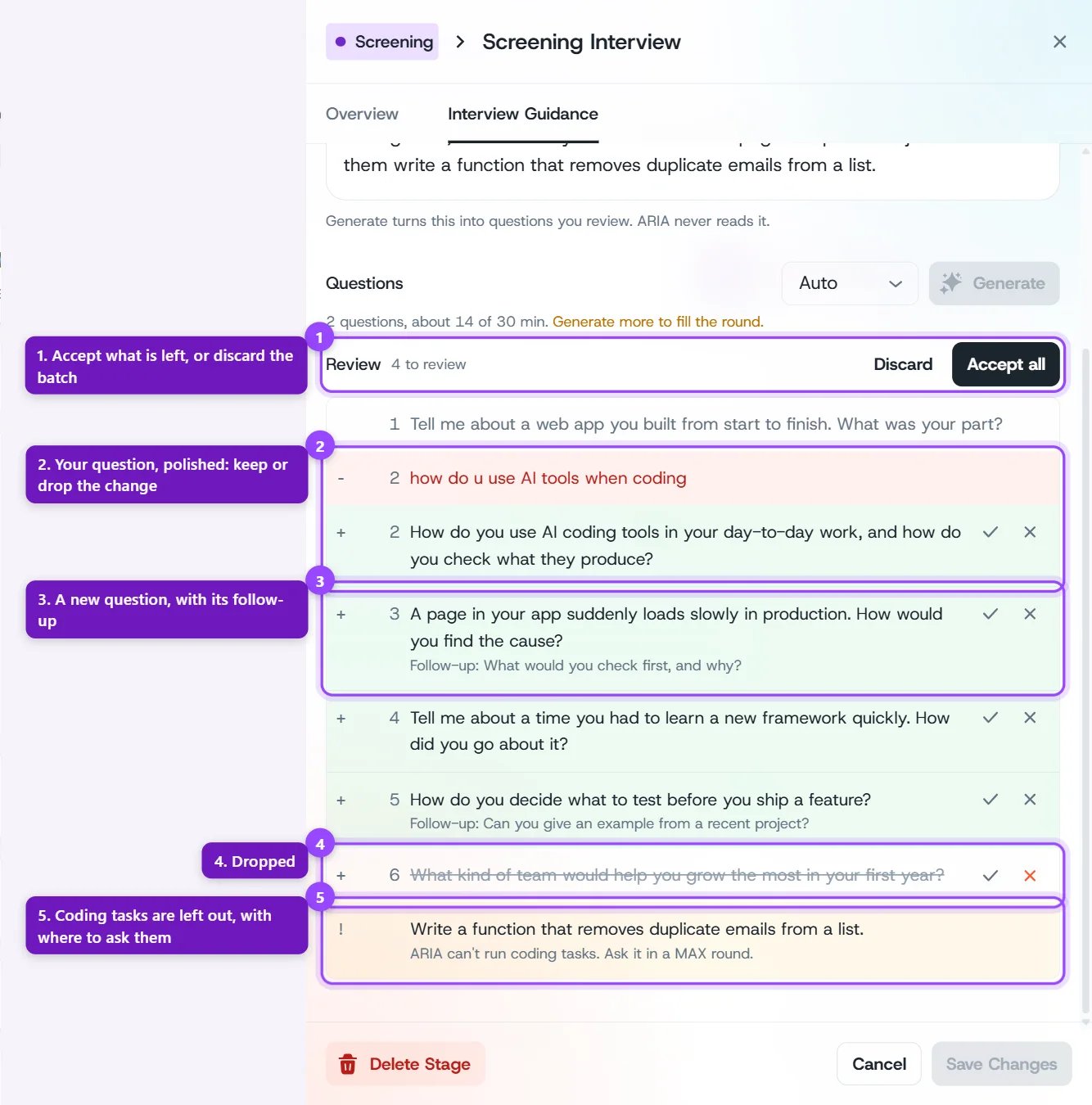
The review: a polished question, new questions, one dropped, and a coding task left out
Click Keep or Drop on any line. When you’re done, Accept all adds everything you haven’t dropped. Once you’ve decided every line, the button reads Apply. Discard throws the whole batch away.
Generate won’t repeat or paraphrase a question already on your list, so you can run it again to fill gaps. Finish or discard a review before you save.
Editing the List
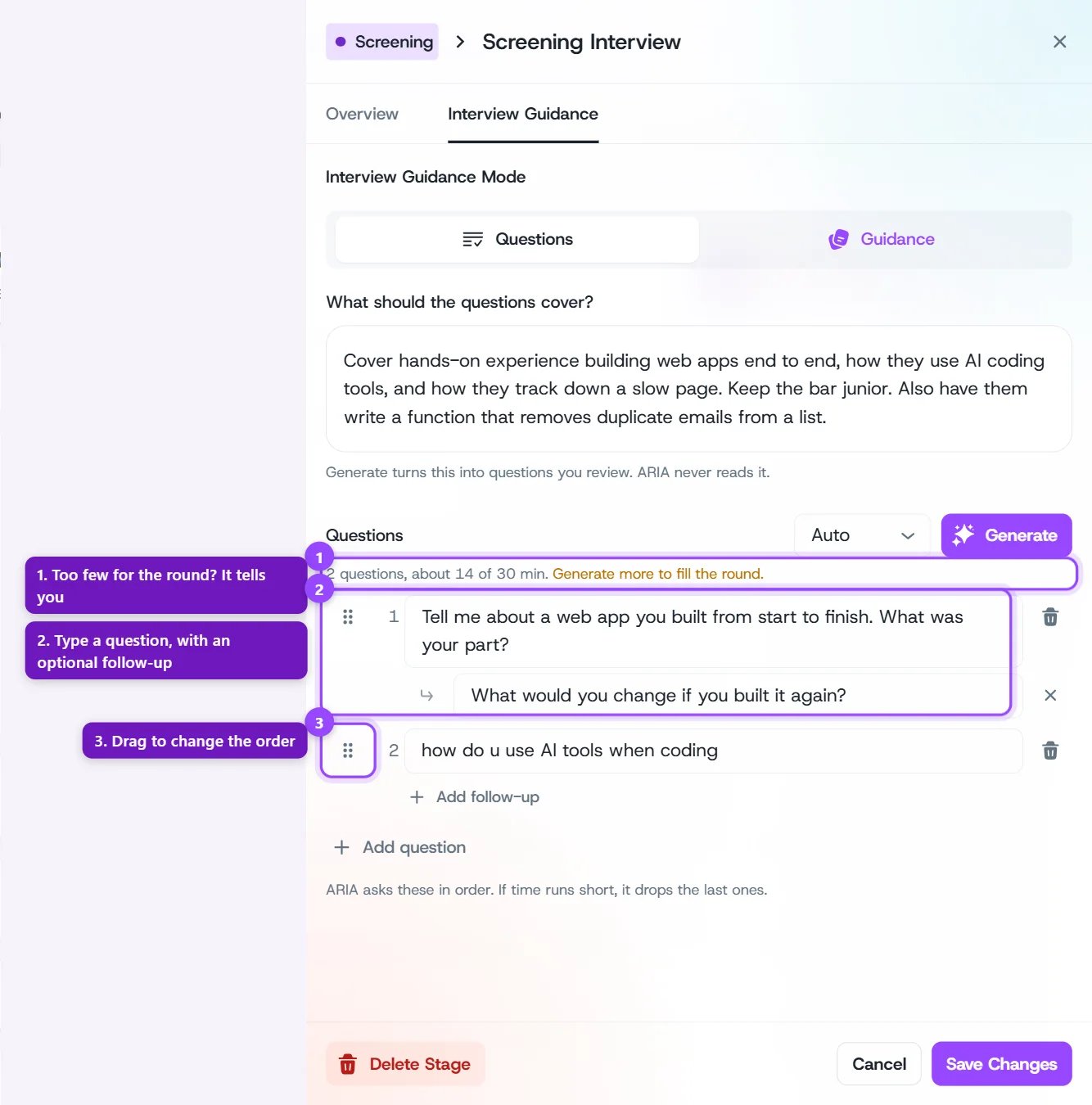
Two typed questions, one with a follow-up, and a warning that the list is short for the round
- Add question adds a row at the end. Each question is a single line.
- Add follow-up gives a question one follow-up, which Aria asks when the first answer needs more.
- Drag the handle to the left of a question to change the order, and use the bin icon to delete it.
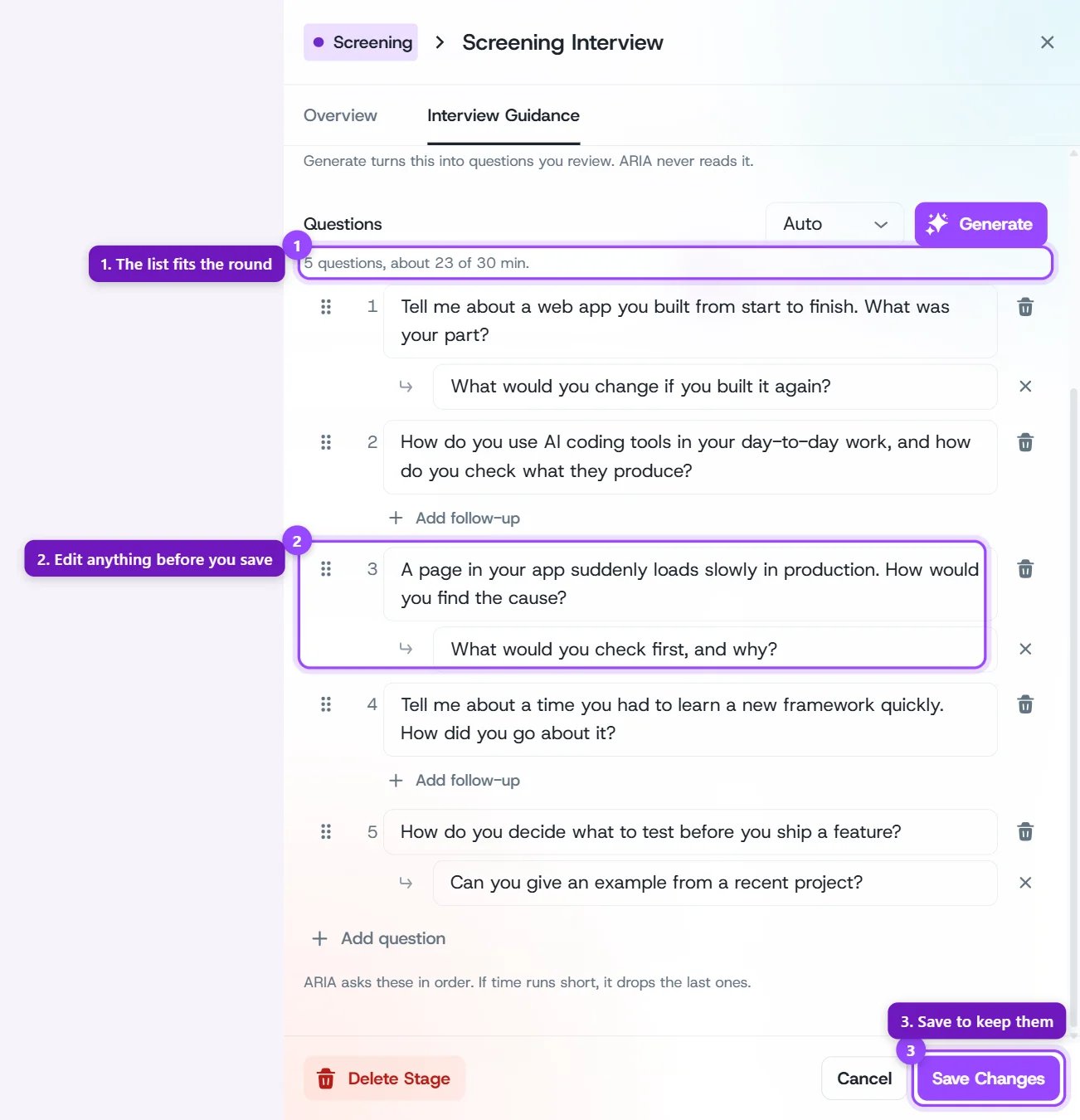
The reviewed list, sized to fit a 30-minute round
Saving and Publishing
Click Save Changes to keep the round’s questions and guidance. An Aria round needs at least one question, so while the list is empty the button reads Generate questions. It generates a list for you to review, and you save after that. Saved changes are a draft until you click Publish Workflow on the job’s workflow page. Candidates invited after you publish get the new questions.Questions Aria won’t ask
Aria runs a spoken screening, so it can’t give coding tasks or whiteboard exercises. When you publish, every question on the list is checked, including the ones you typed yourself. If one is a coding task or a whiteboard exercise, Aria skips it, and the question shows a warning in the list naming the round to move it to. If you reword the question, it’s checked again at the next publish.The Guidance Tab
The Guidance tab tells Aria how to run the interview: the tone to take, when to push for a concrete example, or what to stay away from. Aria reads it throughout the conversation, and the candidate never hears it. It doesn’t add questions, which belong on the Questions tab.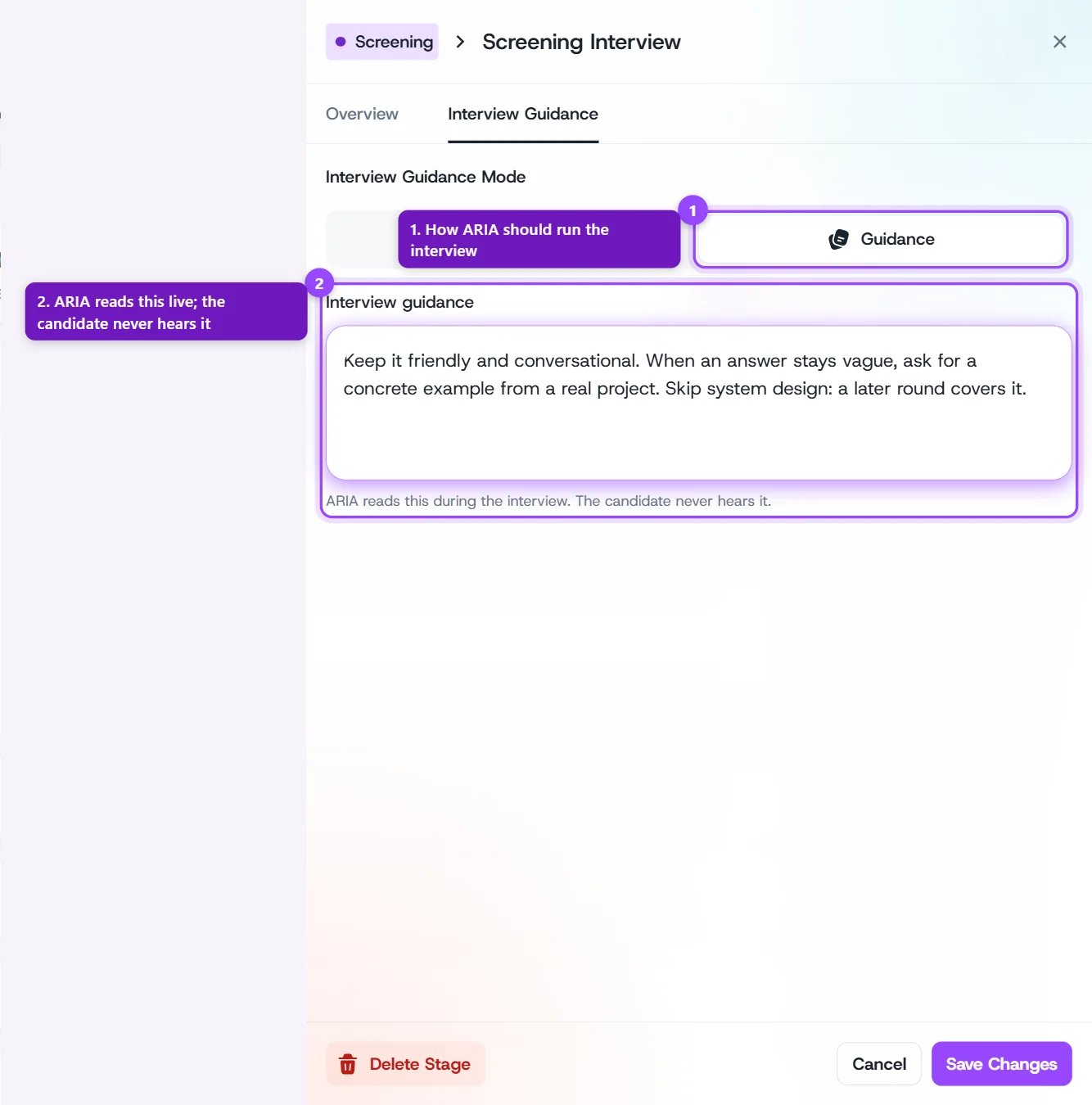
The Guidance tab: instructions Aria follows during the interview
If the job is connected to an ATS such as Greenhouse or Ashby, the tab may open empty while the grading instructions from your ATS stay in place. Writing here and saving replaces them for this round.
Rounds Set Up Before October 2026
Aria rounds used to have Auto and Guided modes. Existing rounds keep working as they did until you next edit them:- A round saved on Auto still has its questions written for it, and its card on the workflow page reads Auto. Open it, add questions, and save to move it to a question list.
- A round saved on Guided opens with your old focus-areas text in the What should the questions cover? box, and the questions Aria built from it already in the list.