

Who is this for? Everyone on your team can see the job board. Only users with the Organisation Administrator and Recruiter roles can create or duplicate jobs.
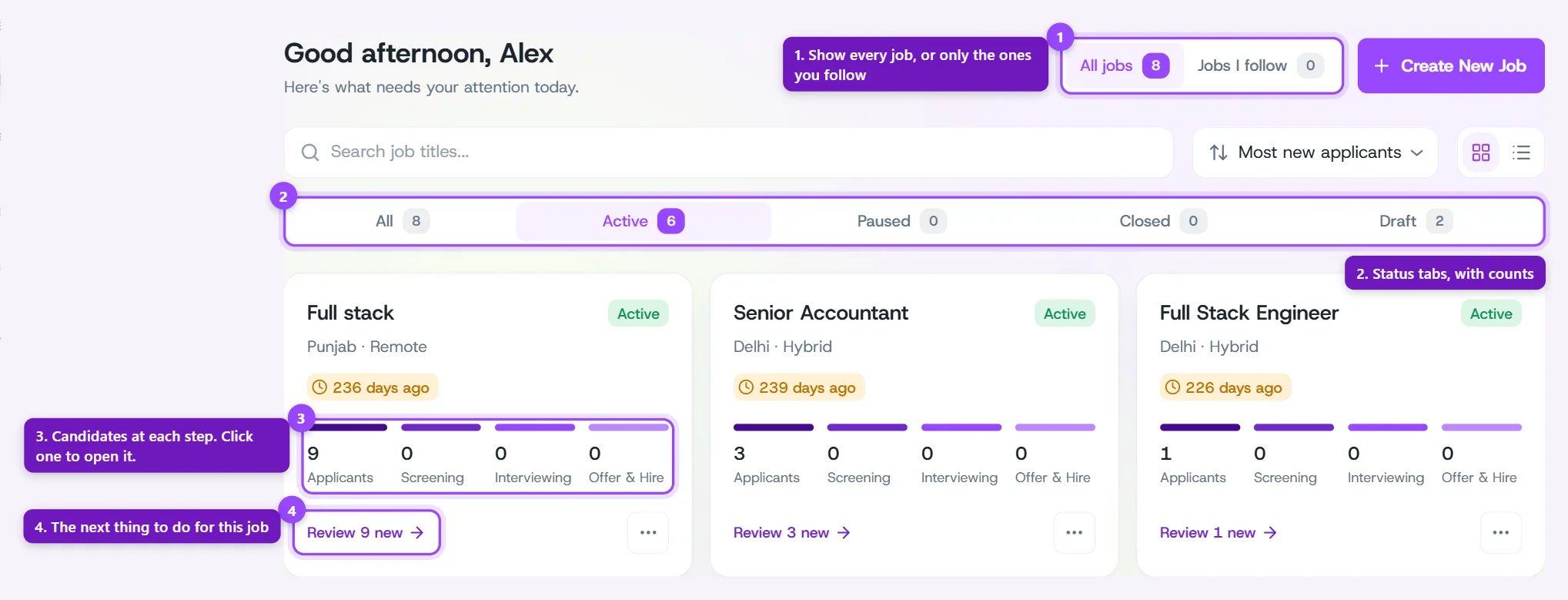
The job board in grid view
The Top of the Page
- Greeting. The page greets you by first name, with Good morning, Good afternoon, or Good evening to match the time of day.
- All jobs / Jobs I follow. Two buttons, each with a count. All jobs shows every job. Jobs I follow shows only the jobs you follow. These two counts always cover all your jobs, so they don’t change when you search or switch tabs.
- Create New Job. Starts a new job. See Creating a Job.
Find the Job You Want
Below the header is one row of controls.Search
Type in Search job titles… to find jobs by title. Any part of the title matches, and capital letters don’t matter.Status Tabs
The tabs are All, Active, Paused, Closed, and Draft. Each shows how many jobs are in it. The board opens on Active. The counts follow your search. If you type “engineer”, every tab shows how many engineering jobs it holds. They also follow the All jobs or Jobs I follow button you picked.Sort
The sort menu is headed Sort by. The option you choose keeps a check mark next to it.Grid or List
Two icons next to the sort menu switch the layout: Grid view and List view. The board opens in grid view.- Grid view shows one card per job. It’s good for a quick look when you have a handful of jobs.
- List view shows one row per job: its title, location and age, status, next-step link and menu, with the pipeline counts underneath. On a wide screen the rows fit on one line each, under column headings. It’s better when you have many jobs and want to compare them.
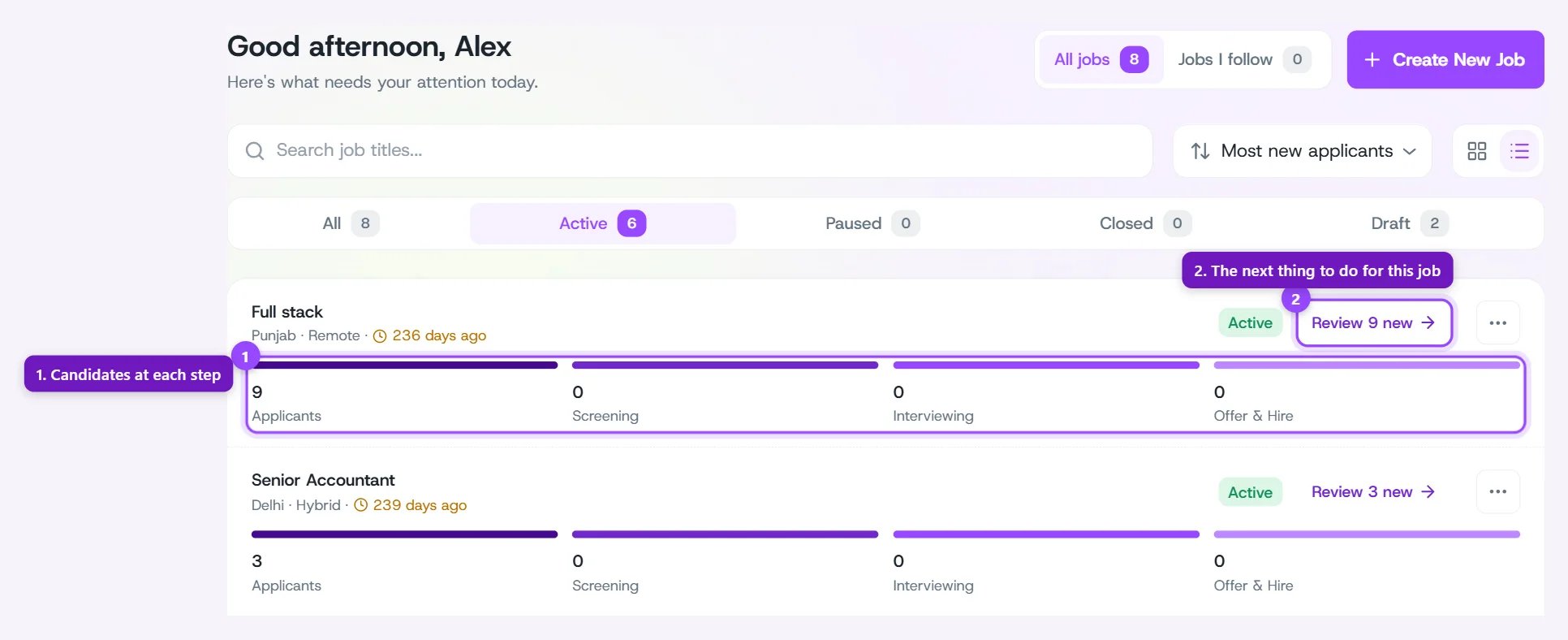
The job board in list view
What Each Job Shows
Click anywhere else on a job’s card or row to open that job’s candidates.
Old Jobs Stand Out
The age turns yellow on a card, or orange in the list, when an Active job has been open for 90 days or more. It’s a nudge to close the job or give it fresh attention. Paused, Closed, and Draft jobs never change color.Jobs From Your ATS
A job that was synced from an integration shows that system’s logo: Greenhouse, Ashby, or ZipRecruiter. Hover over the logo to see Synced from and the name, for example Synced from Greenhouse. In list view, logos get their own Source column. The column only appears if at least one of your jobs came from an integration. Jobs you create in Hello Recruiter show no logo. To connect a system, see Integrations.The Pipeline
Each job shows four counts, named exactly like the tabs on the job’s candidates page:- Applicants
- Screening
- Interviewing
- Offer & Hire
Next Step
The link at the bottom of a card, or beside the status in a list row, changes with the job.The Three-Dot Menu
Hover over the three-dot button to see More actions.- Share shares the job’s link.
- Duplicate makes a draft copy of the job, its application form included. Only Organisation Administrators and Recruiters see it.