

Who is this for? Users with the Organisation Administrator and Recruiter roles.
Open the Workflow
Open the job and choose Workflow from the Job Navigation menu on the left.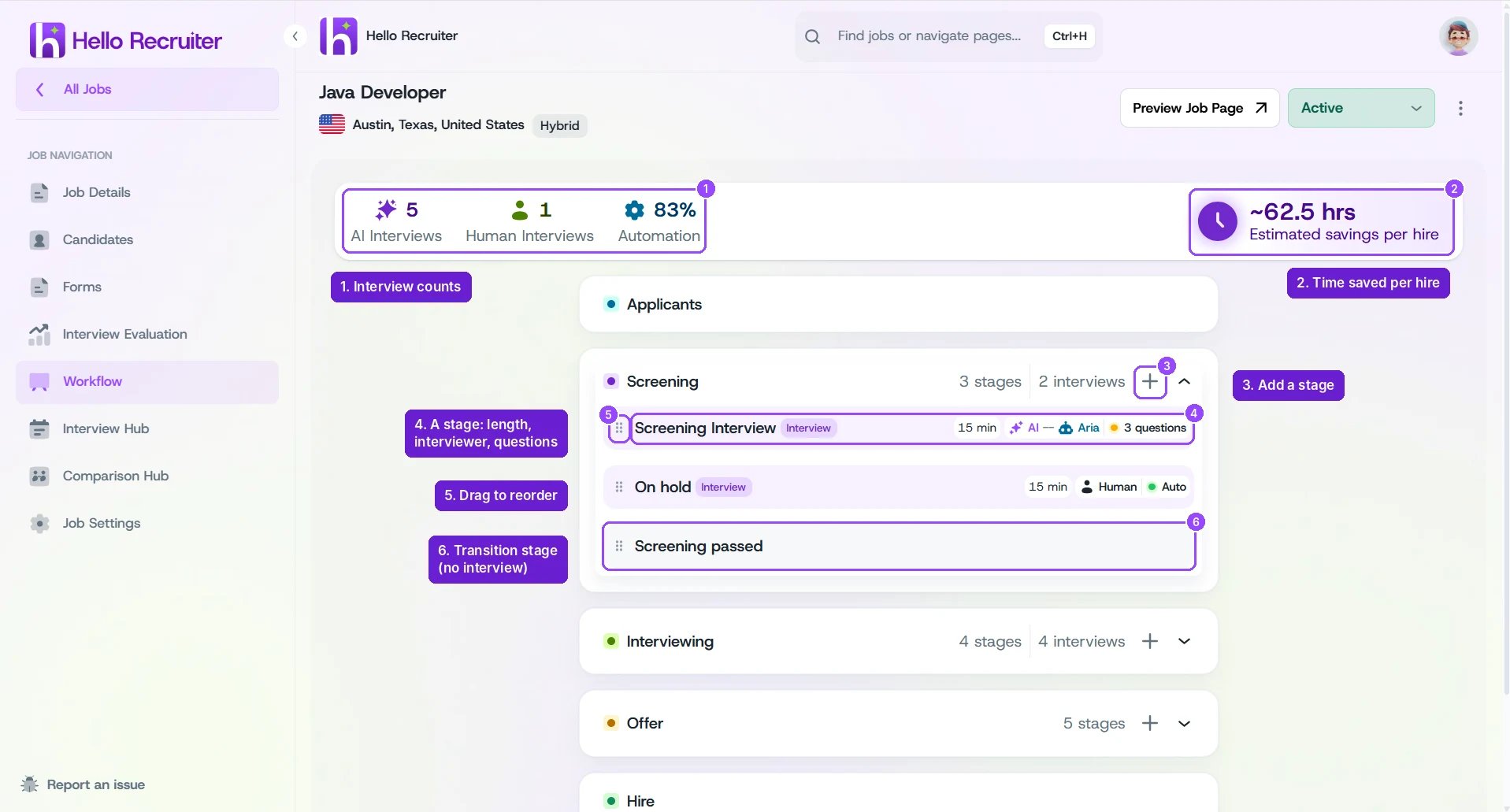
A job's Workflow
What You See
- Header stats — the number of AI Interviews and Human Interviews in the workflow, how much of it is Automation, and the Estimated savings per hire.
- Stage groups — the workflow runs from Applicants through Screening, Interviewing, and Offer to Hire. Some workflows also end with a Rejected group. Each group shows how many stages and interviews it has. Click the arrow to expand or collapse it, and + to add a stage.
- Stages — each row is one stage. Interview stages show a tag (Interview or Take-home), the Duration, the interviewer (for example AI — Aria), and how the questions are set (for example 3 questions or Auto). Stages without an interview, such as On Hold or Screening Passed, show just their name.
- Attached steps — a take-home’s Take-home follow-up call appears right under it, linked to it.
Add or Edit a Stage
Click + on a stage group to add a stage, or click an existing stage to open it. The stage panel opens on the right with two tabs: Overview and Interview Guidance.1
Name the stage
Enter a Stage Name for your team. Optionally, add a Stage Name for Candidates, the name candidates see.
2
Choose the stage type
A new stage starts as a Transition Stage named New Stage. Choose Interview Stage to add an interview.
3
Choose the interviewer (interview stages)
Under Interviewer, choose AI Interviewer (Automated) or Human (Team Member). For an AI interviewer, pick ARIA, MAX, NIX, or WHIX from Select AI Interviewer. For a human, pick a team member from Select Human Interviewer. See AI Persona.
4
Set up the round
Pick the Duration. You choose the length for each round, for example 15, 30, 45, or 60 minutes. Take-home rounds show a Deadline instead. Then set phone interview and Video Insights if you need them, and fill in the Interview Guidance tab. See Interview Agenda.
5
Save
Click Save Changes. Click Cancel to close without saving, or Delete Stage to remove the stage.On an Aria stage set to Questions with no questions yet, the button reads Generate questions instead. Generate or add your questions first. See Interview Agenda.
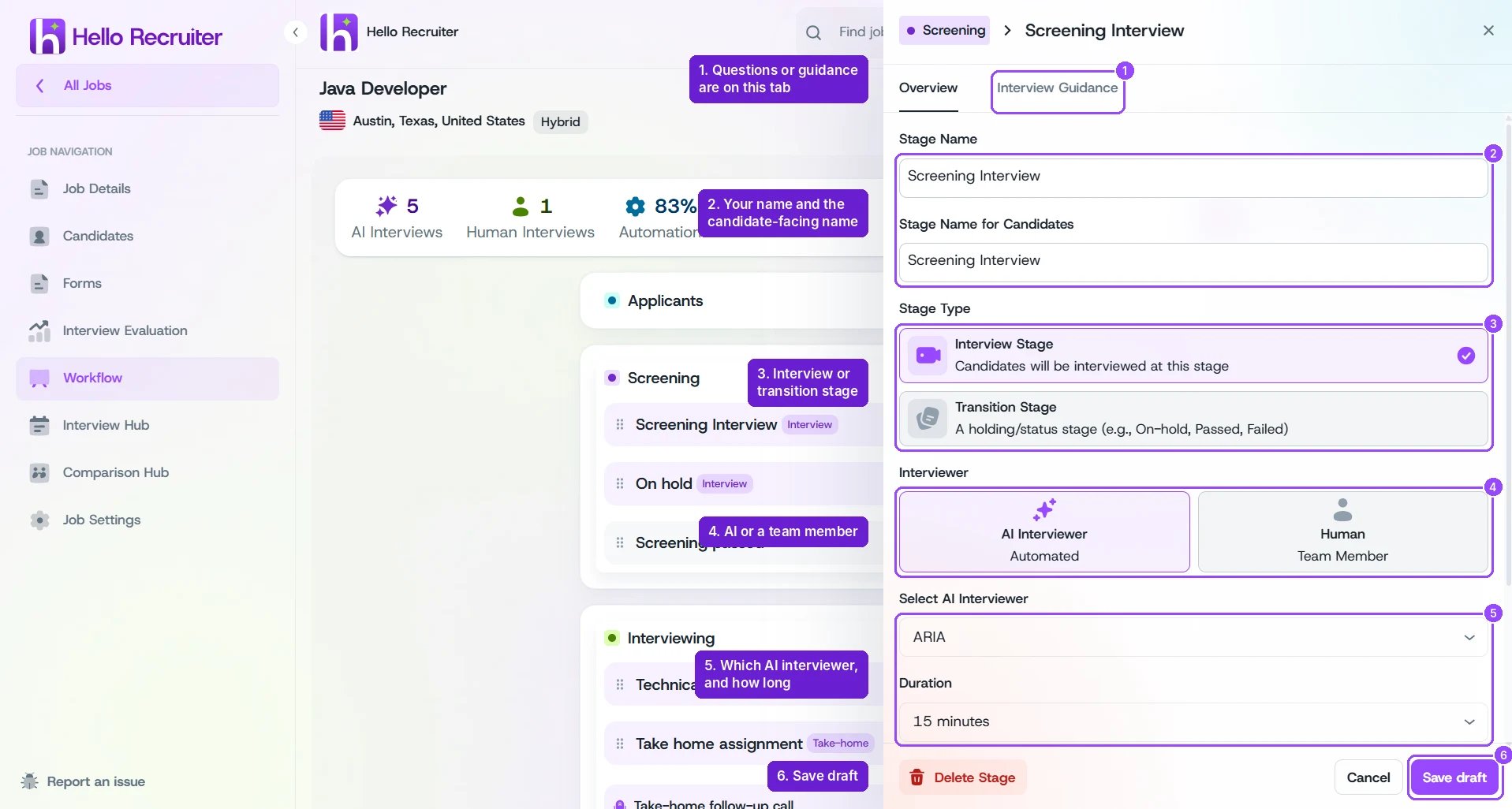
An interview stage: name, stage type, interviewer, and duration
Reorder or Change Stages
- Drag a stage by its handle (the dots on the left) to move it to a new position.
- Click a stage to open its settings and change them.
Rounds You Can Add
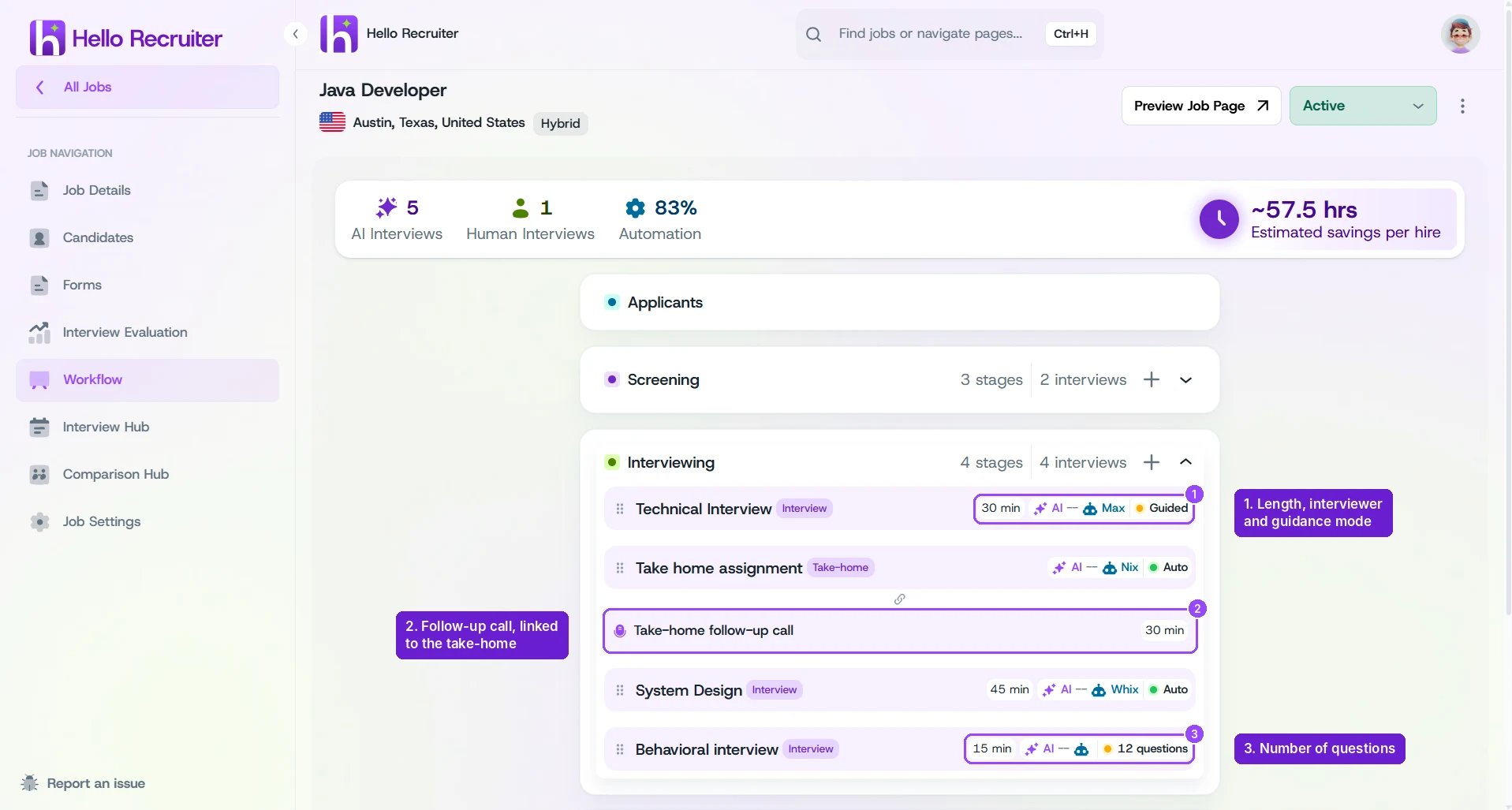
Interviewing rounds with Max, Nix, Whix, and Aria