

Video walkthrough coming soon. A short video showing the follow-up call from start to finish will appear here.
Will I Have One?
Your assignment page tells you before you upload. It shows one of two things:
If your page mentions neither, your assessment doesn’t include a call.
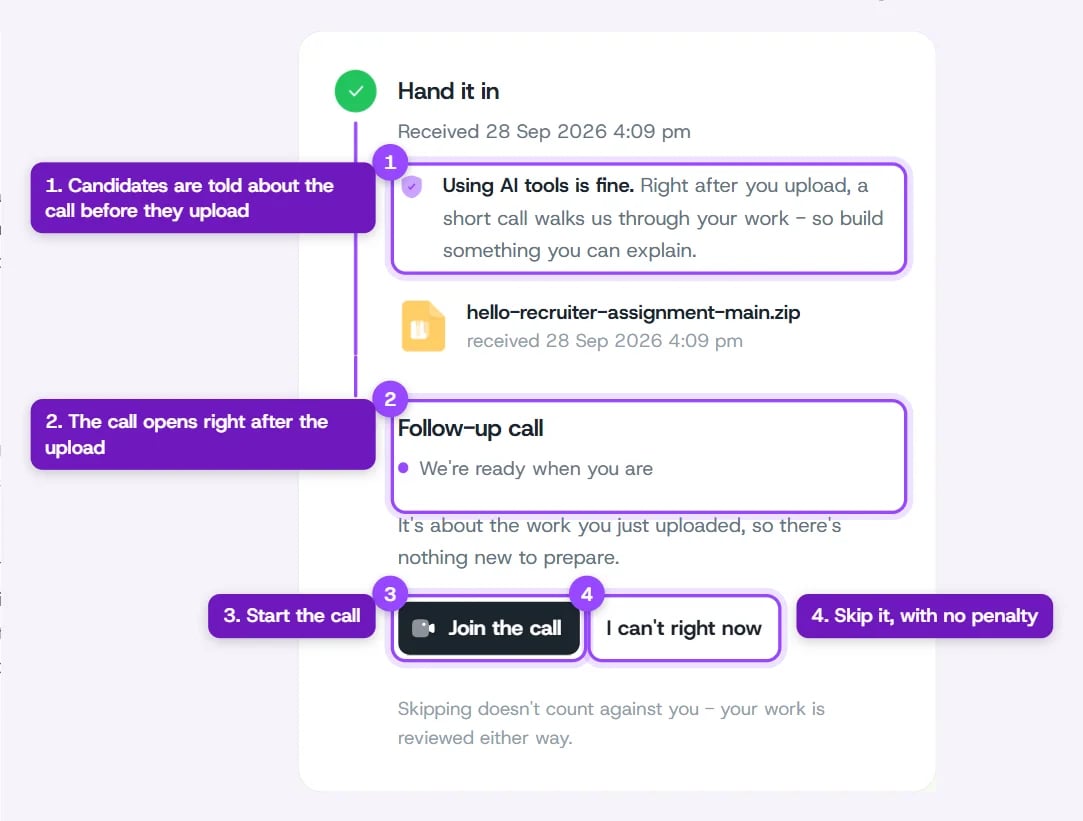
Your assignment page right after you upload, with the call ready to join
What to Expect
- About 20 minutes. One conversation, nothing to prepare.
- About your own work. The interviewer has your files open and asks why you made a few of the calls you made.
- Camera on, no screen share. You don’t need to show your screen. Headphones help.
- You can see what it’s looking at. During the call you can open your files and a live transcript.
Joining the Call
1
Open your assignment page
Use the page you uploaded from, or the link in your email if the hiring team asked for a call.
2
Click Join the call
You’ll land on a short welcome screen that shows how long you have left to start.
3
Agree to the recording and start
Tick the box agreeing to the recording, then click Start Interview. Allow camera and microphone access when your browser asks.
4
Check your devices
You can run a quick microphone test, or skip it with Not now. Then click Join Interview.
5
Talk it through
Answer the interviewer’s questions in your own words. It’s fine to say you’d do something differently now.
6
Finish and leave
When the interviewer wraps up, you’ll see You’re all done. Press End interview to close the room.
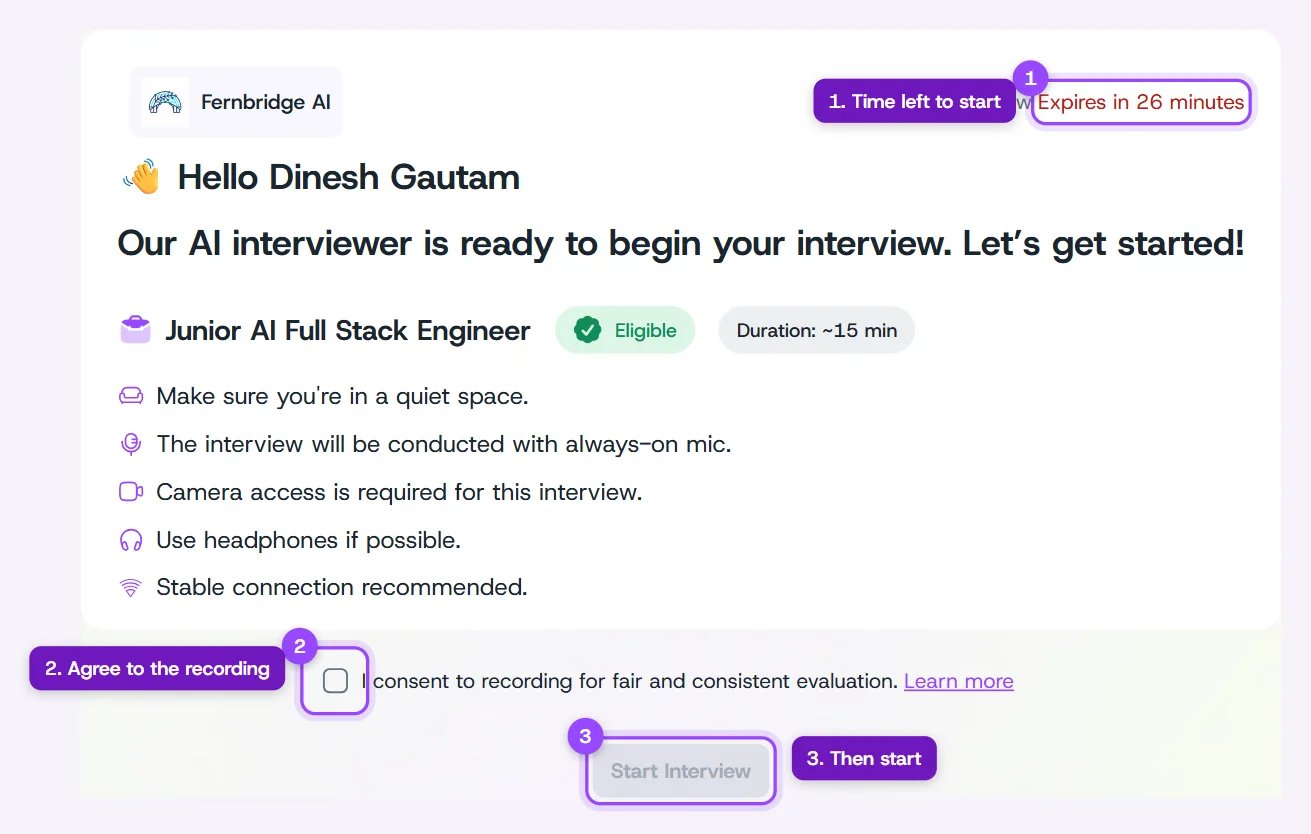
The welcome screen before the call
Inside the Call
Your files are on the left. When the interviewer brings one up, it opens in the middle so you’re both looking at the same thing, and you can open any file yourself too. The interviewer and your camera are on the right. The buttons at the bottom show or hide your files, your code, and a live transcript.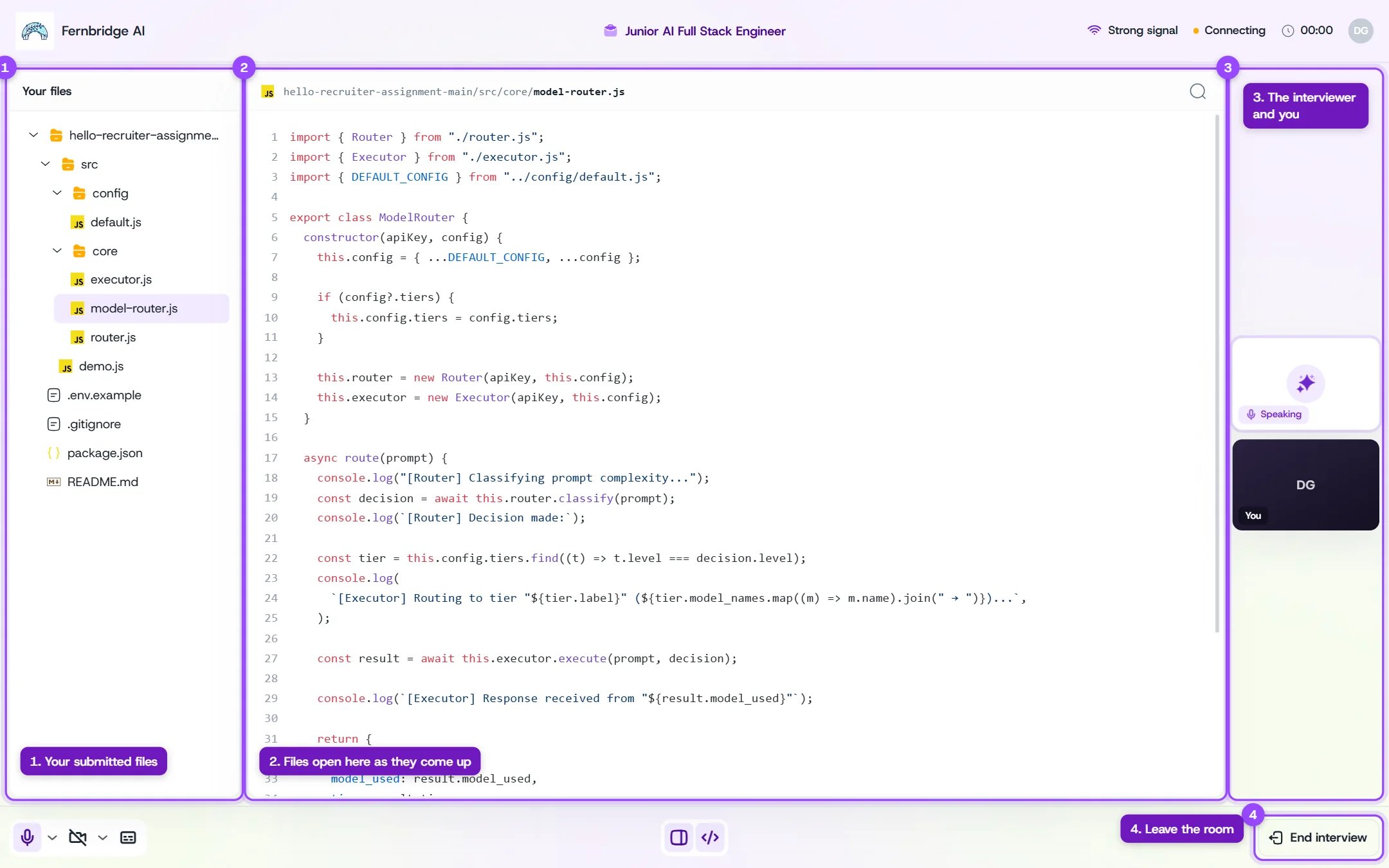
The follow-up call room
Having trouble with your camera or microphone? See Camera & Microphone and Technical Requirements.