Step-by-Step Guide
How to Create and Share a Job Posting on HelloRecruiter
Made by Hemant Oswal with Scribe
1. Navigate to https://hellorecruiter.ai/
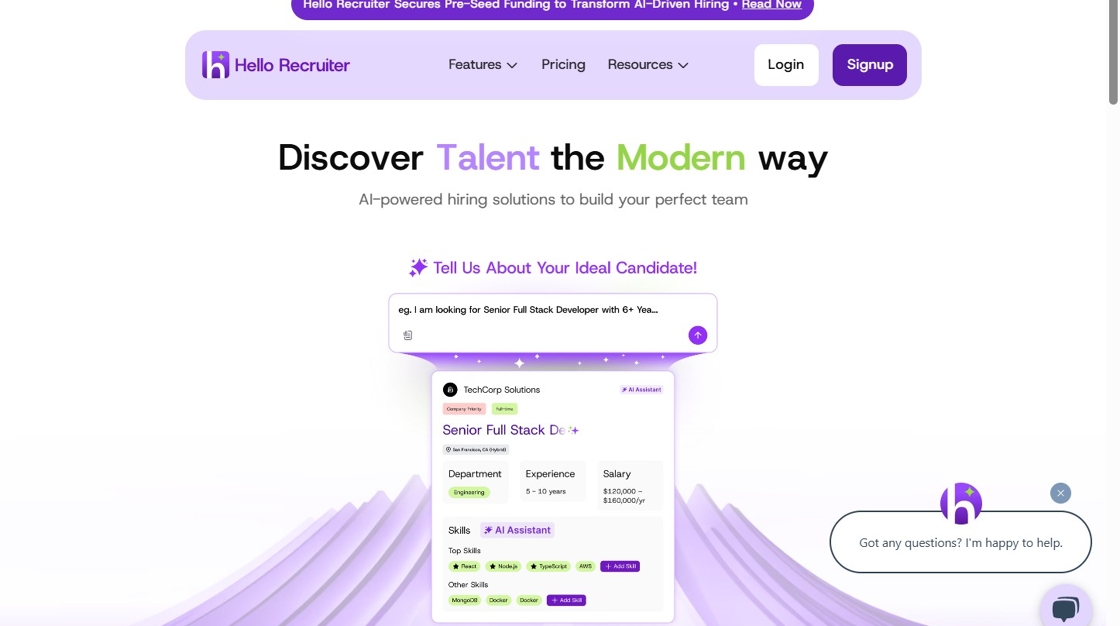
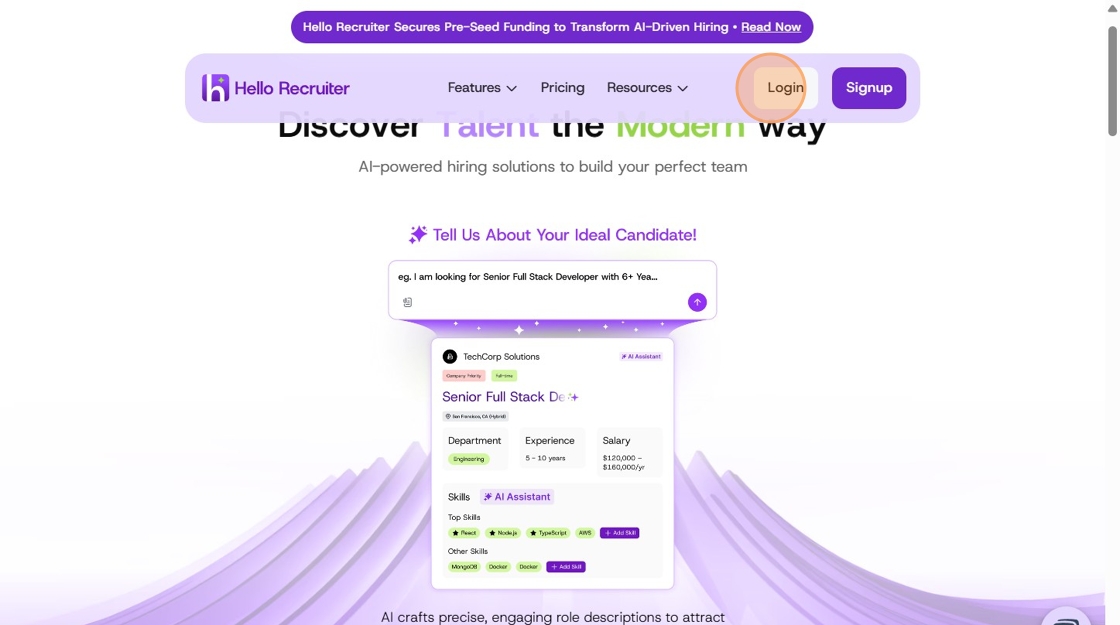
2. Click "Login"
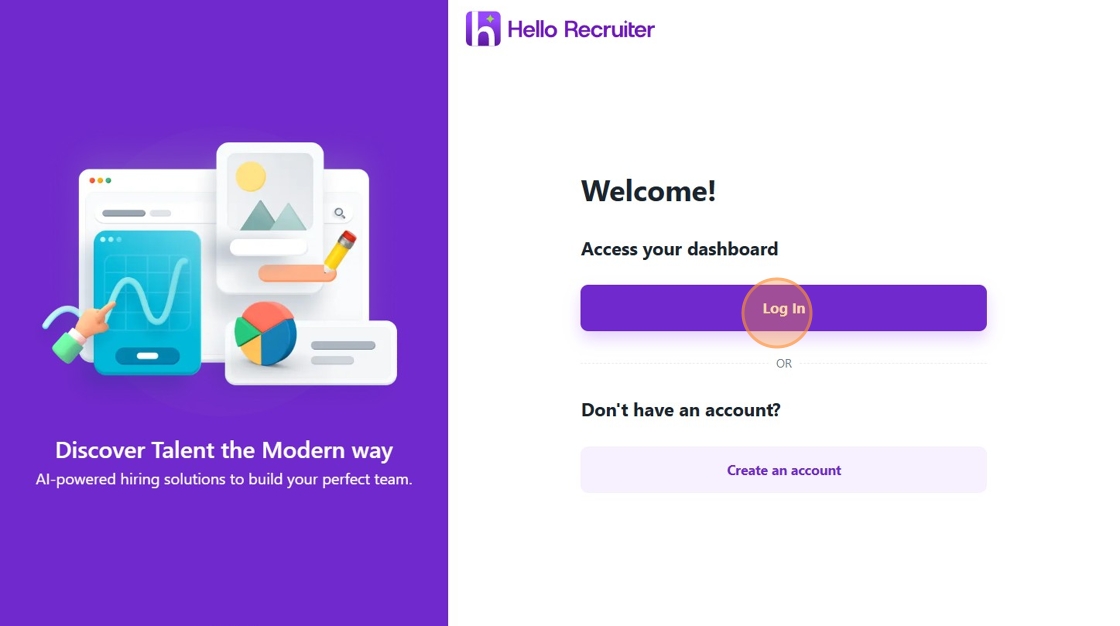
3. If you already have a Hello Recruiter account, click "Log In". Else, click on "Create an account" to crate a new account.
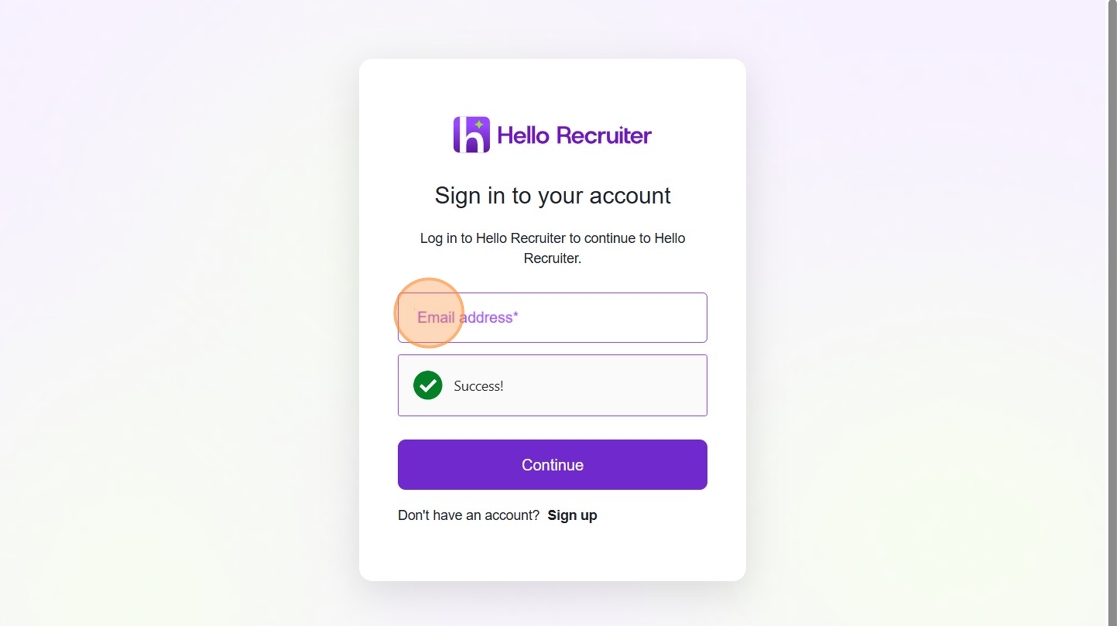
4. Enter your registered email address and click on the continue button.
5. Enter your password.
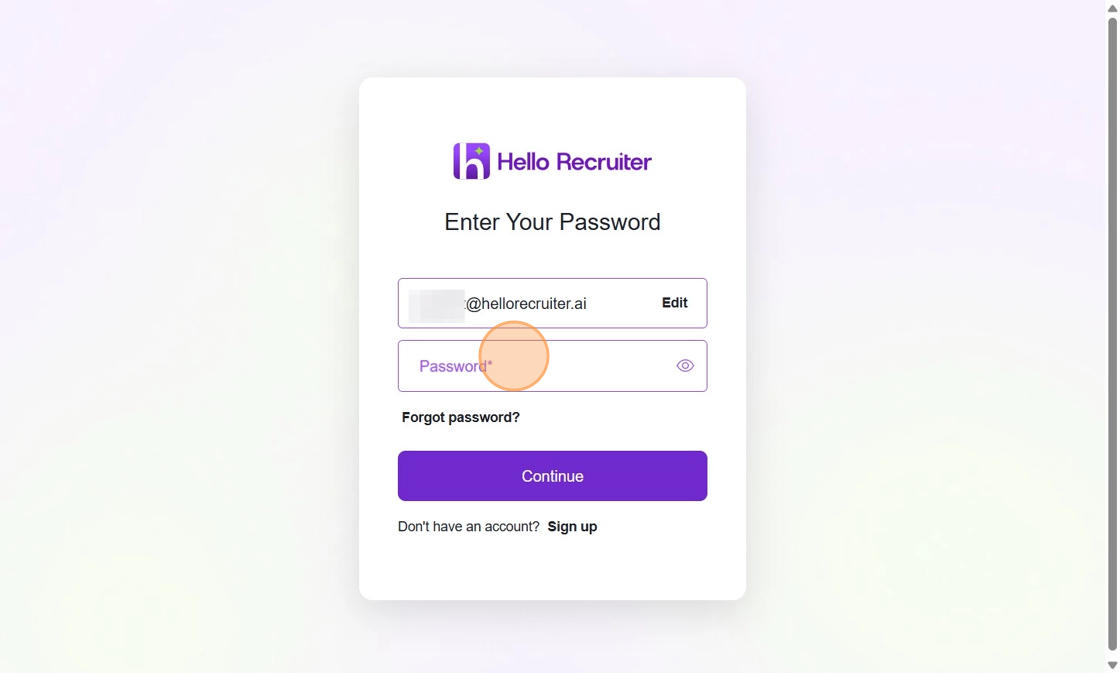
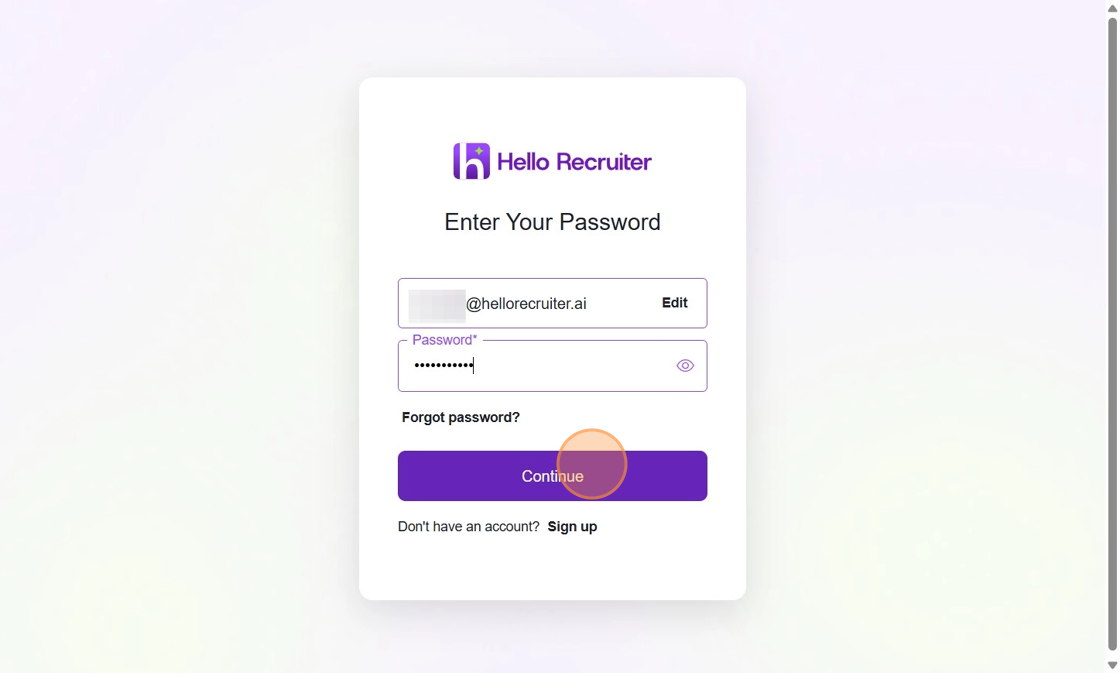
6. Click "Continue"
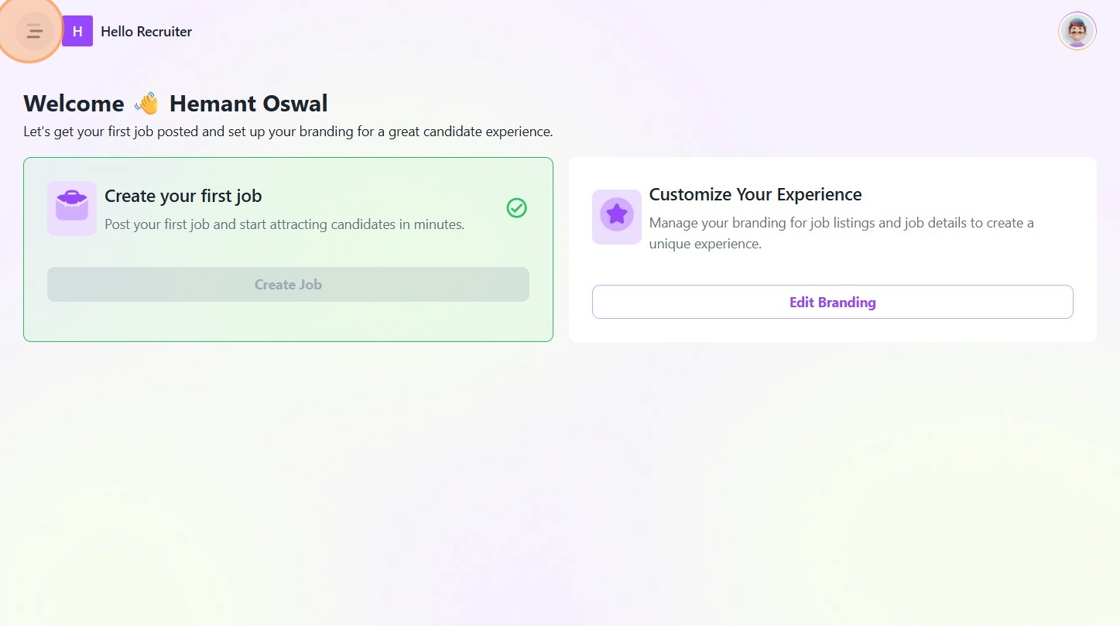
7. Now, on the welcome screen, click on the Hamburger menu.
8. Click on the "Jobs" option from the menu.
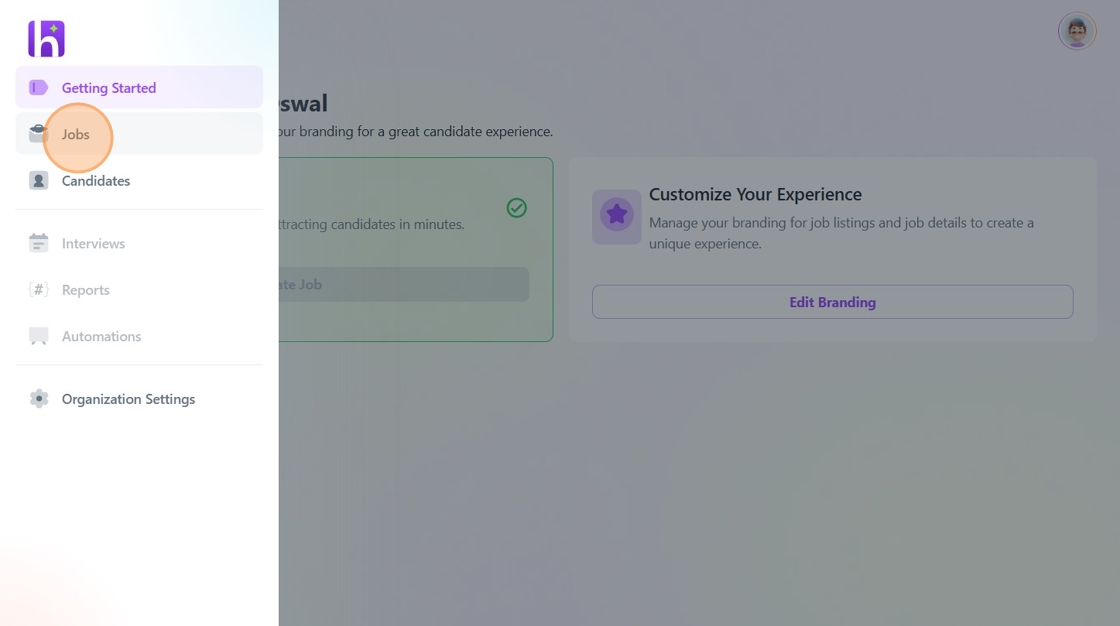
9. Click "Create New Job".
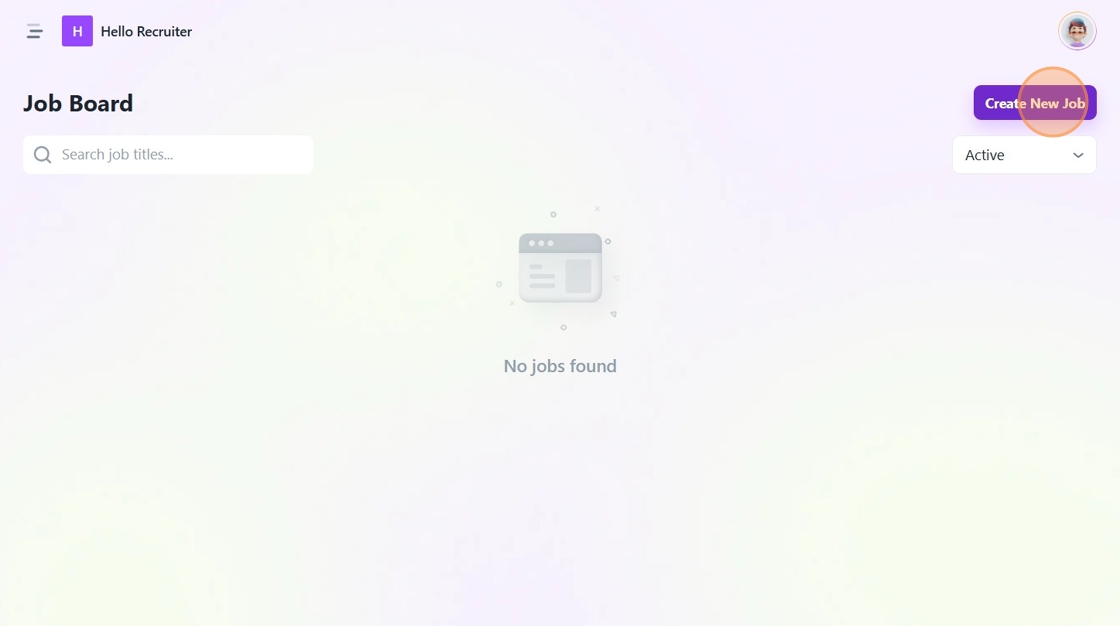
10. Enter the role name for which you wish to hire candidate(s).
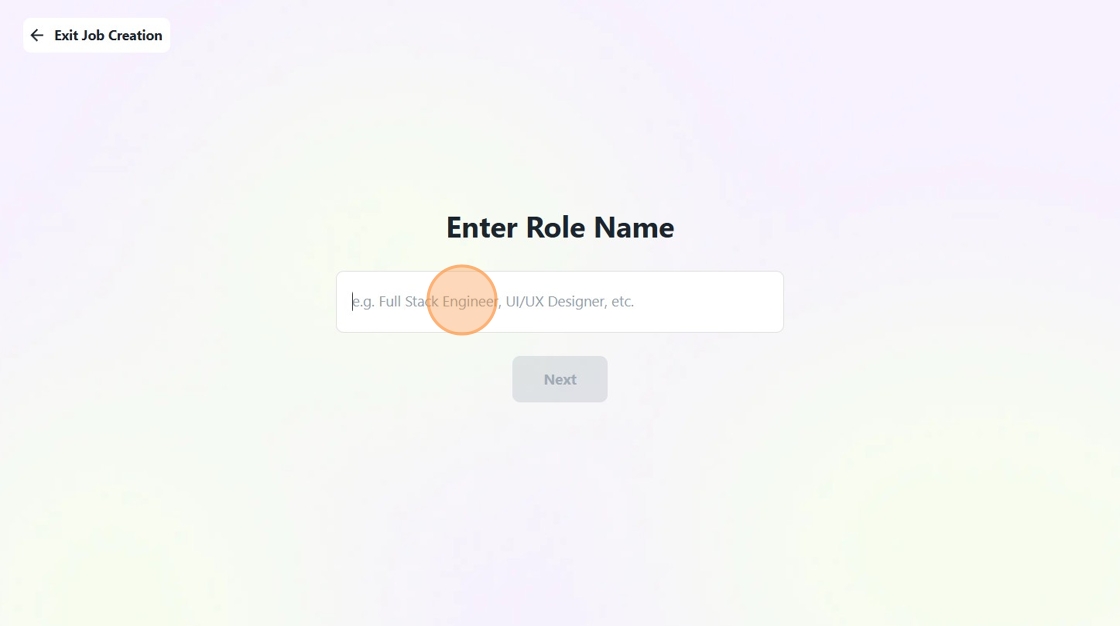
11. Click "Next"
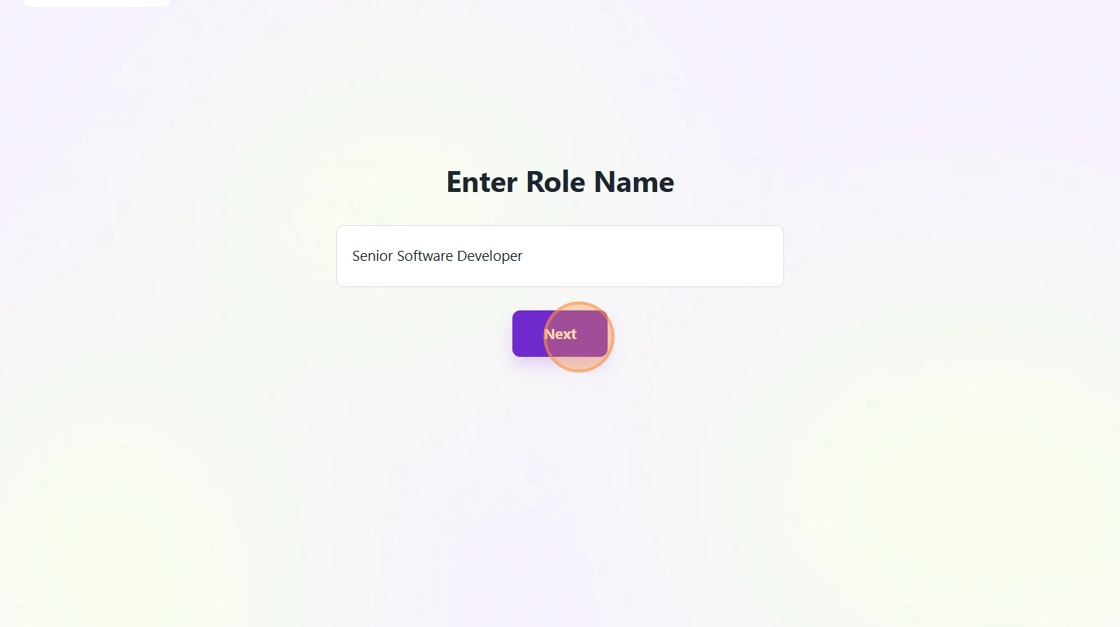
12. Add a detailed job description to specify the ideal candidate profile for the role. Once the job description is completed, click on 'Continue with AI' button.
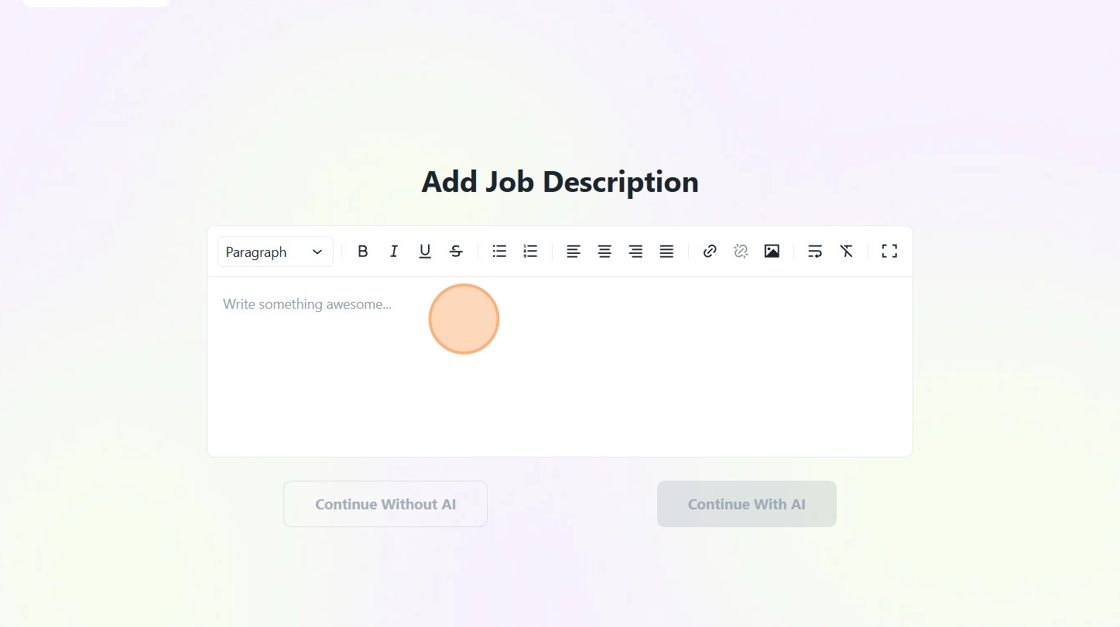
13. If you want our custom AI engine to complete this task for you, click on 'Continue with AI'. Then just sit back and let our AI create a comprehensive job description.
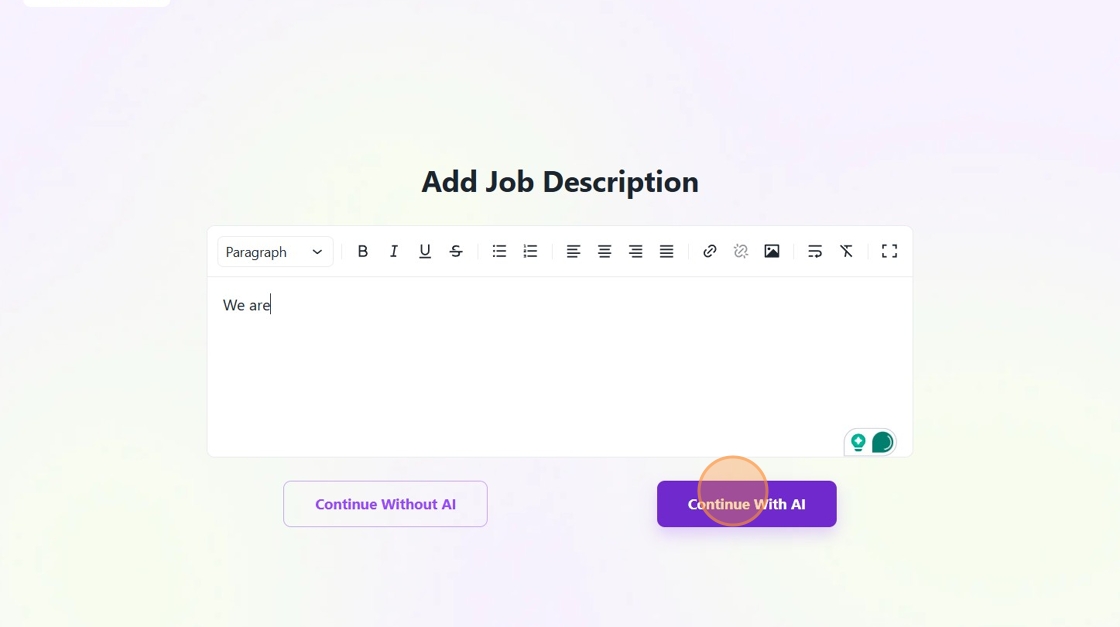
14. Click on the 'Edit' icon here.
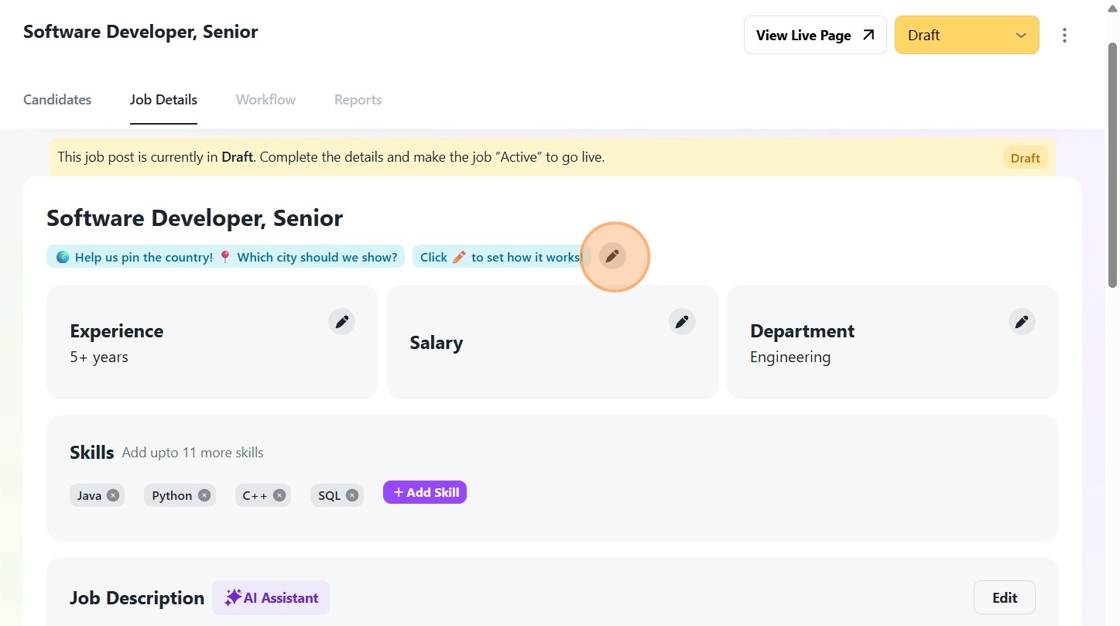
15. Now, specify the Country, City, and Job Mode from the drop-down options.
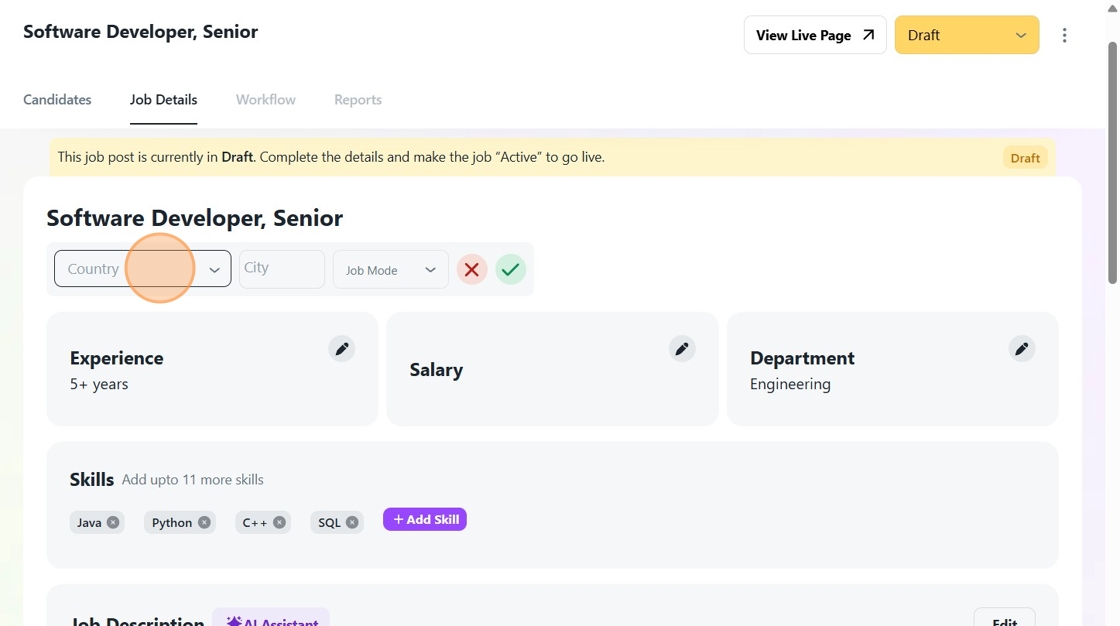
16. Once you have selected the relevant options, click here.
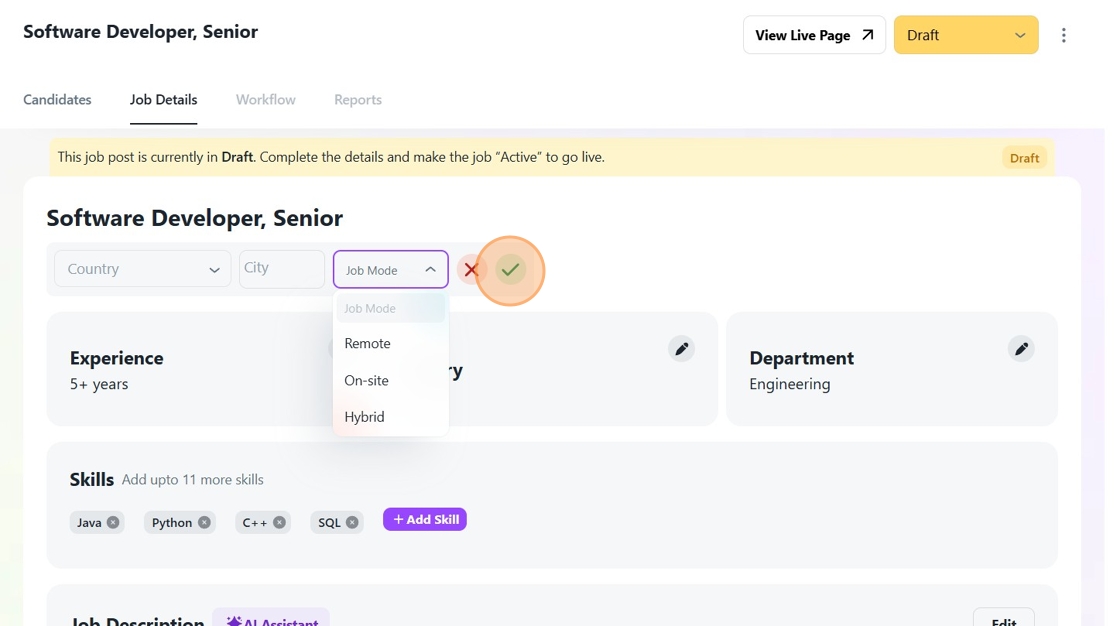
17. Now, customize the different parameters such as Experience, Salary, Department etc. for the role as per your requirements.
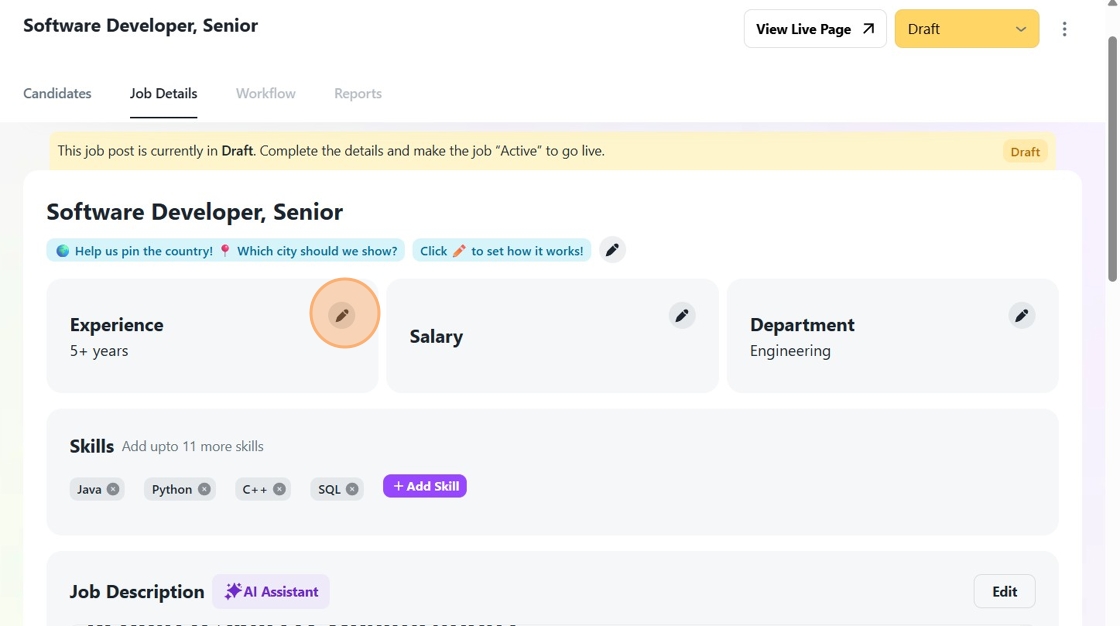
18. Click on the "Add Skill" button to add all the skills you desire in the candidate.
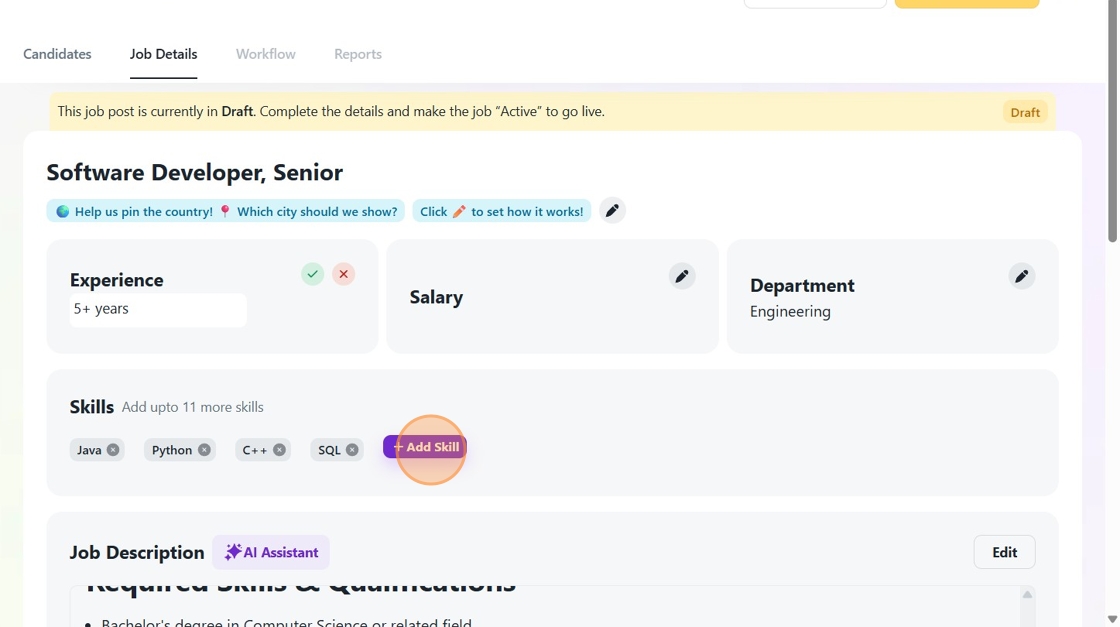
19. After you have selected all the skills, click here.
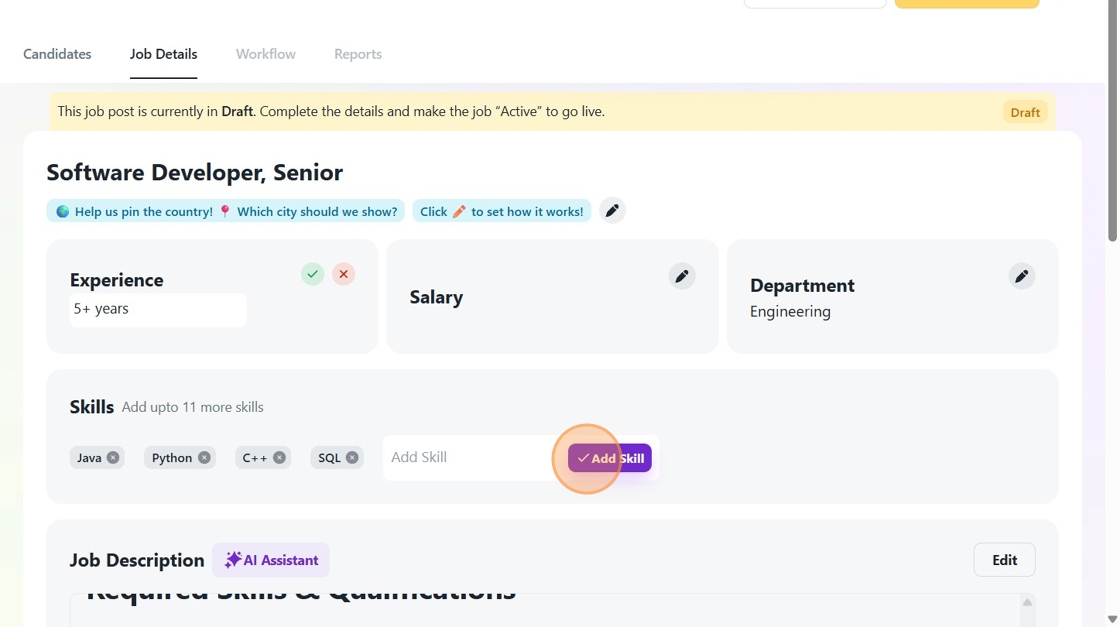
20. If you wish to make any changes in the Job Description, then click on the "Edit" button here.
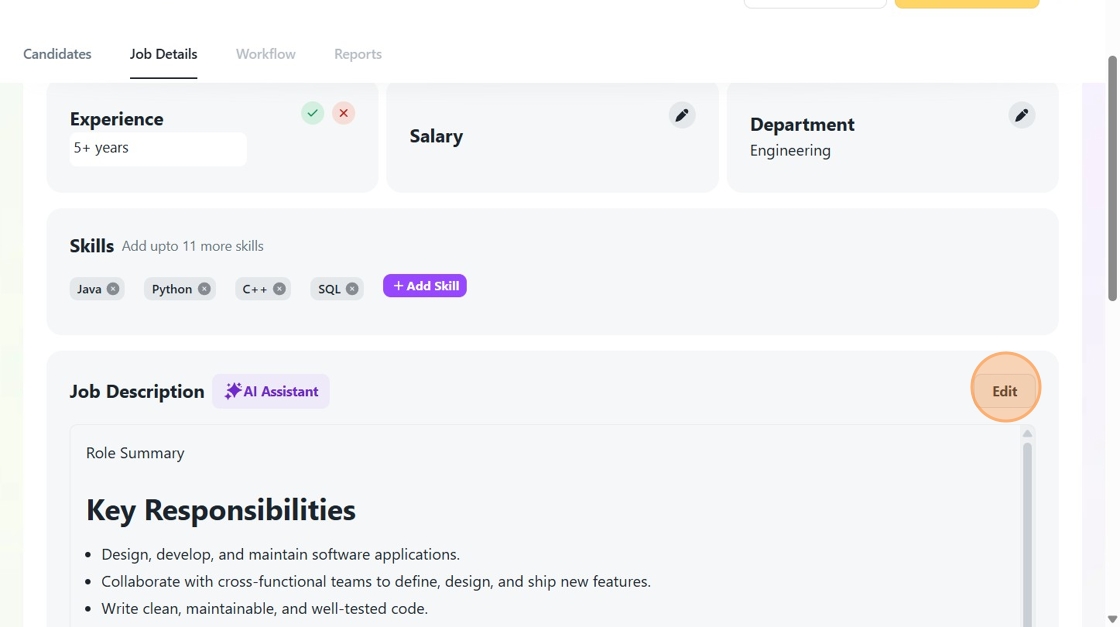
21. After you have made all the changes, click on the "Save" button.
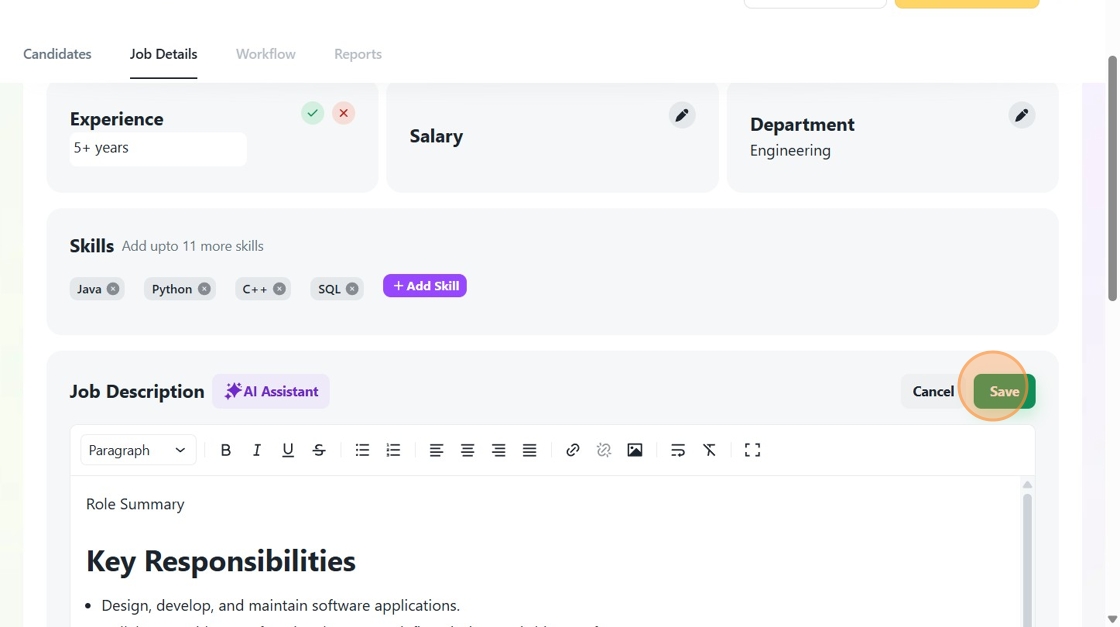
22. Now select all the applicable perks and benefits you wish to provide for the new role.
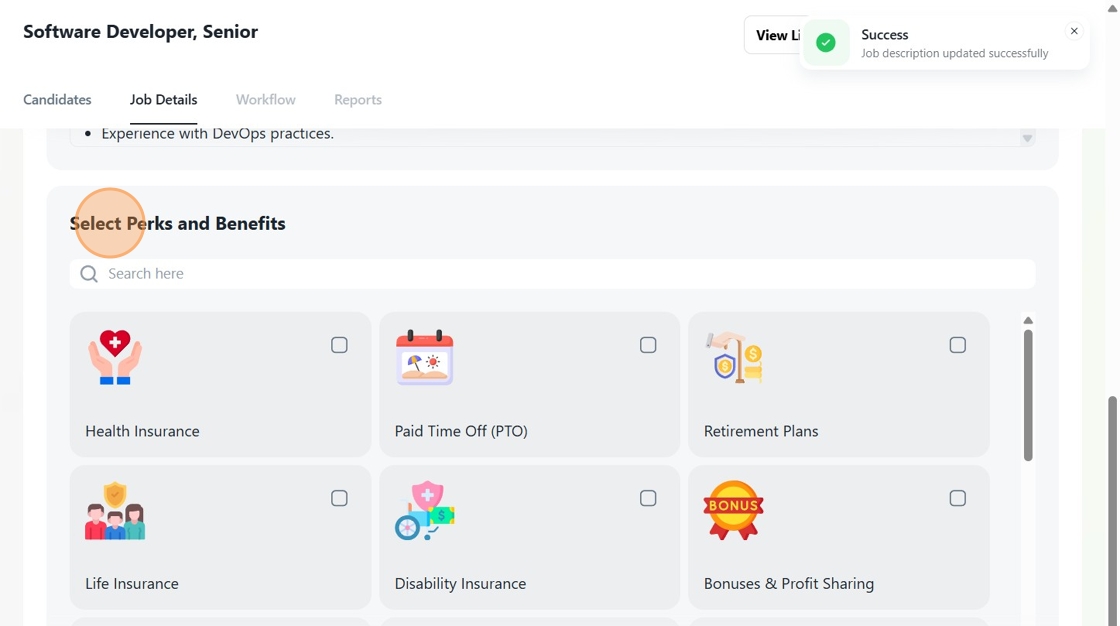
23. The job posting would automatically be saved as "Draft". To make the job post live, click here and select the "Active" option. You can also opt to pause or close the job post from this menu.
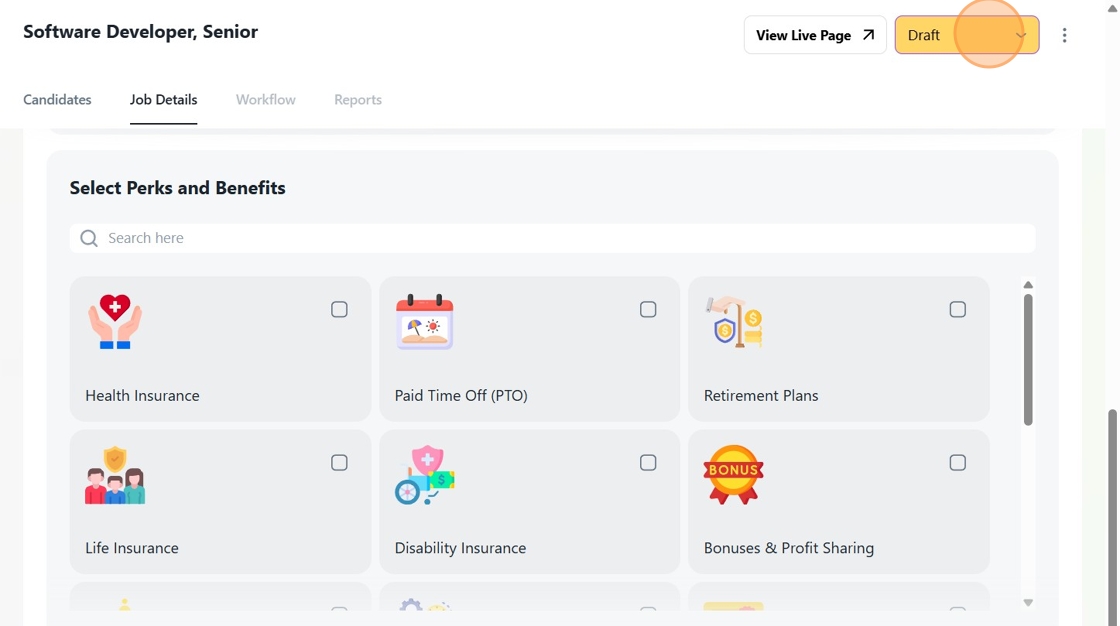
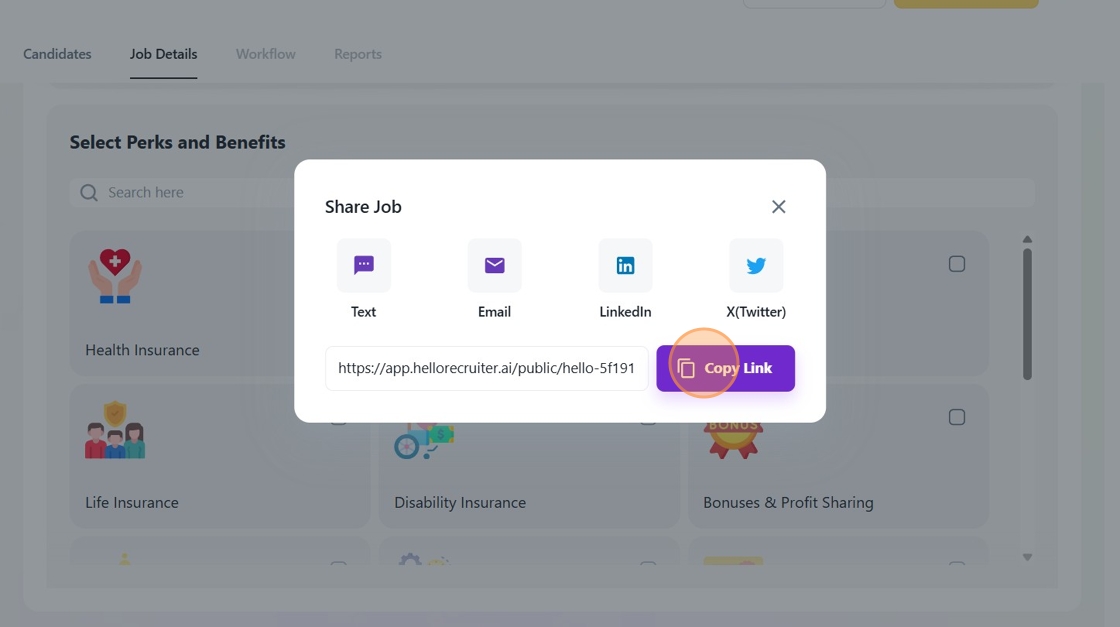
24. If you wish to view the live job post, click on the "View Live Page" button. Else, if you wish to share the job post, click on the Hamburger menu here.
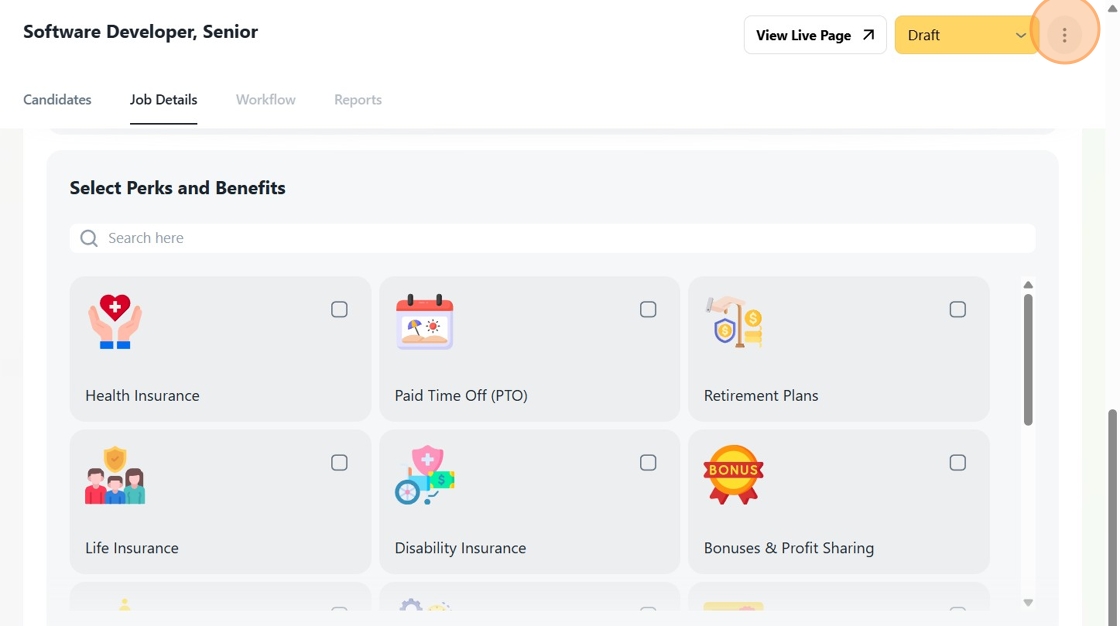
25. Click "Share"
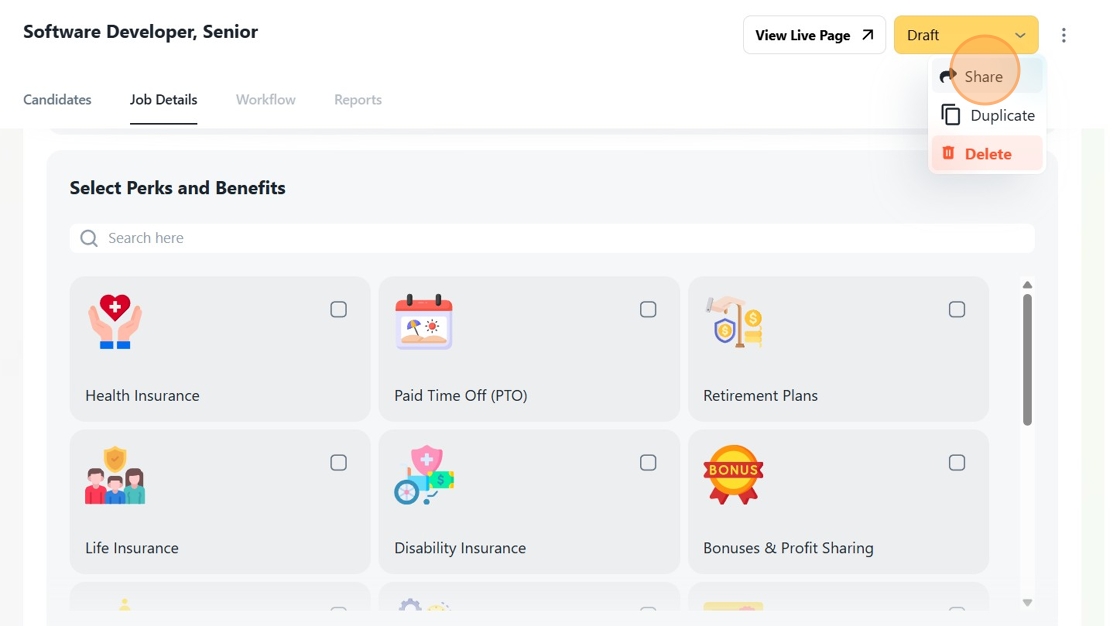
26. Select the platform you wish to share the job post from. If you need a link to the job, then click on the "Copy Link" button.