> ## Documentation Index
> Fetch the complete documentation index at: https://docs.hellorecruiter.ai/llms.txt
> Use this file to discover all available pages before exploring further.
# Customize Company Branding — Logo, Name & Career Page
> Upload your company logo, set your name, and customize your Hello Recruiter career page URL for a consistent employer brand.
**Who is this for?** Users with **Administrator** or **Account Owner** roles.
Make your career page and candidate communications feel authentically yours with Hello Recruiter's branding settings.
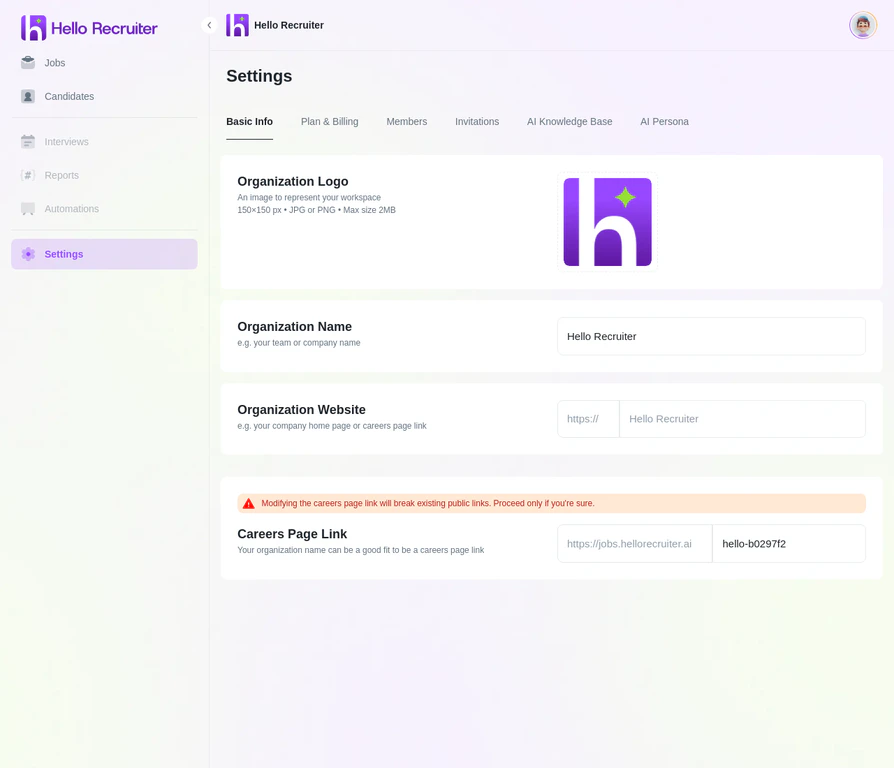 ## What You Can Customize
* **Company Logo** — Displayed on your career page and in candidate emails
* **Company Name** — Your organization's display name across the platform
* **Career Page URL** — Your custom slug (e.g., `jobs.yourcompany.com`)
## How to Update Branding
Navigate to **Settings** from the main sidebar.
Click **Basic Info** in the settings menu.
Click the logo upload area and select a high-resolution image. Recommended: PNG or SVG, at least 200x200 pixels.
Enter a custom slug for your public careers page.
Click **Save** to apply your branding across the platform.
**Consistency matters.** Use the same logo and colors as your main website. Candidates notice when branding feels disjointed — it can reduce trust and application completion rates.
## Related Guides
## What You Can Customize
* **Company Logo** — Displayed on your career page and in candidate emails
* **Company Name** — Your organization's display name across the platform
* **Career Page URL** — Your custom slug (e.g., `jobs.yourcompany.com`)
## How to Update Branding
Navigate to **Settings** from the main sidebar.
Click **Basic Info** in the settings menu.
Click the logo upload area and select a high-resolution image. Recommended: PNG or SVG, at least 200x200 pixels.
Enter a custom slug for your public careers page.
Click **Save** to apply your branding across the platform.
**Consistency matters.** Use the same logo and colors as your main website. Candidates notice when branding feels disjointed — it can reduce trust and application completion rates.
## Related Guides