> ## Documentation Index
> Fetch the complete documentation index at: https://docs.hellorecruiter.ai/llms.txt
> Use this file to discover all available pages before exploring further.
# Setting Up a Take-Home Assessment
> Add an AI-evaluated take-home coding assessment to a job, steer its focus and rubric, and review what candidates submit.
**Who is this for?** Users with **Administrator** and **Recruiter** roles.
A take-home assessment is a coding task a candidate completes on their own time, before an interview. The AI writes each candidate's problem statement, evaluates their submission once they upload it, and builds a scorecard for you to review — you don't grade anything by hand.
Want candidates to solve the problem with a provided AI coding assistant instead of entirely on their own? See [AI-Assisted Coding](/companies/jobs/ai-assisted-coding) — an optional add-on to the round described below, with a video walkthrough of the feature.
 ## Adding a Take-Home Round
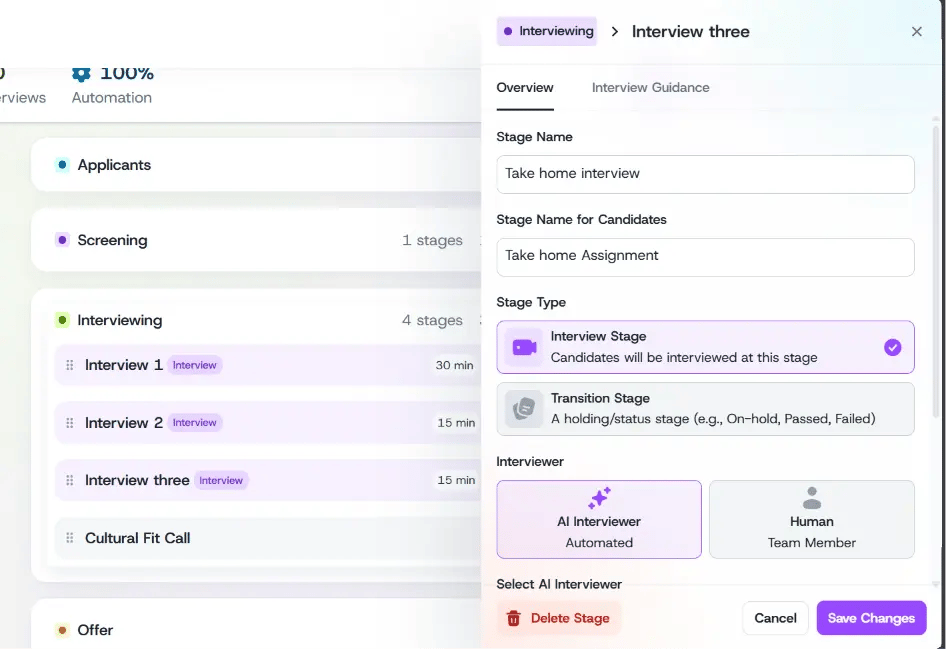
From the job's interview workflow, add a new round.
Select the take-home assessment round type.
Configure the **deadline** and **Interview Guidance Mode**. If [AI-Assisted Coding](/companies/jobs/ai-assisted-coding) is available on your account, you'll also see its toggle here.
## Adding a Take-Home Round
From the job's interview workflow, add a new round.
Select the take-home assessment round type.
Configure the **deadline** and **Interview Guidance Mode**. If [AI-Assisted Coding](/companies/jobs/ai-assisted-coding) is available on your account, you'll also see its toggle here.
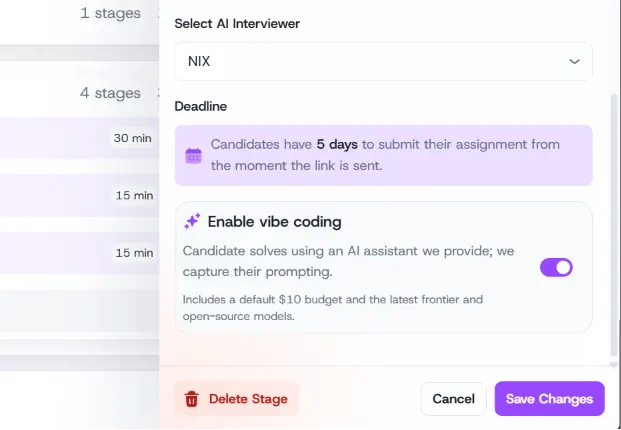 The deadline is currently fixed at **5 days** and isn't configurable per job. Resending an invitation resets it to a fresh 5-day window — it doesn't preserve the original one.
## Auto vs Guided Mode
Every take-home round has an **Interview Guidance Mode** with two options.
### Auto
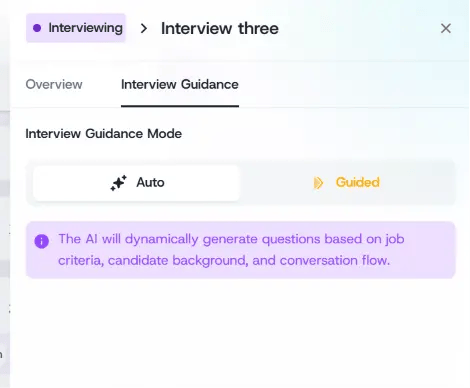
Leave this on and the AI builds the whole assessment for you — it writes the problem statement and the evaluation rubric directly from the job description and the evaluation criteria you've already set up. No extra input needed.
The deadline is currently fixed at **5 days** and isn't configurable per job. Resending an invitation resets it to a fresh 5-day window — it doesn't preserve the original one.
## Auto vs Guided Mode
Every take-home round has an **Interview Guidance Mode** with two options.
### Auto
Leave this on and the AI builds the whole assessment for you — it writes the problem statement and the evaluation rubric directly from the job description and the evaluation criteria you've already set up. No extra input needed.
 ### Guided
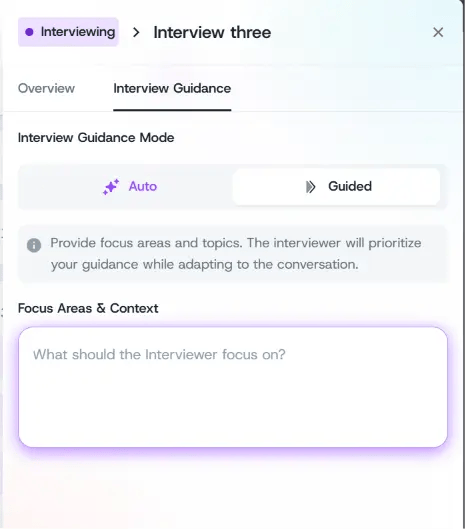
Switch to Guided and a free-text box appears for direction. Whatever you type becomes the AI's top-priority instruction — it reshapes the scenario, the rubric, and what the candidate is asked to submit.
### Guided
Switch to Guided and a free-text box appears for direction. Whatever you type becomes the AI's top-priority instruction — it reshapes the scenario, the rubric, and what the candidate is asked to submit.
 A few things worth keeping in mind when you write guidance:
* Call out the specific skill you care about most for the role, not just the general subject area
* Add any expectations that go beyond "does it run," if they matter for this role
* Reinforce seniority expectations if you want a different bar than what the AI infers from the job posting
Your guidance text is the strongest input into both the scenario and the rubric — stronger than the job description, which the AI only uses as background context.
## Every Candidate Gets a Unique Problem
* **Every candidate gets a different problem.** The AI writes a fresh scenario for each candidate applying to the same job, so candidates can't share or look up each other's answers.
* **But the bar stays the same for everyone.** The difficulty, the rubric, and what candidates need to submit stay identical across candidates for the same job — only the scenario or story around the problem changes.
## Shaping the Evaluation Rubric
The AI automatically builds an evaluation rubric for the take-home — you never have to write one from scratch. It's grouped into a small set of candidate-facing categories, generated from your evaluation criteria and your Guided-mode text.
There's no separate screen where you hand-edit these rubric groups directly. Instead, you shape the rubric in two ways:
1. **Your Guided-mode text** is the strongest lever — it shifts what the whole rubric weighs most heavily.
2. **Per-criterion instructions on the job's Evaluation tab.** Each criterion has its own free-text field, **"Guidance for Hello AI,"** treated as a strict, must-follow instruction when scoring that specific criterion. See [Evaluation Criteria](/companies/jobs/evaluation-criteria) for more on setting these up.
## What the Candidate Experiences
Candidates get an email invitation with a link, a deadline, and instructions — you don't need to walk them through it. They read the problem statement, solve it on their own machine, and upload a ZIP of their work.
See the [Take-Home Assessment](/candidates-guide/take-home-assessment) candidate guide for the full walkthrough.
## Reviewing a Submission
Once a candidate submits, open their profile and go to the **Interview** tab for the take-home round. You'll see an **Assessment Analysis** section with:
* **Problem Statement** — the task the candidate was given
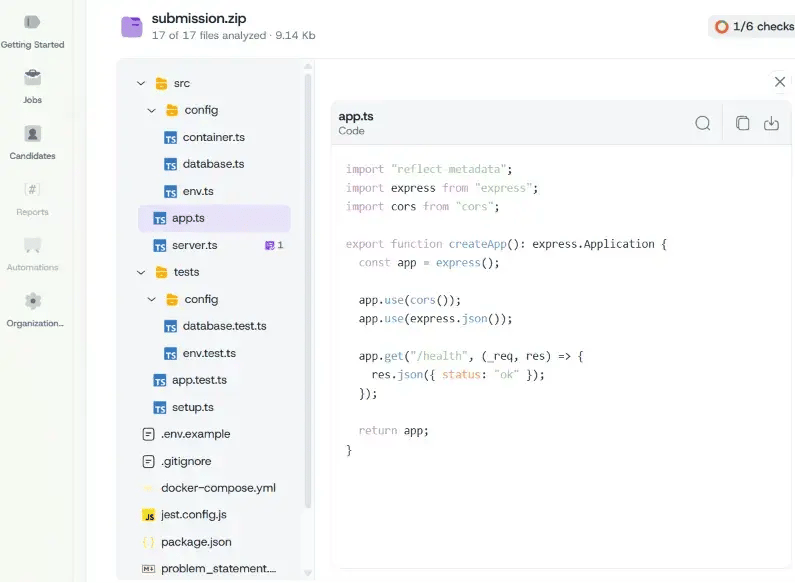
* **Submission Files** — their submitted files, with AI-highlighted evidence pinned to relevant code
A few things worth keeping in mind when you write guidance:
* Call out the specific skill you care about most for the role, not just the general subject area
* Add any expectations that go beyond "does it run," if they matter for this role
* Reinforce seniority expectations if you want a different bar than what the AI infers from the job posting
Your guidance text is the strongest input into both the scenario and the rubric — stronger than the job description, which the AI only uses as background context.
## Every Candidate Gets a Unique Problem
* **Every candidate gets a different problem.** The AI writes a fresh scenario for each candidate applying to the same job, so candidates can't share or look up each other's answers.
* **But the bar stays the same for everyone.** The difficulty, the rubric, and what candidates need to submit stay identical across candidates for the same job — only the scenario or story around the problem changes.
## Shaping the Evaluation Rubric
The AI automatically builds an evaluation rubric for the take-home — you never have to write one from scratch. It's grouped into a small set of candidate-facing categories, generated from your evaluation criteria and your Guided-mode text.
There's no separate screen where you hand-edit these rubric groups directly. Instead, you shape the rubric in two ways:
1. **Your Guided-mode text** is the strongest lever — it shifts what the whole rubric weighs most heavily.
2. **Per-criterion instructions on the job's Evaluation tab.** Each criterion has its own free-text field, **"Guidance for Hello AI,"** treated as a strict, must-follow instruction when scoring that specific criterion. See [Evaluation Criteria](/companies/jobs/evaluation-criteria) for more on setting these up.
## What the Candidate Experiences
Candidates get an email invitation with a link, a deadline, and instructions — you don't need to walk them through it. They read the problem statement, solve it on their own machine, and upload a ZIP of their work.
See the [Take-Home Assessment](/candidates-guide/take-home-assessment) candidate guide for the full walkthrough.
## Reviewing a Submission
Once a candidate submits, open their profile and go to the **Interview** tab for the take-home round. You'll see an **Assessment Analysis** section with:
* **Problem Statement** — the task the candidate was given
* **Submission Files** — their submitted files, with AI-highlighted evidence pinned to relevant code
 You'll also see the same requirement match, risks and concerns, and skill proficiencies sections shared by every interview round type, on the candidate's **Overview** tab.
If a candidate includes audio or video in their submission (a recorded pitch, for example), it's stored and viewable on their profile, but the AI doesn't analyze its content — only what's in their written files factors into the score.
## Related Guides
You'll also see the same requirement match, risks and concerns, and skill proficiencies sections shared by every interview round type, on the candidate's **Overview** tab.
If a candidate includes audio or video in their submission (a recorded pitch, for example), it's stored and viewable on their profile, but the AI doesn't analyze its content — only what's in their written files factors into the score.
## Related Guides