> ## Documentation Index
> Fetch the complete documentation index at: https://docs.hellorecruiter.ai/llms.txt
> Use this file to discover all available pages before exploring further.
# Job Lifecycle & Statuses — Draft, Active, Paused, and Closed
> Understand how jobs move through Draft, Active, Paused, and Closed statuses in Hello Recruiter and when candidates can apply.
Every job in Hello Recruiter follows a lifecycle from creation to closure.
## Job Statuses
| Status | What It Means | Candidate Impact |
| ---------- | --------------------------------------------------- | --------------------------------------------------------------------------- |
| **Draft** | Job is being configured, not visible to candidates | No applications accepted |
| **Active** | Job is live and accepting applications | Candidates can apply and interview |
| **Paused** | Job is temporarily on hold, hidden from career page | No new applications accepted; in-progress interviews can still be completed |
| **Closed** | Hiring complete, job archived | Removed from career page |
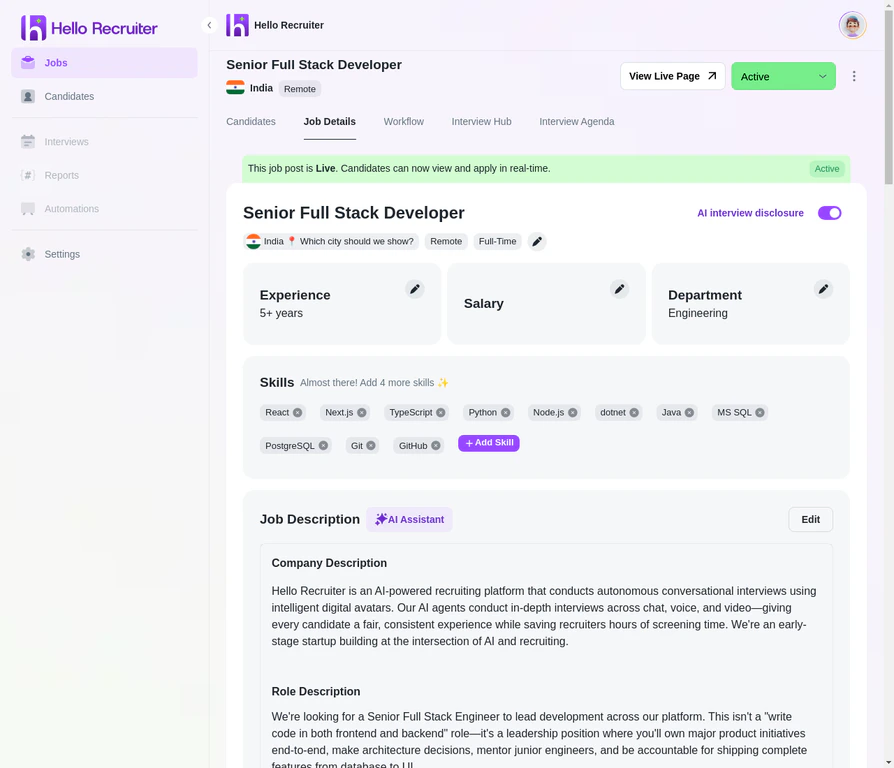 ## Publishing and Sharing
When you change a job's status to **Active**:
* It becomes visible on your company's career page
* A unique job URL is generated that you can share anywhere
* Candidates can begin applying and completing AI interviews
## Pausing a Job
When you need to temporarily stop accepting new applicants without closing the role entirely:
* The job is **hidden from your career page** — no new candidates can find or apply to it
* **In-progress interviews continue** — candidates who have already received an invitation can still complete their interview
* **All existing data is preserved** — scorecards, candidate profiles, and pipeline status remain unchanged
* You can **resume the job at any time** by switching the status back to Active
**When to pause vs. close.** Pause when you expect to resume hiring soon — for example, if you're catching up on a backlog of candidates, waiting on budget approval, or the hiring manager is on leave. Close when the role is filled or you've decided not to hire for it.
## Closing a Job
When you're done hiring for a role:
* The job is removed from your public career page
* Candidates can no longer apply
* Pending interview invitations expire
* All candidate data, evaluations, and insights are archived and remain accessible
**Keep your career page tidy.** Promptly close or pause jobs that aren't actively hiring. This creates a better experience for job seekers and ensures your active listings are always accurate.
## Status Transitions
Not all status changes are available from every state. Here's what you can do from each:
| From | Can Change To |
| ---------- | ---------------- |
| **Draft** | Active |
| **Active** | Paused, Closed |
| **Paused** | Active, Closed |
| **Closed** | Active (re-open) |
**Re-opening a closed job** brings it back to Active status and makes it visible on your career page again. All previous candidate data is still attached. New candidates can apply alongside the existing pipeline.
## Related Guides
## Publishing and Sharing
When you change a job's status to **Active**:
* It becomes visible on your company's career page
* A unique job URL is generated that you can share anywhere
* Candidates can begin applying and completing AI interviews
## Pausing a Job
When you need to temporarily stop accepting new applicants without closing the role entirely:
* The job is **hidden from your career page** — no new candidates can find or apply to it
* **In-progress interviews continue** — candidates who have already received an invitation can still complete their interview
* **All existing data is preserved** — scorecards, candidate profiles, and pipeline status remain unchanged
* You can **resume the job at any time** by switching the status back to Active
**When to pause vs. close.** Pause when you expect to resume hiring soon — for example, if you're catching up on a backlog of candidates, waiting on budget approval, or the hiring manager is on leave. Close when the role is filled or you've decided not to hire for it.
## Closing a Job
When you're done hiring for a role:
* The job is removed from your public career page
* Candidates can no longer apply
* Pending interview invitations expire
* All candidate data, evaluations, and insights are archived and remain accessible
**Keep your career page tidy.** Promptly close or pause jobs that aren't actively hiring. This creates a better experience for job seekers and ensures your active listings are always accurate.
## Status Transitions
Not all status changes are available from every state. Here's what you can do from each:
| From | Can Change To |
| ---------- | ---------------- |
| **Draft** | Active |
| **Active** | Paused, Closed |
| **Paused** | Active, Closed |
| **Closed** | Active (re-open) |
**Re-opening a closed job** brings it back to Active status and makes it visible on your career page again. All previous candidate data is still attached. New candidates can apply alongside the existing pipeline.
## Related Guides