> ## Documentation Index
> Fetch the complete documentation index at: https://docs.hellorecruiter.ai/llms.txt
> Use this file to discover all available pages before exploring further.
# AI-Assisted Coding for Take-Home Assessments
> Give candidates a provided AI coding assistant during their take-home assessment, and review how they worked with it — not just their final code.
**Who is this for?** Users with **Administrator** and **Recruiter** roles.
AI-Assisted Coding is an add-on to the [Take-Home Assessment](/companies/jobs/take-home-assessment) round — it's sometimes called **"vibe coding"** informally, if you've heard that term. Instead of candidates working entirely on their own, they're given an AI coding assistant, and the AI evaluates how they worked with it, not just the code they ended up with.
Curious what the setup looks like from the candidate's side? The [candidate guide](/candidates-guide/ai-assisted-coding) has its own walkthrough video and the full setup instructions.
## Enabling It
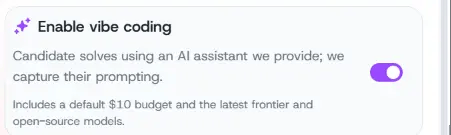
If available on your account, you'll see an **AI-Assisted Coding** toggle on the take-home round settings (see [Adding a Take-Home Round](/companies/jobs/take-home-assessment#adding-a-take-home-round)). Turning this on means:
* The candidate is given a provided AI coding assistant, instead of working entirely on their own
* Their AI conversation is recorded alongside their submitted files
* You get insight into **how** they used AI to solve the problem, not just the code they ended up with
* Each candidate gets a default AI usage budget
**When to use it.** AI-assisted coding is best for technical/engineering roles, where a candidate's real-world workflow with AI tools is part of the job. It's not intended for non-technical roles.
If you don't see this toggle, it hasn't been turned on for your account yet — contact your Hello Recruiter representative if you'd like it enabled.
## How It Changes the Rubric
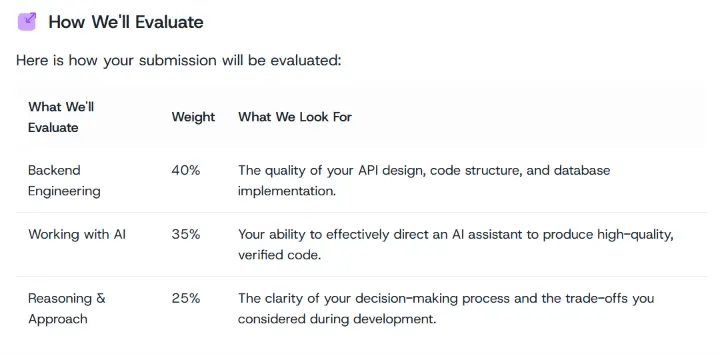
When this mode is on, the AI's auto-generated rubric (see [Shaping the Evaluation Rubric](/companies/jobs/take-home-assessment#shaping-the-evaluation-rubric)) adds a category covering how the candidate worked with the assistant, alongside your job's usual criteria:
## What the Candidate Sets Up
Candidates choose between an **automatic setup** (one command installs the assistant, their AI credential, and the problem statement) or a **manual setup** if they'd rather not run a script — both are covered in detail in the [candidate guide](/candidates-guide/ai-assisted-coding). You don't need to walk them through it; their assignment page includes the full walkthrough and the video above.
## Reviewing an AI-Assisted Submission
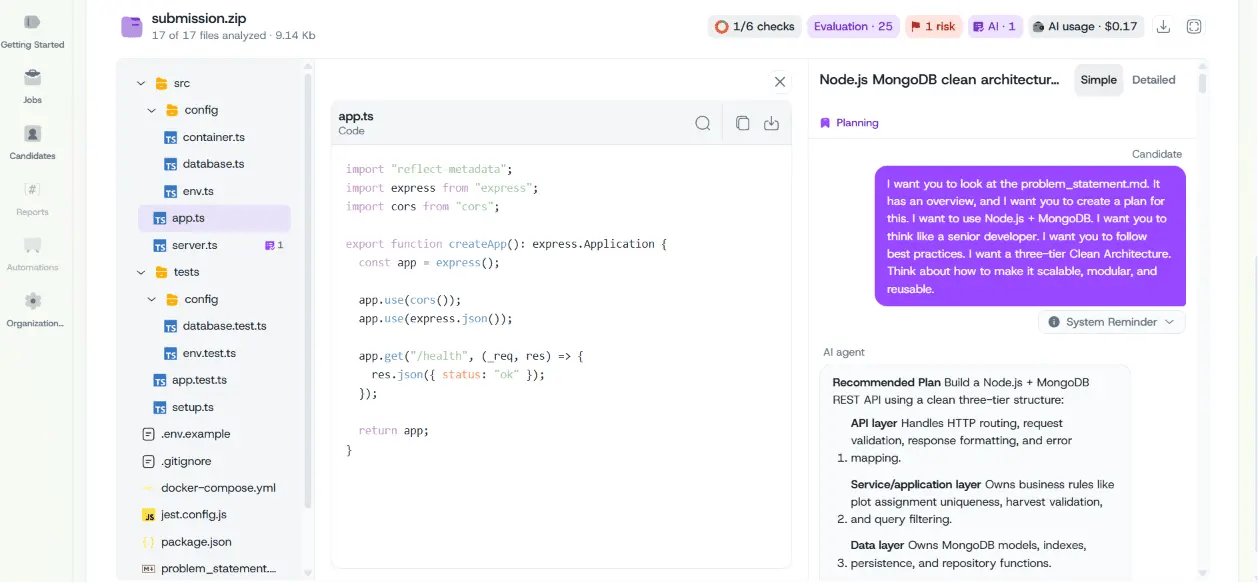
Once a candidate submits, open their profile and go to the **Interview** tab for the take-home round. Alongside the problem statement and submitted files, you'll see a **Prompting Session** — a transcript of the candidate's conversation with the AI assistant, including each turn, tool calls, model switches, and a timeline of the session.
## Understanding the Results
For AI-assisted submissions, the AI evaluates the candidate across two things:
1. **Their code** — same as a standard take-home: does it solve the problem, does it meet the requirements, is it well-built
2. **How they worked with AI** — shown alongside the candidate's other skill proficiencies on the **Overview** tab: how clearly they directed the assistant and how well they checked and corrected its output, rather than accepting everything it produced
You'll also see the same requirement match, risks and concerns, and skill proficiencies sections shared by every interview round type.
Risk signals raised during an AI-assisted take-home (like flagged prompt-injection or policy-violating content in a submission) don't reject a candidate automatically — review the evidence and use your judgment, the same as any other round. See [Risk Signals](/companies/candidates/risk-signals).
## Related Guides
 ## What the Candidate Sets Up
Candidates choose between an **automatic setup** (one command installs the assistant, their AI credential, and the problem statement) or a **manual setup** if they'd rather not run a script — both are covered in detail in the [candidate guide](/candidates-guide/ai-assisted-coding). You don't need to walk them through it; their assignment page includes the full walkthrough and the video above.
## Reviewing an AI-Assisted Submission
Once a candidate submits, open their profile and go to the **Interview** tab for the take-home round. Alongside the problem statement and submitted files, you'll see a **Prompting Session** — a transcript of the candidate's conversation with the AI assistant, including each turn, tool calls, model switches, and a timeline of the session.
## What the Candidate Sets Up
Candidates choose between an **automatic setup** (one command installs the assistant, their AI credential, and the problem statement) or a **manual setup** if they'd rather not run a script — both are covered in detail in the [candidate guide](/candidates-guide/ai-assisted-coding). You don't need to walk them through it; their assignment page includes the full walkthrough and the video above.
## Reviewing an AI-Assisted Submission
Once a candidate submits, open their profile and go to the **Interview** tab for the take-home round. Alongside the problem statement and submitted files, you'll see a **Prompting Session** — a transcript of the candidate's conversation with the AI assistant, including each turn, tool calls, model switches, and a timeline of the session.
 ## Understanding the Results
For AI-assisted submissions, the AI evaluates the candidate across two things:
1. **Their code** — same as a standard take-home: does it solve the problem, does it meet the requirements, is it well-built
2. **How they worked with AI** — shown alongside the candidate's other skill proficiencies on the **Overview** tab: how clearly they directed the assistant and how well they checked and corrected its output, rather than accepting everything it produced
You'll also see the same requirement match, risks and concerns, and skill proficiencies sections shared by every interview round type.
## Understanding the Results
For AI-assisted submissions, the AI evaluates the candidate across two things:
1. **Their code** — same as a standard take-home: does it solve the problem, does it meet the requirements, is it well-built
2. **How they worked with AI** — shown alongside the candidate's other skill proficiencies on the **Overview** tab: how clearly they directed the assistant and how well they checked and corrected its output, rather than accepting everything it produced
You'll also see the same requirement match, risks and concerns, and skill proficiencies sections shared by every interview round type.