> ## Documentation Index
> Fetch the complete documentation index at: https://docs.hellorecruiter.ai/llms.txt
> Use this file to discover all available pages before exploring further.
# Navigating the Hello Recruiter Dashboard & Key Features
> Explore the Hello Recruiter dashboard — access jobs, candidates, AI interview settings, and hiring analytics from one workspace.
Your Hello Recruiter workspace is the command center for all your hiring activities.
 ## Main Navigation
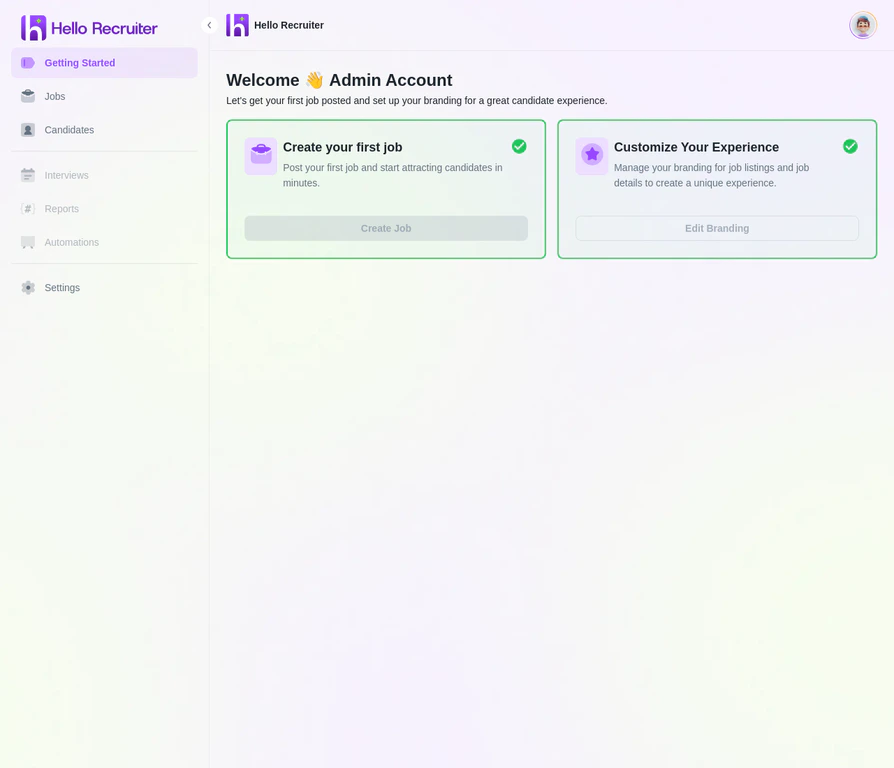
The primary navigation menu is always accessible on the left-hand side of your screen.
Your landing page after logging in. Provides quick access to creating your first job and customizing your branding.
View all your job openings, their statuses (Active, Closed, Draft), and create new roles.
Browse all applicants across all your jobs, filter by status, and dive into individual candidate profiles.
Configure your organization, team members, AI knowledge base, AI persona, and billing.
## Key Actions
From anywhere in the app, you can quickly:
* **Create a new job** by navigating to the **Jobs** section and clicking **+ Create New Job**.
* **View the candidate pipeline** by selecting any active job to see its applicant list.
* **Access AI insights** by clicking into any completed interview for scorecards and evaluations.
* **Manage your team** through **Settings** → **Members**.
## Related Articles
## Main Navigation
The primary navigation menu is always accessible on the left-hand side of your screen.
Your landing page after logging in. Provides quick access to creating your first job and customizing your branding.
View all your job openings, their statuses (Active, Closed, Draft), and create new roles.
Browse all applicants across all your jobs, filter by status, and dive into individual candidate profiles.
Configure your organization, team members, AI knowledge base, AI persona, and billing.
## Key Actions
From anywhere in the app, you can quickly:
* **Create a new job** by navigating to the **Jobs** section and clicking **+ Create New Job**.
* **View the candidate pipeline** by selecting any active job to see its applicant list.
* **Access AI insights** by clicking into any completed interview for scorecards and evaluations.
* **Manage your team** through **Settings** → **Members**.
## Related Articles